Grupos de Nós
Example of a node group.
Agrupar nós pode simplificar um árvore de nós ao permitir instanciar e ocultar partes da árvore. Tanto nós de materiais e de composição podem ser agrupados.
Conceptually, grouping nodes allows you to specify a set of nodes that you can treat as though it were «just one node». Node groups are similar to functions in programming, they can be reused in many places in a node tree and can be customized by changing the «parameters» of the node group.
Por exemplo: Se você criou um material que você gostaria de usar com diferentes entradas por ex. cor difusa: plástico vermelho, plástico verde. Você poderia criar diferentes materiais com Fazer Usuário Único para cada cor diferente com uma cópia da árvore descrevendo o material plástico. Se você quiser editar o material você iria precisar refazer a edição em todos os materiais. Um método melhor de reuso é criar grupos de nós, expondo apenas as entradas variáveis (por ex. cor difusa).
Também grupos de nós aninhados são suportados. Isto é, um grupo de nós pode ser inserido ou criado dentro de outro grupo de nós.
Nota
Grupos de nós recursivos são proibidos para todo o sistema de nós atual para prevenir recursão infinita. Um grupo de nós nunca pode conter ele mesmo (ou outro grupo que o contém).
Criar Grupo
Referência
- Modo
Todos Modos
- Menu
- Atalho
Ctrl-G
To create a node group, select the nodes you want to include, then press Ctrl-G, . A node group will have a green title bar. All of the selected nodes will now be contained within the node group. Default naming for the node group is «NodeGroup», «NodeGroup.001» etc. There is a name field in the node group you can click into to change the name of the group. Change the name of the node group to something meaningful. When appending node groups from one blend-file to another, Blender does not make a distinction between material node groups or composite node groups, so it is recommended to use some naming convention that will allow you to easily distinguish between the two types.
Dica
What not to include in node groups:
Lembre que a ideia essencial é que o grupo deve ser um componente de software de fácil reuso, auto contido. Grupos de nós de material não deveriam incluir:
- Nós de Entrada
If you include a source node in your group, you will end up having the source node appearing twice: once inside the group, and once outside the group in the new material node tree.
- Nó de Saída
Se você incluir um nó de saída no grupo, não haverá um soquete de saída disponível a partir do grupo!
Editar Grupo
Referência
- Modo
Todos Modos
- Menu
- Cabeçalho
- Atalho
Tab, Ctrl-Tab
With a node group selected, Tab expands the node to a frame, and the individual nodes within it are shown. You can move them around, play with their individual controls, re-thread them internally, etc. just like you can if they were a normal part of the editor view. You will not be able, though, to thread them to a node outside the group; you have to use the external sockets on the side of the node group. While Tab can be used to both enter and exit a group, Ctrl-Tab only exits.

Example of an expanded node group.
Interface
Interativamente
Quando um grupo de nó é criado, novos nós Entrada de Grupo e Saída de Grupo são gerados para representar o fluxo de dados entrando e saindo do grupo. Quando criado, conexões para soquetes de entrada partindo de nós não selecionados irão ser associados a novos soquetes no nó Entrada de Grupo. Similarmente, conexões de saída para soquetes de entrada de nós não selecionados irão ser associados ao novo nó Saida de Grupo.
Se durante o desenvolvimento dos nós do grupo um parâmetro adicional precisa ser passado ao grupo, um soquete adicional precisa ser adicionado ao nó Entrada de Grupo. Isso é feito facilmente adicionando uma conexão a partir do soquete oco do lado direito do nó Entrada de Grupo para o soquete de entrada desejado no nó exigindo entrada. O processo é similar para a Saída de Grupo em relação aos dados que você queira tornar disponível fora do grupo.
Painel
Referência
- Modo
Todos Modos
- Painel
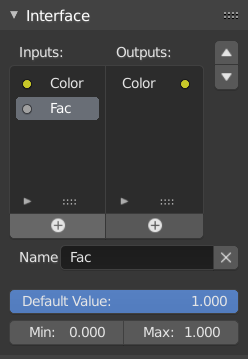
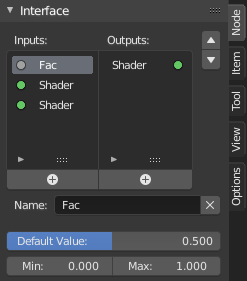
The interface panel for editing groups.
Soquetes podem ser adicionados, re-ordenados, ou removidos, nomes descritivos podem ser adicionados e detalhes dos dados de entrada são definidos aqui.
If you have multiple inputs or outputs, they can be re-ordered by selecting the socket in the list and then moving it up or down with the arrow buttons on the right side of the panel. The larger plus sign buttons below the list will add an unconnected socket of the same type as the selected socket or a value socket if there is no selection. The triangle at the bottom of the list has filtering functions to facilitate finding nodes if the group has a large number of sockets.
Desagrupar
Referência
- Modo
Todos Modos
- Menu
- Atalho
Ctrl-Alt-G
The Ctrl-Alt-G tool removes the group and places the individual nodes into your editor workspace. No internal connections are lost, and now you can thread internal nodes to other nodes in your workspace.
- Separate P
Separate selected nodes from the node group.
- Copy
Copy to parent node tree, keep group intact.
- Move
Move to parent node tree, remove from group.
Inserir no grupo
Referência
- Modo
Todos Modos
- Menu
Selecting a set of nodes, ending with the destination group node, and pressing will move those nodes into that group. The moved nodes are collected into a group of their own to preserve their connection context, having their own group input and output nodes. The group’s existing input and output nodes are updated with new sockets, if any, from the new nodes. The node group must be edited to contain a single Group Input and a single Group Output node.
Anexando Grupos de Nós
Referência
- Editor
Topbar
- Modo
Todos Modos
- Menu
Once you have appended a Node Tree to your blend-file, you can make use of it in a node editor by pressing Shift-A, , then selecting the appended group. The «control panel» of the Group include the individual controls for the grouped nodes. You can change them by working with the Group node like any other node.