Cabeçalho das restrições
Cada restrição possui um cabeçalho. Os elementos da interface do cabeçalho são explicados abaixo usando uma restrição do tipo Copiar posicionamento como exemplo.
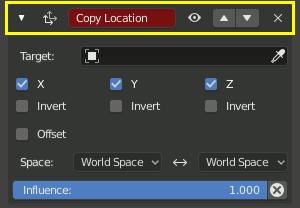
O cabeçalho fica no topo do painel de cara restrição.
- Expand (down/right arrow icon)
Show or Hide the settings of the constraint. Tidy up the constraint stack by hiding constraints that do not currently need attention. Constraints will continue to affect the scene even when hidden.
- Icon
The constraint type icon.
- Name
Give the constraint a meaningful name in this text field, which describes its purpose. Meaningful names help you and your team members understand what each constraint is supposed to do.
The red background is a warning that the constraint is not yet functional. The background will turn gray when the constraint is functioning. When this Copy Location constraint has a valid target in the target field it will turn gray and begin to function.
- Mute (eye icon)
Enable or Disable the constraint. Disabling a constraint will stop its affect on the scene.
Disabling a constraint is useful for turning off a constraint without losing all of its settings. Disabling means you can enable the constraint at a later time with the settings intact. Disabling is similar to setting the Influence to 0.0.
- Delete
XX, Delete Apaga a restrição a partir da pilha. As definições serão perdidas. A restrição não irá mais afetar o resultado final das calculações da pilha.
- Move
:::: Move a constraint up or down in the constraint stack. Since the stack is evaluated from top to bottom, moving a constraint in the stack can significantly affect the final outcome of the stack.
If there is only one constraint in the stack, the arrows will not be displayed.
If the constraint is at the top of the stack, only the down arrow will be displayed.
If the constraint is at the bottom of the stack, only the up arrow will be displayed.