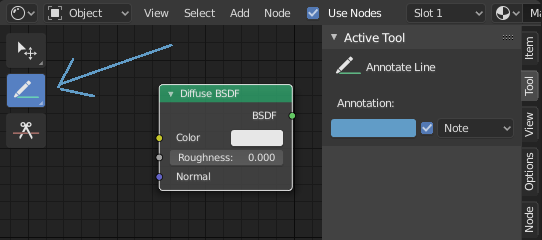
Annotate Tool
The annotation tool is available in multiple editors. It can be used to add notes to e.g. 3D objects or node setups.
The annotation tool can be activated in the Toolbar on the left side. It has a couple of sub-tools listed below.
- Annotate
Draw free-hand strokes in the main area.
- Annotate Line
Click and drag to create a line. Optionally, you can select the arrow style for the start and end of the line.
- Annotate Polygon
Click multiple times to create multiple connected lines. The current polygon is finished when Esc is pressed.
- Style Start, End
The decoration to use at the beginning or end of the line segment. This can be used for example to create arrows to point out specific details in a scene.
- Annotate Eraser
Click and drag to remove lines. The eraser has a Radius setting found in .
Configurações
Common
There is a panel, , in it multiple annotation layers can be managed.
- Color
Adjusts the color of existing and new strokes.
- Opacidade
Adjusts the opacity of existing and new strokes.
- Espessura
Ajusta a espessura das pinceladas existentes e novas.
- Onion Skin
Mostra uma imagem fantasmagórica de traçados feitos em frames antes e depois do frame atual. Onion skinning só funciona no Viewport 3D e Sequencer. Veja a documentação do Grease Pencil para uma explicação do Onion Skinning.
- Stabilize Stroke
Helps to reduce jitter of the strokes while drawing by delaying and correcting the location of points.
- Raio
Distância mínima do último ponto antes que o stroke continua.
- Fator
Um fator de suavização, onde valores maiores resultam em strokes mais suaves mas a sensação ao desenhar é como se você estivess puxando o stroke.
3D Editor
When creating new annotations in the 3D Viewport, there is one tool setting.
- Posicionamento
The Placement option determines where the line is drawn in 3D space.
- Cursor 3D
Draw on an imaginary plane that goes through the 3D cursor and is aligned to your view.
- View
Draw in screen space instead of in 3D space. That means, that the line will stay on the same position in the screen, even when the camera moves or rotates.
- Superfície
Project the line on the surface under the mouse.