Blender 3.2 Manual Logo

Polazna tačka

  • Uvodna reč
  • Instaliranje Blendera
  • Prilagođavanje Blendera
  • Pomoć i dokumentacija

Sections

  • Korisnički interfejs
    • Sistem okna
    • Keymap
    • Aparatura
      • Dugmad i prekidači
      • Složeni upravljači
        • Data-Block Menu
        • List View
        • Color Picker
        • Color Ramp Widget
        • Color Palette
        • Curve Widget
        • Search
        • Nodes
          • Introduction
          • Node Parts
          • Selecting
          • Arranging Nodes
          • Editing
          • Sidebar
            • Node
              • Node
                • Color
              • Properties
            • Tool
              • Active Tool
            • View
              • Annotations
          • Node Groups
          • Frame Node
          • Reroute Node
    • Tools & Operators
  • Montažeri
  • Scenes & Objects
  • Modeling
  • Sculpting & Painting
  • Grease Pencil
  • Animation & Rigging
  • Physics
  • Rendering
  • Compositing
  • Motion Tracking & Masking
  • Video Editing
  • Assets, Files, & Data System
  • Add-ons
  • Advanced
  • Troubleshooting
  • Glossary

Get Involved

  • Contribute Documentation
Blender 3.2 Manual
  • »
  • Korisnički interfejs »
  • Nodes »
  • Sidebar

Sidebar

Node

Pregled

Panel

Sidebar ‣ Node

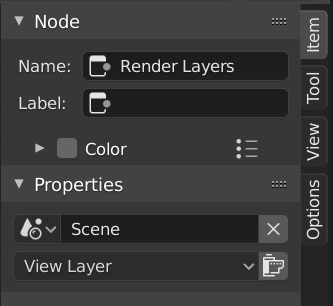
../../../_images/interface_controls_nodes_sidebar_item.png

Node tab with a compositing Render Layers node selected.

Node

Naziv

A unique node identifier inside this node tree.

Label

Nodes can be given a title by modifying the text field.

Color

By default, the nodes background color is defined by the user theme. This color can be overridden by selecting a custom color in this panel. Custom node colors can be used to provide a visual cue to help distinguish some nodes from others. In the panel header, colors can be saved as a preset for reuse in other nodes or other projects.

Color

Color of the node background.

Node Color Specials

This menu contains Operators for working with nodes with custom colors.

Copy Color

Copies the color of the Active node and applies it to all selected nodes.

Properties

The properties that are shown depend on the type of node selected, e.g. a Mix node has different properties than a Mask node.

Tool

Pregled

Panel

Sidebar region ‣ Tool

Active Tool

The info in this panel changes with the selected tool.

View

Pregled

Panel

Sidebar region ‣ View

Annotations

You can select the Annotate tool in the Toolbar to make annotations in the node editor. See Annotate Tool for more info.

Previous Next

© Copyright : This page is licensed under a CC-BY-SA 4.0 Int. License. Last updated on 08/29/2022.

  • Edit Page
  • Report issue on this page
  • 3.2
    Versions
    • Loading...
  • sr
    Languages
    • Loading...