Lựa Chọn (Selecting)
By default Blender uses the LMB to select items in the Blender window. Alternatively, the RMB can be used instead by changing the Preferences. Blender has several selecting tools that can be used across the different editors.
Công Cụ lựa chọn (Selection Tools)
Hiệu Chỉnh (Tweak)
Tham Chiếu (Reference)
- Tổ Hợp Phím Tắt (Shortcut)
LMB
Clicking on an item selects it, using modifier keys you can perform other operations. Holding the selection and moving the mouse on interactive items such as objects in the 3D Viewport or keyframes in an animation editor will general move the item with the mouse.
Khoanh Vùng Chọn Hình Hộp (Box Select)
Tham Chiếu (Reference)
- Trình Đơn (Menu)
- Tổ Hợp Phím Tắt (Shortcut)
B
To activate the tool, press B or click and drag LMB. With Select Box you draw a rectangle while holding down LMB. Any item that lies even partially within this rectangle becomes selected. If any item that was last active appears in the selection it will become active.
For deselecting items, use MMB, or Shift-LMB. To move the selection area hold Ctrl-Spacebar while moving the cursor.
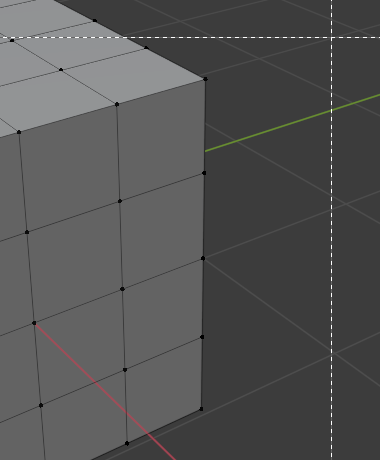
Khởi Đầu. |
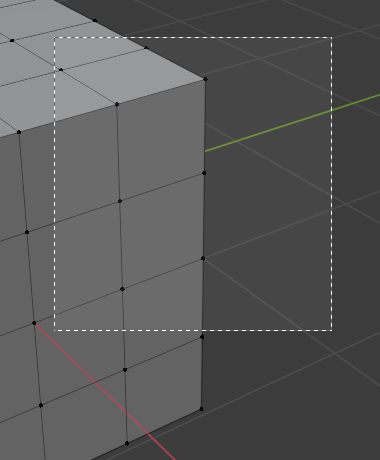
Lựa Chọn. |
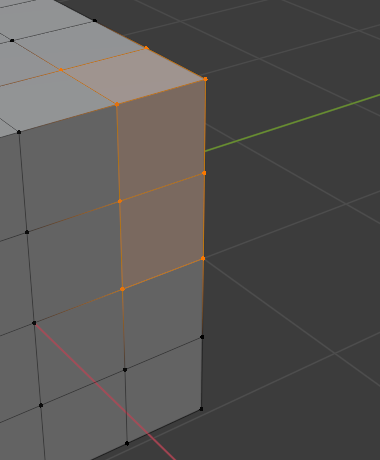
Hoàn Thành. |
Lựa Chọn bằng Vòng Tròn (Circle Select)
Tham Chiếu (Reference)
- Trình Đơn (Menu)
- Tổ Hợp Phím Tắt (Shortcut)
C
Circle Select C allows you to select multiple items within a circular area. Move your mouse over any items within the circular area (shown with a dotted circle) while holding LMB to select those items. Alternatively, use MMB to deselect them. When you are done selecting, press RMB or Esc. To change the diameter of the circle, scroll with the Wheel or use the NumpadPlus and NumpadMinus keys.

Khởi Đầu. |
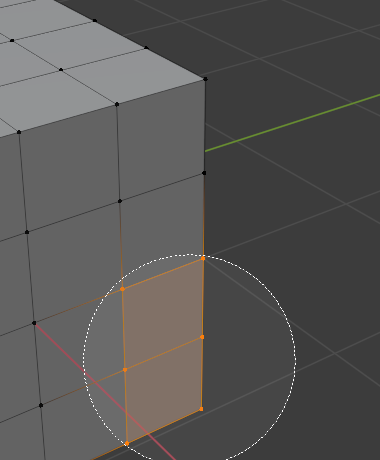
Lựa Chọn. |

Kéo Rê. |
Ghi chú
In Object Mode the Circle Select operates on objects by their origins.
Lựa Chọn bằng Dây Thòng Lọng (Lasso Select)
Tham Chiếu (Reference)
- Tổ Hợp Phím Tắt (Shortcut)
Ctrl-RMB
Lasso Select is used to create a free-form selection. Simply hold Ctrl-RMB while drawing a dotted line around the items you want to select. The shape you draw will be automatically closed by connecting a line from the current position back to the starting point.
Lasso Select adds to the previous selection. For deselection, use Shift-Ctrl-RMB. To move the selection area hold Ctrl-Spacebar while moving the cursor.

Khởi Đầu. |

Lựa Chọn. |

Hoàn Thành. |
Ghi chú
In Object Mode the Lasso Select operates on objects by their origins.
Các Chế Độ Lựa Chọn (Selecting Modes)
Tham Chiếu (Reference)
- Công Cụ (Tool)
Công Cụ Chọn Lựa
- Bảng (Panel)
Each tool has some sort of mode to configure how to tool interacts with existing selections. Note that not every selection tool supports each of these modes.
- Đặt (Set)
Sets a new selection ignoring any existing selections.
- Nới/Mở Rộng (Extend)
Adds newly selected items to the existing selection. The selection can also be extended by Shift-LMB.
- Trừ (Subtract)
Removes newly selected items from the existing selection. Items can be removed from the selection by Shift-LMB already selected items.
- Đảo Nghịch (Invert)
Selects non-selected items and deselects existing selection. The selection can also be inverted by Ctrl-I.
- Giao Cắt Nhau (Intersect)
Selects items that intersect with existing selection.