Encabezado
Every constraint has a header. The interface elements of the header are explained below using a Copy Location constraint as an example.
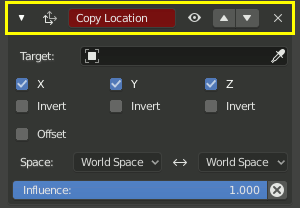
A Header sits at the top of every constraint.
- Expand (down/right arrow icon)
Show or Hide the settings of the constraint. Tidy up the constraint stack by hiding constraints that do not currently need attention. Constraints will continue to affect the scene even when hidden.
- Icono
The constraint type icon.
- Nombre
Give the constraint a meaningful name in this text field, which describes its purpose. Meaningful names help you and your team members understand what each constraint is supposed to do.
The red background is a warning that the constraint is not yet functional. The background will turn gray when the constraint is functioning. When this Copy Location constraint has a valid target in the target field it will turn gray and begin to function.
- Silenciar (icono de Ojo)
Enable or Disable the constraint. Disabling a constraint will stop its affect on the scene.
Disabling a constraint is useful for turning off a constraint without losing all of its settings. Disabling means you can enable the constraint at a later time with the settings intact. Disabling is similar to setting the Influence to 0.0.
- Extras
- Apply Ctrl-A
Makes the constraint «real» by applying any transformations caused by the constraint to make the original object to match the results of the constraint and deletes the constraint.
Advertencia
Applying a constraint that is not first in the stack will ignore the stack order (it will be applied as if it was the first one), and may produce undesired results.
- Duplicate Shift-D
Creates a duplicate of the constraint just below current one in the stack.
- Copiar a Seleccionado
Copies the constraint from the Active object to all selected objects.
- Move to First/Last
Moves the constraint to the first or last position in the constraint stack.
- Borrar X, Supr
Delete the constraint from the stack. The settings will be lost. The constraint will no longer affect the final outcome of the stack.
- Move
:::: Move a constraint up or down in the constraint stack. Since the stack is evaluated from top to bottom, moving a constraint in the stack can significantly affect the final outcome of the stack.
If there is only one constraint in the stack, the arrows will not be displayed.
If the constraint is at the top of the stack, only the down arrow will be displayed.
If the constraint is at the bottom of the stack, only the up arrow will be displayed.