Universal Scene Description
Exportación a archivos USD
Universal Scene Description (USD) files can contain complex layering, overriding, and references to other files. Blender’s USD Exporter takes a much simpler approach. When exporting, all visible, supported objects in the scene are exported, optionally limited by their selection state. Blender does not (yet) support exporting invisible objects, USD layers, variants, skeletal animation, etc.
Los siguientes tipos de objetos podrán ser exportados a USD:
Mallas (de diferentes tipos, ver debajo).
Cámaras (por el momento sólo cámaras en perspectiva, no las ortogonales).
Luces (todos los tipos, excepto las de área).
Pelo (exportado como curvas y limitado a las hebras primarias).
Volúmenes (tanto estáticos como animados).
When exporting an animation, the final, evaluated mesh is written to USD. This means that the following meshes can be exported:
Static meshes.
Deforming meshes; here the topology of the mesh does not change, but the locations of the vertices change over time. Examples are animated characters or bouncing (but not cracking) objects.
Arbitrarily animated meshes; here the topology does change. An example is the result of a fluid simulation, where splashes of fluid can break off the main body.
Metaballs are exported as animated meshes.
Nota
To export the Blender scene as a USDZ archive, set the file extension of the output file to .usdz. The exported USDZ package will be a zip archive containing the USD and its texture file dependencies.
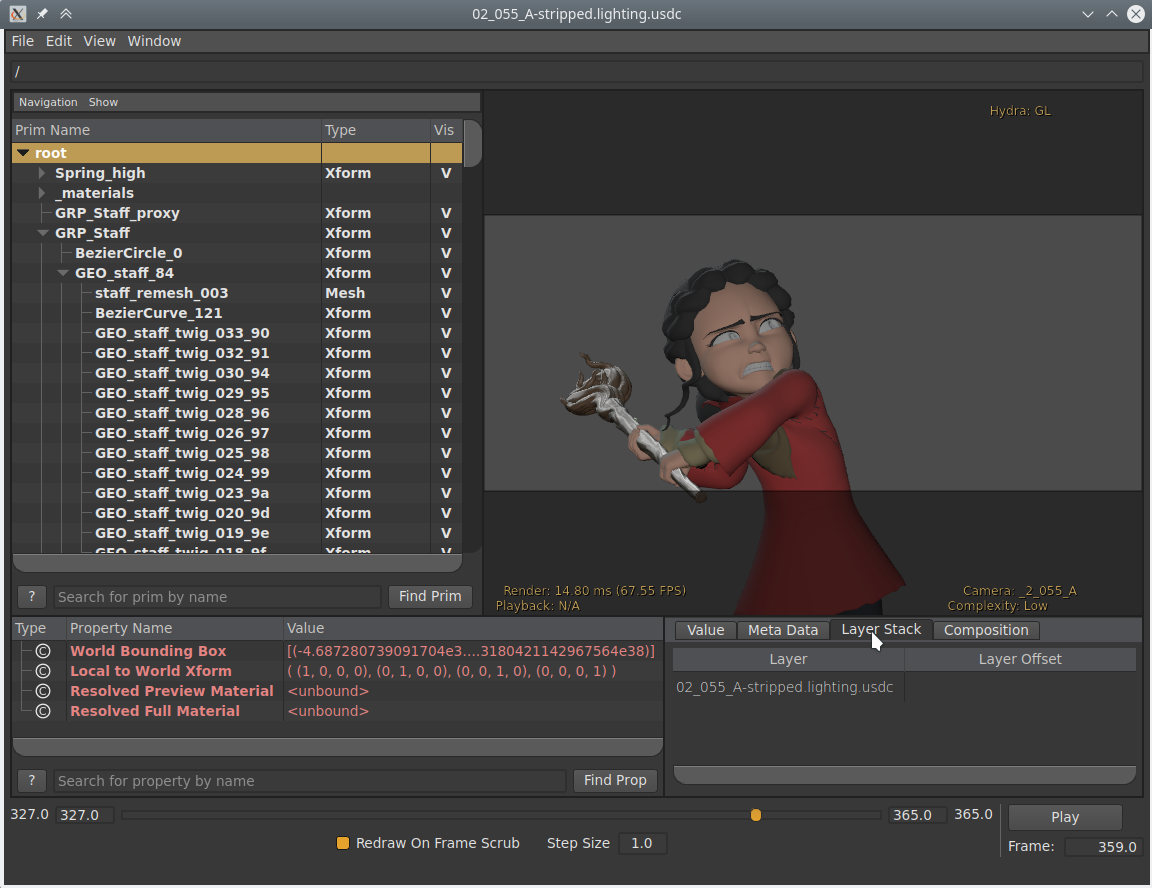
Toma de Spring exportada en formato USD y abierta con el programa USDView.
Opciones de exportación
The following options are available when exporting to USD:
- Sólo lo seleccionado
When checked, only selected objects are exported. Instanced objects, for example collections that are instanced in the scene, are considered “selected” when their instancer is selected.
- Sólo objetos visibles
Only exports objects that are not hidden. Invisible parents of exported objects are exported as empty transforms.
- Animación
When checked, the entire scene frame range is exported. When unchecked, only the current scene frame is exported.
- Pelo
When checked, parent hair strands are exported as a curve system. Hair strand colors are not exported.
- Mapas UV
When checked, includes UV coordinates for exported meshes. The name of the UV map in USD is the same as the name in Blender. In USD the default name is
stwhereas in Blender the default name isUVMap. To export to the standard UV map namest, rename the UV map in Blender tost.- Normales
When checked, includes normals for exported meshes. This includes custom loop normals.
- Materiales
Exports material information of the object. By default the exporter approximates the BSDF Principista node tree by converting it to USD’s Preview Surface format. If To USD Preview Surface is disabled, the material is set to the viewport materials of meshes.
Additional material properties are set in the Material grouping of options.
When a mesh has multiple materials assigned, a geometry subset is created for each material. The first material (if any) is always applied to the mesh itself as well (regardless of the existence of geometry subsets), because the Hydra viewport does not support materials on subsets. See USD issue #542 for more information.
- Primitiva de primer nivel
If set, add a transform primitive with the given path to the stage as the parent of all exported data.
- Usar opciones de
Determines the whether to use Viewport or Render visibility of collection, modifiers, or any other property that can be set for both the Viewport and Render.
Materiales
Additional options when Materials are enabled for export.
- To USD Preview Surface
When exporting materials, approximate a BSDF Principista node tree to by converting it to USD’s Preview Surface format. If disabled, the material is set to the viewport materials of meshes.
Advertencia
Not all nodes are supported; currently only Diffuse, Principle, Image Textures, and UVMap nodes are support.
- Exportar texturas
Export textures referenced by shader nodes to a «textures» folder which in the same directory as the USD file.
- Sobrescribir texturas
Allow overwriting existing texture files when exporting textures.
Archivos referenciados
- Rutas relativas
Use relative paths to reference external files (i.e. textures, volumes) in the exported USD file, otherwise use absolute paths.
Experimental
- Instanciado
As this is an experimental option. When unchecked, duplicated objects are exported as real objects, so a particle system with 100 particles that is displayed with 100 meshes will have 100 individual meshes in the exported file. When checked, duplicated objects are exported as a reference to the original object. If the original object is not part of the export, the first duplicate is exported as real object and used as reference.
Limitaciones del exportador
- Mallas de un solo lado y de doble lado
USD seems to support neither per-material nor per-face-group double-sidedness, so Blender uses the flag from the first material to mark the entire mesh as single/double-sided. If there is no material it defaults to double-sided.
- Normales de mallas
The mesh subdivision scheme in USD is “Catmull-Clark” by default, but Blender uses “None” instead, indicating that a polygonal mesh is exported. This is necessary for USD to understand the custom normals; otherwise the mesh is always rendered smooth.
- Velocidades de vértices
Currently only fluid simulations (not meshes in general) have explicit vertex velocities. This is the most important case for exporting velocities, though, as the baked mesh changes topology all the time, and thus computing the velocities at import time in a post-processing step is hard.
- Orientación del sistema de coordenadas
Blender uses the Z axis as up axis. Since USD supports both Y up and Z up, the USD files written by Blender always use Z up.
- Materiales
Very simple versions of the materials are exported, using only the Presentación en vistas color, metallic, and roughness.
When there are multiple materials, the mesh faces are stored as geometry subset and each material is assigned to the appropriate subset. If there is only one material this is skipped. Note that the geometry subsets are not time-sampled, so it may break when an animated mesh changes topology.
- Pelo
Only the parent strands are exported, and only with a constant color. No UV coordinates, and no information about the normals.
- Cámara
Only perspective cameras are exported.
- Luces
USD does not directly support spot lights, so those are not exported.
- Partículas
Particles are only written when they are alive, which means that they are always visible. There is currently no code that deals with marking them as invisible outside their lifespan.
Objects instanced by particle system are exported by suffixing the object name with the particle’s persistent ID, giving each particle transform a unique name.
- Instanciado y referenciamiento
This is still an experimental feature that can be enabled when exporting to USD. When enabled, instanced object meshes are written to USD as references to the original mesh. The first copy of the mesh is written for real, and the following copies are referencing the first. Which mesh is considered “the first” is chosen more or less arbitrarily.
- USDZ
Due to a current limitation in the USD library, UDIM textures cannot be include in the USDZ archive. This limitation will likely be addressed in a future version of USD. (See USD pull request #2133.)
Importación de archivos USD
USD files typically represent the scene as a hierarchy of primitives, or prims. Individual prims contain data to describe scene entities, such as geometry, lights, cameras and transform hierarchies. Blender’s USD importer converts USD prims to a hierarchy of Blender objects. Like the USD exporter, the importer does not yet handle more advanced USD concepts, such as layers and references.
Los siguientes tipos de datos de USD podrán ser importados como objetos de Blender:
Cámaras
Curvas
Luces
Materiales
Mallas
Formas primitivas
Volumen
Para más información sobre cómo se manipulan los distintos tipos de datos, ver las siguientes descripciones de las Opciones de importación.
Nota
Al importar un archivo USDZ, será importante considerar cuidadosamente la opción Importar texturas para determinar si y cómo se copiarán los archivos de texturas desde el archivo zip original.
Primitivas de transformación y ámbito
USD proporciona un tipo de primitiva de transformación (denominada Xform), que contiene datos de transformación. Estas primitivas podrán ser usadas para representar jerarquías de transformación y para organizar la escena. Este tipo de primitivas serán importadas en Blender como objetos vacíos.
USD también tiene primitivas de ámbito (denominadas Scope); se trata de entidades que no contienen datos de transformación, pero que sirven para agrupar otros elementos de una escena en un ámbito común. Blender no tiene una contraparte exacta para este concepto de «ámbito», por lo que tales primitivas serán importadas en Blender como objetos vacíos ubicados en el origen global. Esta es, sin duda, una representación imperfecta, debido a que los objetos vacíos sí tienen transformaciones, mientras que los ámbitos no, sin embargo este enfoque ayudará igualmente a preservar la estructura jerárquica de la escena.
Animaciones
El importador soporta dos tipos de animación:
Animating transforms: If a USD primitive has time-varying transform data, a Transform Cache constraint will be added to the imported Blender object.
Animating geometry: Animating mesh and curve geometry is supported by adding a Mesh Sequence Cache modifier to the imported data. Geometry attribute (USD Primvar) animation is currently supported only for Color Attributes and UVs. Note that USD file sequences (i.e. a unique file per frame) are not yet supported.
Materiales
If a USD mesh or geometry subset has a bound material, the importer will assign to the Blender object a material with the same name as the USD material. If a Blender material with the same name already exists in the scene, the existing material may be used, depending on the Material Name Collision option. Otherwise, a new material will be created.
If the USD material has a USD Preview Surface shader source, the Presentación en vistas color, metallic, and roughness are set to the corresponding USD Preview Surface input values.
There is also an Import USD Preview option to convert USD Preview Surface shaders to Blender Principled BSDF shader nodes. This option can be lossy, as it does not yet handle converting all shader settings and types, but it can generate approximate visualizations of the materials.
Orientación del sistema de coordenadas
En caso de que el archivo USD importado utilice el eje Y hacia arriba, se aplicará una rotación automática a los objetos de primer nivel para convertirlos a la orientación usada por Blender (con el eje Z hacia arriba).
Opciones de importación
Al importar un archivo USD estarán disponibles las siguientes opciones:
- Cámaras
Importará cámaras (perspectiva y ortogonal).
- Curvas
Import curve primitives, including USD basis and NURBS curves. (Note that support for Bézier basis is not yet fully implemented.)
- Luces
Import lights. Does not currently include USD dome, cylinder or geometry lights.
- Materiales
Importará materiales.
- Mallas
Importará mallas.
- Volúmenes
Import USD OpenVDB field assets.
- Primitivas
Importará las formas primitivas de USD (cubos, esferas, conos, ect) como mallas de Blender.
- Máscara de ruta
Import only the subset of the USD scene rooted at the given primitive.
- Escala
Value by which to scale the imported objects in relation to the world’s origin.
- Coordenadas UV
Leerá las coordenadas UV de la malla.
- Atributos de color
Convert the USD mesh
displayColorvalues to Blender’s Color Attributes.- Subdivisión
Create Subdivision Surface modifiers based on the USD
SubdivisionSchemeattribute.- Import Instance Proxies
Create unique Blender objects for USD instances.
- Sólo primitivas visibles
Do not import invisible USD primitives. Only applies to primitives with a non-animated visibility attribute. Primitives with animated visibility will always be imported.
- Guía
Incluirá las primitivas marcadas con el propósito Guía (
guide).- Reemplazo
Incluirá las primitivas marcadas con el propósito Reemplazo (
proxy).- Procesar
Incluirá las primitivas marcadas con el propósito Procesamiento (
render).- Definir rango de fotogramas
Actualizará los fotogramas de inicio y fin de la escena para que coincidan con los del escenario del archivo USD.
- Rutas relativas
Permitirá seleccionar el archivo en relación con la ruta del archivo .blend.
- Crear colección
Agregará todos los objetos importados a una nueva colección.
- Escala de intensidad de luces
Permitirá escalar la intensidad de las luces importadas.
Materiales
- Importar todos los materiales
Also import materials that are not used by any geometry. Note, when this option is false, materials referenced by geometry will still be imported.
- Importar previsualización USD
Convert USD Preview Surface shaders to Principled BSDF shader networks.
- Definir fundido de material
If the Import USD Preview option is enabled, the material blend method will automatically be set based on the
opacityandopacityThresholdshader inputs, allowing for visualization of transparent objects.
- Colisión de nombres de materiales
Behavior when the name of an imported material conflicts with an existing material.
- Hacer único:
Import each USD material as a unique Blender material.
- Referenciar existente:
If a material with the same name already exists, reference that instead of importing.
Texturas
When importing a USDZ package, the following options specify whether and how texture asset dependencies of the USD should be copied from the zip archive so they can be loaded into Blender.
- Importar texturas
Behavior when importing textures from a USDZ archive.
- Ninguno:
Don’t import textures. Note that, with this option, material textures may fail to be resolved in Blender.
- Empacadas:
Importará las texturas como datos empacados en el archivo de Blender.
- Copiar:
Copy files to the directory specified in the Textures Directory option.
- Carpeta de texturas
Path to the directory where imported textures will be copied, when the Import Textures mode is Copy.
Note that the default textures directory is the relative path //textures, which requires the Blender file to have been saved before importing, so the relative path can be resolved.
- Colisión de nombres de archivo
Behavior when the name of an imported texture file conflicts with an existing file.
- Usar existente:
En caso de que ya existiera un archivo con el mismo nombre, éste será usado en vez de copiarlo.
- Sobrescribir:
Sobrescribirá los archivos existentes.