Viewer Node
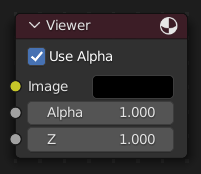
The Viewer node allows temporarily visualizing data from inside a node graph. It can be plugged in anywhere to inspect an image or value map in your node tree.
Select a view node with LMB to switch between multiple viewer nodes. It is possible to automatically plug any other node into a Viewer node by pressing Shift-Ctrl-LMB on it.
Ingressi
- Immagine
RGB image. The default is black, so leaving this node unconnected will result in a black image.
- Trasparenza
Alpha channel.
Proprietà
- Usa Trasparenza
Used alpha channel, colors are treated alpha premultiplied. If disabled, alpha channel gets set to 1, and colors are treated as alpha straight, i.e. color channels does not change.
Uscite
Questo nodo non ha connettori d’uscita.
Nota
It is possible to add multiple Viewer nodes, though only the active one (last selected, indicated by a red header) will be shown on the backdrop or in the Image editor.
Keyboard Shortcuts
Viewer node provide a quick way to toggle between different viewer nodes while compositing using keyboard shortcuts, improving workflow efficiency when comparing outputs.
Assign Shortcut (Ctrl-1, Ctrl-2, etc.): Select a node and press a shortcut to assign it. If no Viewer node is attached, one is created and activated. The number will be shown in the upper right part of the node to identify which shortcut is assigned.
Activate Node (1, 2, etc.): Press the assigned number key to activate the node’s Viewer output.
Nota
This feature is exclusive to the Compositor and only supports number keys (1-9).
Uso dell” Editor Immagine
Il nodo Visualizzatore consente di visualizzare i risultati nell’Editor Immagine. L’immagine è facilitata nell’intestazione selezionando Nodo Visualizzatore nel menu di blocco dati Immagine collegato. L’Editor Immagine visualizzerà l’immagine dal nodo Visualizzatore attualmente selezionato.
To save the image being viewed, use , Alt-S to save the image to a file.
The Image Editor also has three additional options in its header to view Images with or without Alpha, or to view the Alpha or Z itself. Click and holding the mouse in the Image displayed allows you to sample the values.