Caminhos de movimento
Reference
- Editor
3D Viewport, Properties
- Mode
Object Mode
- Panel
Reference
- Editor
3D Viewport, Properties
- Mode
Pose Mode
- Panel
- Menu
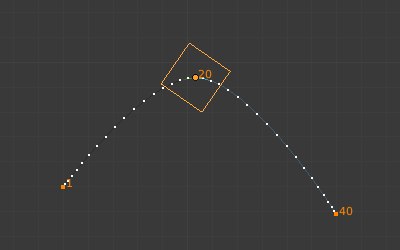
Um cubo animado com seu caminho de movimento mostrado.
A ferramenta de Caminhos de Movimento permite que você visualize o movimento de pontos sobre uma série de quadros. Estes pontos podem ser as origens dos objetos ou as juntas de ossos.
To create or remove motion paths, it is necessary to first select the bones. Then:
Para mostrar os caminhos (ou atualizá-los, caso necessário),clique no botão Calcular caminhos.
Para ocultar os caminhos, clique no botão Limpar caminhos.
Nota
Lembre-se que somente os ossos selecionados e seus caminhos são afetados por estas ações !
The paths are shown in a light shade of gray for unselected points, and a slightly bluish gray for selected ones. Around the current frame a glow indicate the direction of movement: blue towards future frames and green towards the past. Each frame is displayed by a small white dot on the paths.
Os caminhos são automaticamente atualizados quando você edita suas poses/ keyframes, e eles também são ativos durante a reprodução da animação. A reprodução da animação só afecta os caminhos quando a opção Around Current Frame está ativada.
Opções

O painel caminhos de movimento na aba de Armaduras.
- Tipo
- Ao redor do quadro
Display paths of points within a fixed number of frames around the current frame. When you enable this button, you get paths for a given number of frames before and after the current one (again, as with ghosts).
- Dentro do intervalo
Os caminhos exibidos dentro de um intervalo especificado.
- Clock Button
Updates the display frame range from the scene frame range.
- Frame Range
- Before, After
Number of frames to show before and after the current frame (only for Around Current Frame Onion-skinning method).
- Start, End
Starting and Ending frame of range of paths to display/calculate (not for Around Current Frame Onion-skinning method).
- Passos
Allows displaying one point for every n frames on the path. Mostly useful when you enable the frame number display (see below), to avoid cluttering the 3D Viewport.
- Cache/Bone Cache
- From, To
Estes são os frames de início/fim do intervalo em que os caminhos de movimento são mostrados. Não é possível modificar este intervalo sem eliminar primeiro o caminho do movimento.
- Calculate/Update Paths
If no paths have been calculated, Calculate Paths will create a new motion path in cache based on the options specified in the pop-up menu or the Adjust Last Operation panel. If a path has already been calculated, Update Paths will update the path shape to the current animation. To change the frame range of the calculated path, you need to delete the path and calculate it again.
- Start, End
These are the start/end frames of the range in which motion paths are shown. You have to Calculate Paths again if you modify this setting, to update the paths in the 3D Viewport. The start frame is inclusive (i.e. if you set Start to 1, you will really see the frame 1 as starting point of the paths…).
- Gerar e gravar localização
Bones only – By default, you get the tips” paths. By changing this setting to Tails, you will get the paths of the bone’s roots (remember that in Blender UI, bones” roots are called «heads»…). You have to Calculate Paths again if you modify this setting, to update the paths in the 3D Viewport.
- Limpar caminhos
X Limpa os caminhos em todos os objetos e / ou ossos ou somente os selecionados ao manter pressionada a tecla Shift.
Show
- Números dos quadros
Quando habilitado, um pequeno número aparecerá próximo a cada ponto de representação dos quadros no caminho, que representam claramente o número dos quadros correspondentes.
- Quadros-chave
When enabled, big yellow square dots are displayed on motion paths, showing the keyframes of their bones (i.e. only the paths of keyed bones at a given frame get a yellow dot at this frame).
- Somar os quadros-chave não agrupados
Para os caminhos de movimento dos ossos, ele pesquisará toda a Ação a procura de quadros-chave ao invés de pesquisar nos grupos que combinem somente com o nome (isto é mais lento).
- Números dos quadros-chave
Quando habilitado, você verá os números dos quadros-chave exibidos, portanto, esta opção somente é válida quando a opção Quadros-chave está habilitada.
- Lines
Toggles whether the lines between the points are shown.
- Thickness, Custom Color
Customizable thickness and color for the lines.
