Blender 2.92 Manual Logo
  • Почин – Getting Started
  • Інтерфейс Користувача – User Interface
    • Система Вікон – Window System
    • Розкладка клавіш – Keymap
    • Керувальники інтерфейсу – Interface Controls
      • Кнопки й Керувальники – Buttons and Controls
      • Просунуті Керувальники – Extended Controls
        • Меню Блоку Даних – Data-Block Menu
        • Огляди Списком і Передустави – List Views & Presets
        • Підбирач Кольору – Color Picker
        • Віджет Градієнта Кольорів – Color Ramp Widget
        • Color Palette
        • Віджет Кривої – Curve Widget
        • Search
          • Menu Search
          • Пошук Оператора – Operator Search
        • Nodes – Вузли
    • Засоби – Tools
  • Редактори – Editors
  • Сцени та Об’єкти – Scenes & Objects
  • Моделювання – Modeling
  • Ліплення і Малювання – Sculpting & Painting
  • Нарисний Олівець – Grease Pencil
  • Анімація та Оснащування – Animation & Rigging
  • Фізика – Physics
  • Рендеринг – Rendering
  • Компонування – Compositing
  • Motion Tracking & Masking
  • Редагування Відео – Video Editing
  • Файли та Система Даних – Files & Data System
  • Додатки – Add-ons
  • Просунуте – Advanced
  • Усунення несправностей – Troubleshooting
  • Глосарій – Glossary
  • Contribute Documentation
Blender 2.92 Manual
  • »
  • Інтерфейс Користувача – User Interface »
  • Search

Search

Menu Search

Reference

Mode

All Modes

Menu

Edit ‣ Menu Search

Hotkey

F3

The Menu Search pop-up searches Blender’s interface for a desired tool and allows you to execute that tool. It returns a list of matches and shows which menu the tool was found in. Start typing the name of the tool you want to refine the list. When the list is sufficiently narrowed, LMB on the desired tool or navigate with Down and Up, run the tool by pressing Return.
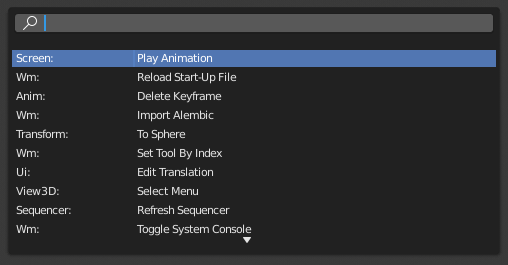
../../../_images/interface_controls_templates_operator-search_pop-up.png

The Menu Search pop-up.

Дивись також

The Spacebar Action option in the Preferences.

Пошук Оператора – Operator Search

Reference

Mode

All Modes

Menu

Edit ‣ Operator Search

When Developer Extras are activated the Operator Search can be accessed from the Edit menu in the Topbar. This search menu search all operators within Blender even if they are not exposed in a menu. This is useful for Python developers for testing purposes. Blender might also include a few advanced operators that are not exposed in a menu and can only be accessed via this search menu.

Next Previous

© Авторські права : This page is licensed under a CC-BY-SA 4.0 Int. License Востаннє оновлено 02/25/2021.

  • Edit Page
  • Report Bug
  • 2.92
    • Loading...
  • uk
    • Loading...