Sidebar – Бічносмуга
The sidebar of the Preview can be toggled with the menu: or with the shortcut N.
Video Sequence Editor with two sidebars: Preview and Sequencer. shows the sidebar of the Preview, but also the sidebar of the sequencer. In the Preview sidebar, the View tab is active and all panels are expanded. Safe Areas are enabled and an Annotation is added.
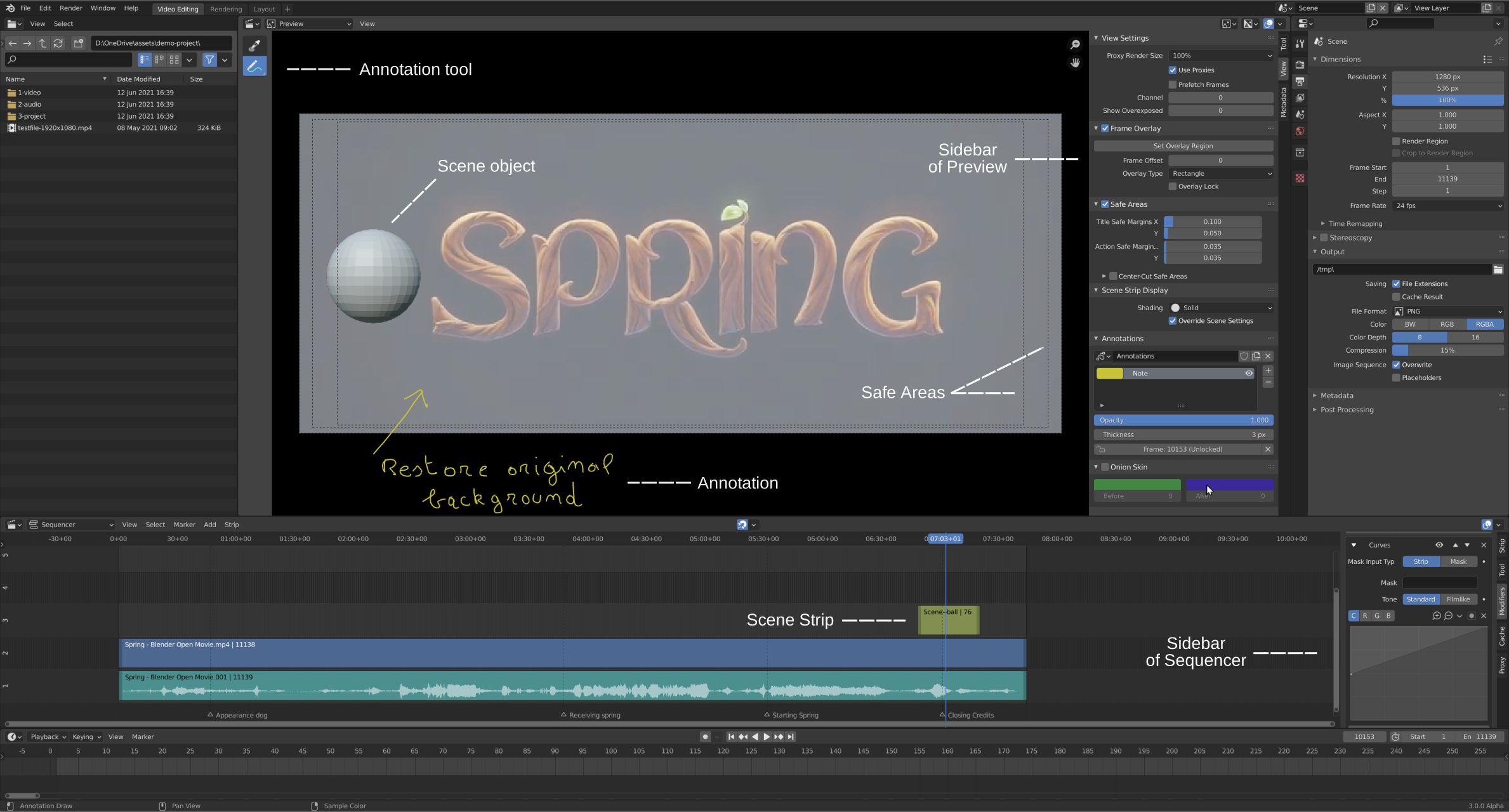
Video Sequence Editor with two sidebars: Preview and Sequencer.
Tool – Засіб
Reference – Довідка
- Editor – Редактор
Video Sequencer – Секвенсер Відео
- View Type
Preview – Передогляд
- Panel – Панель
Displays information about the active tool.
View – Огляд
Устави Огляду – View Settings
Reference – Довідка
- Editor – Редактор
Video Sequencer – Секвенсер Відео
- View Type
Preview – Передогляд
- Panel – Панель
- Proxy Render Size – Розмір Рендера Замісника
Size to display proxies at in the preview region. Using a smaller preview size will increase speed.
- No Display
Disables the preview.
- Scene Size – Розмір Сцени
Matches proxy size to the final render resolution.
- 25%, 50%, 75%, 100%
Proxies are sized to be the selected percent of the original input.
- Use Proxies
Use optimized files for faster scrubbing when available. Proxies limit the visual accuracy of the preview by reducing the preview resolution and using compressed copies of the input.
- Заготовлення Кадрів – Prefetch Frames
Automatically fill the cache with frames after the current frame in the background. Use this to achieve a more consistent playback speed. This feature currently doesn’t support rendering Scene strips.
- Channel – Канал
Вибирає канал для показу у передогляді.
Channel 0 is the compositing result of all strips. Channel 1 is the current frame’s image from the strip in channel 1 only (channel 1 is at the bottom of the stack). The display of these modes is either the composite (channel 0) or the frame from the strip (channels 1 through n).
- Показ Переекспоноване – Show Overexposed
Shows overexposed (bright white) areas using a zebra pattern. The threshold can be adjust with the slider.
2D Cursor – 2D Курсор
Reference – Довідка
- Editor – Редактор
Video Sequencer – Секвенсер Відео
- View Type
Preview – Передогляд
- Panel – Панель
The 2D cursor is the white-red circle with a cross-hair that is shown in the main region. It can be used by setting the Pivot Point to 2D Cursor to transform all strips in relation to the location of the 2D cursor.
The visibility of the 2D cursor can be controlled with the 2D Cursor overlay option.
- Location X, Y – Локація X, Y
The location of the 2D cursor relative to the center of the main region. Край зображення буде 0.5 від цього, тому (0.5, 0.5) буде верхнім правим кутком.
The 2D cursor’s location can also be set with Cursor tool or by Shift-RMB.
Frame Overlay – Наклад Кадру
Reference – Довідка
- Editor – Редактор
Video Sequencer – Секвенсер Відео
- View Type
Preview – Передогляд
- Panel – Панель
Option to enable the overlay. It can be used for comparing the current frame to a reference frame.
- Set Overlay Region – Задати Регіон Накладу
Selects the rectangular bounds for the overlay region. This area can be defined by pressing O key over the preview.
- Frame Offset – Зсув Кадру
Цей повзунок керує зсувом орієнтувального кадру відносно до поточного кадру.
- Overlay Type – Тип Накладу
Описує спосіб показу орієнтувального кадру.
- Прямокутник – Rectangle
Означає, що прямокутна область орієнтувального кадру буде показана поверх поточного кадру.
- Reference – Довідка
Буде показуватися тільки орієнтувальний кадр у регіоні передогляду.
- Поточне – Current
Лише поточний кадр буде показуватися у регіоні передогляду.
Порада
It is possible to have several Sequence Editors opened and they can use different overlay types. So it is possible to have current and reference frames displayed in different editor spaces.
- Overlay Lock – Блокування Накладу
Дає можливість блокувати орієнтувальний кадр відносно його поточної позиції.
Області Безпеки – Safe Areas
Reference – Довідка
- Editor – Редактор
Video Sequencer – Секвенсер Відео
- View Type
Preview – Передогляд
- Panel – Панель
Показує напрямні, що використовуються для розміщення елементів на екрані, які дають переконатися, що найбільш важливі частини відео будуть видимі на різних типах екранів.
Дивись також
Scene Strip Display
Reference – Довідка
- Editor – Редактор
Video Sequencer – Секвенсер Відео
- View Type
Preview – Передогляд
- Panel – Панель
It allows you to control how the images of Scene Strips are displayed in the preview.
- Shading – Відтінювання
Method for rendering the viewport. See the 3D Viewport’s Viewport Shading – Відтінювання Оглядвікна options.
- Заміщення Устав Сцен – Override Scene Settings
Use the Workbench render settings from the sequencer scene, not the Workbench render settings from the source scene. This option is only available, if Solid shading is activate.
Annotations – Анотації
Reference – Довідка
- Editor – Редактор
Video Sequencer – Секвенсер Відео
- View Type
Preview – Передогляд
- Panel – Панель
Дозволяє вам використовувати анотації – Annotations у Секвенсері.
Metadata – Метадані
Reference – Довідка
- Editor – Редактор
Video Sequencer – Секвенсер Відео
- View Type
Preview – Передогляд
- Panel – Панель
Lists information that has been encoded in the currently displayed movie or image strip; note that this is the strip under the playhead, not the active (selected) strip. Note, this metadata is readonly and cannot be edited in Blender. Metadata can include the filename, the date created, the camera model etc. The metadata from saved from a Blender render is also displayed in the appropriate fields (camera, time, etc…; see Rendered Output for a full list. Some other graphic program also store some metadata, however, only the text stored in the header field «Comments» can be read
Some of this metadata can also be made visible in the Preview with the Metadata overlay.
Порада
To edit a files metadata you can use an external program such as exiftool. For example, the command to change the «Comments» field is:
exiftool --comments="My new comment" name-of-file.png
Примітка
The metadata will only be displayed for the image/ movie strip and not from strips processed by any effect strip. For example, adding an effect strip (eg. Glow) will hide the metadata from view. Of course, the metadata isn’t removed from the file. Hiding the effect strip will display it again.