Hướng Dẫn Định Vị Xương [Bone Positioning Guide]
Xương Mặt [Face Bones]
Start by identifying basic face landmarks to follow as guide for bones placement.
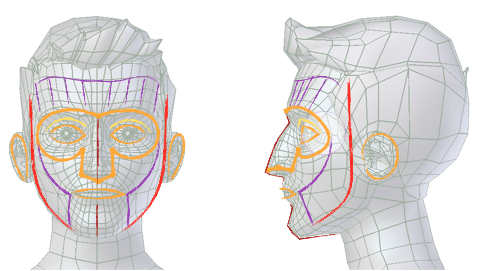
Các Địa Ranh Cơ Bản trên Mặt.
Orange lines represent bones that should be placed in closed loops.
Yellow lines represent bones whose position depends on surrounding bone loops.
Red lines represent outer edge bones.
Purple lines represent bridging bones used to cover deforming flesh.
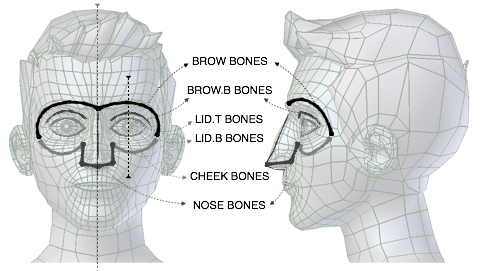
Các Địa Ranh Mắt-Mũi.
The eyes-nose loop area is split in different parts identified by bone names. Follow the image to place the bones.
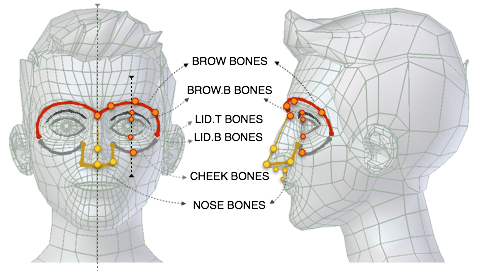
Các Vị Trí Xương Mắt-Mũi.
Mẹo
Đặt Lông Mày
Keeping aligned the mid bones in "brow", "brow.b", "lid.t", "lid.t" and cheek will give better results after rig generation.
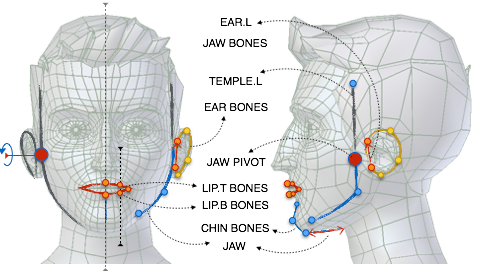
Các Vị Trí Xương Hàm-Tai.
Also the jaw-ear area is split in different parts identified by bone names. Follow the image to place the bones.
Mẹo
Đặt Hàm
Try to place "ear.L" bone covering the part of the ear attached to the mandible (lower jaw). Do the same with temple bone trying to cover the part you don't want to move with the jaw, this way you will also determine the jaw pivot position.
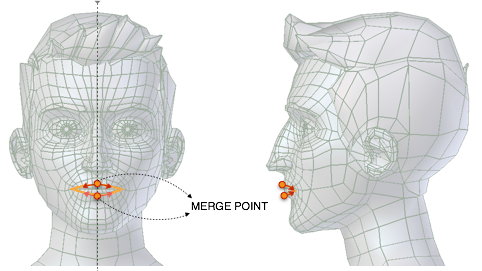
Điểm Hợp Nhất Môi.
Cảnh báo
While moving the face bones it is necessary to preserve merge points, i.e. whenever heads or tails of two or more bones overlap at the same point, they should still do so after repositioning. Tearing a merge point apart may result in multiple controls being created instead of one, or even the generation of errors.
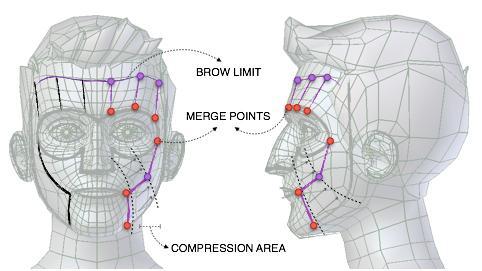
Các Xương Kéo Dài Mặt.
After the main face bones are placed use the cheek bone to connect the eye-nose area to the jaw mouth area. Then do the same with the brow area. This process will automatically define face muscles compression areas.
Position the eye bones in the eye pivot point facing right toward the face on the Y axis. The length of the eye bones should correspond to the radius of the eye.
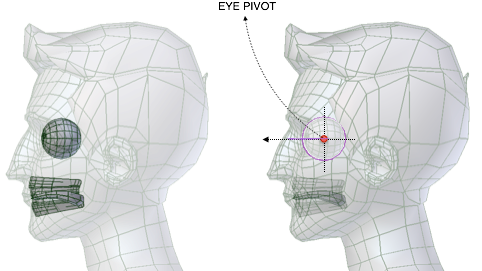
Vị Trí Điểm Tựa của Mắt.
Mẹo
Điểm Tựa của Mắt
If your eye has a spherical shape you can define its pivot by entering Edit Mode. Select two opposite vertices on the center meridian -- or the opposite poles -- and snapping the cursor to selection by pressing . If your eye is a complete sphere and its location it's not applied, then you can just use its center of mass.
Finally position the teeth bones on your teeth geometry and the tongue bone chain as described in the figure.
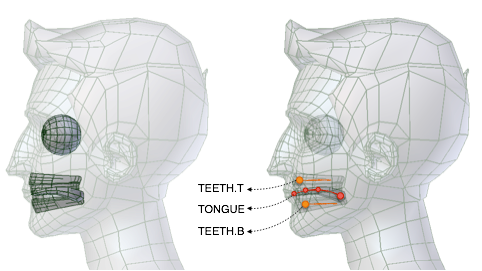
Vị trí Miệng và Răng.
Mẹo
Lưỡi
The tongue will work better if the bones are aligned at the symmetry line.
Before generating the rig ensure the face master bone is facing upward.
Các Xương Thân Trên [Torso Bones]
Start by identifying on your character basic torso zones to follow as guide for bones placement.
Head, chest and pelvis are rigid zones, so they require less bones. Having a good edge loop placement around zone boundaries on your model will help in having correct deformation after armature binding.
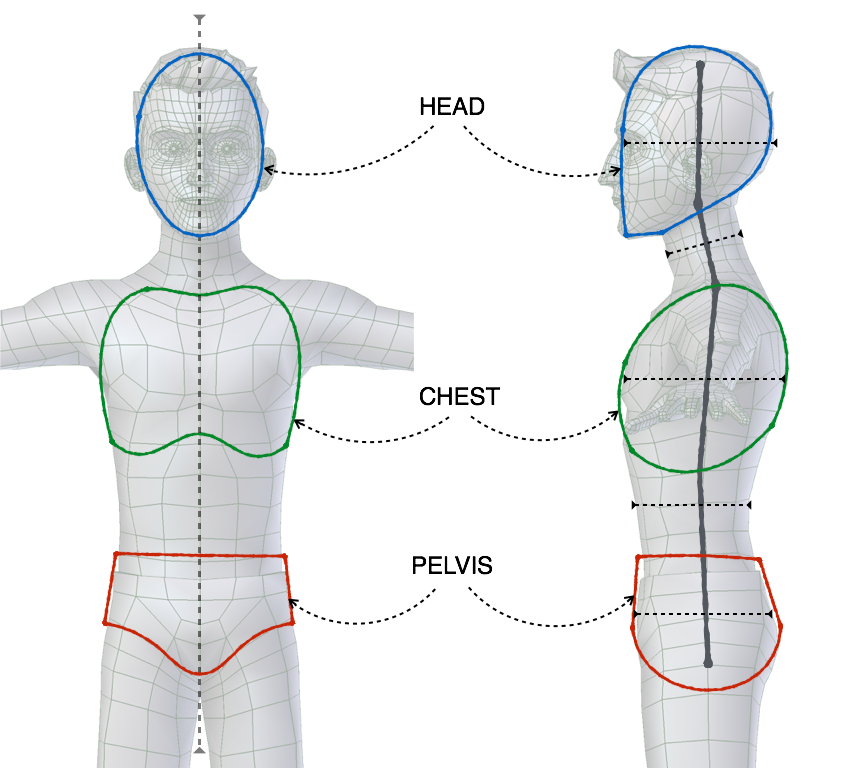
Các Địa Ranh của Thân Trên.
Starting from the side view, place the main spine bones trying to use one bone for the rigid areas and two for the flexible ones. In addition to the main spine, the torso is provided with additional pelvis bones (to oppose the leg bending), two breast controls and two shoulder bones.
Even if the pelvis bones will not appear in the final rig as controls, they will contribute to deformation.
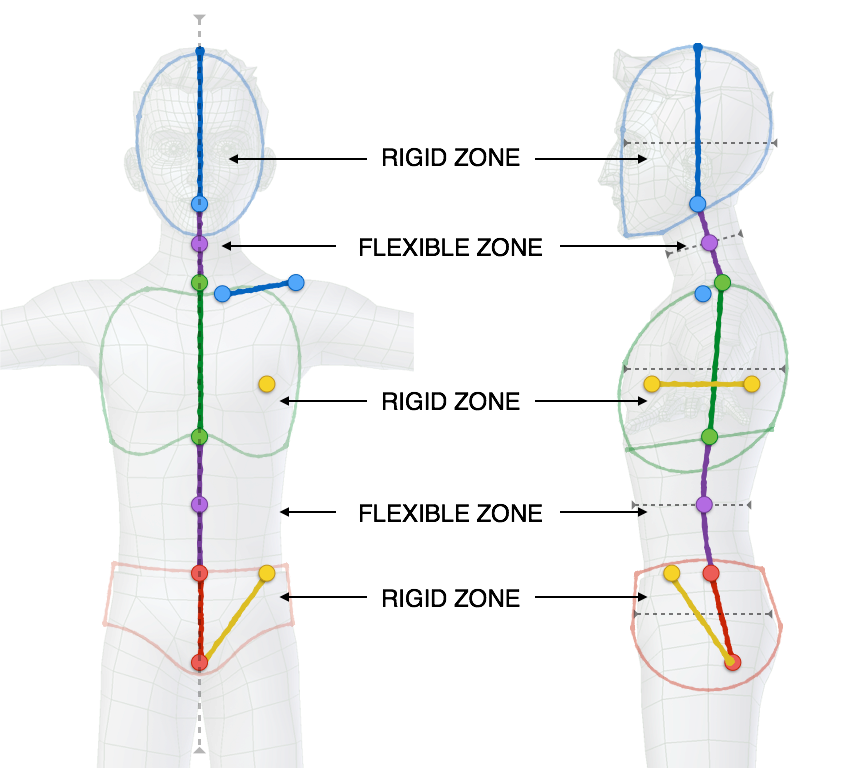
Định Vị các Xương Thân Trên.
Mẹo
Đặt Xương
Try to keep the spine as centered as possible inside the mesh bounding volume, just apply a slight offset toward the back. In a similar way, consider the shoulder bones as general deformers; placing it too forward -- where the collar bone should be -- could cause undesired deformations.
Xương Chân Tay [Limbs Bones]
While placing the arm bones try to start having a straight line that goes from the shoulder to the hand in both front and top view. After this is done just add a slight bend to the elbow. This can be easily done by going in the top view, entering armature Edit Mode and sliding the bone junction between forearm and upper_arm slightly toward the world's Y axis.
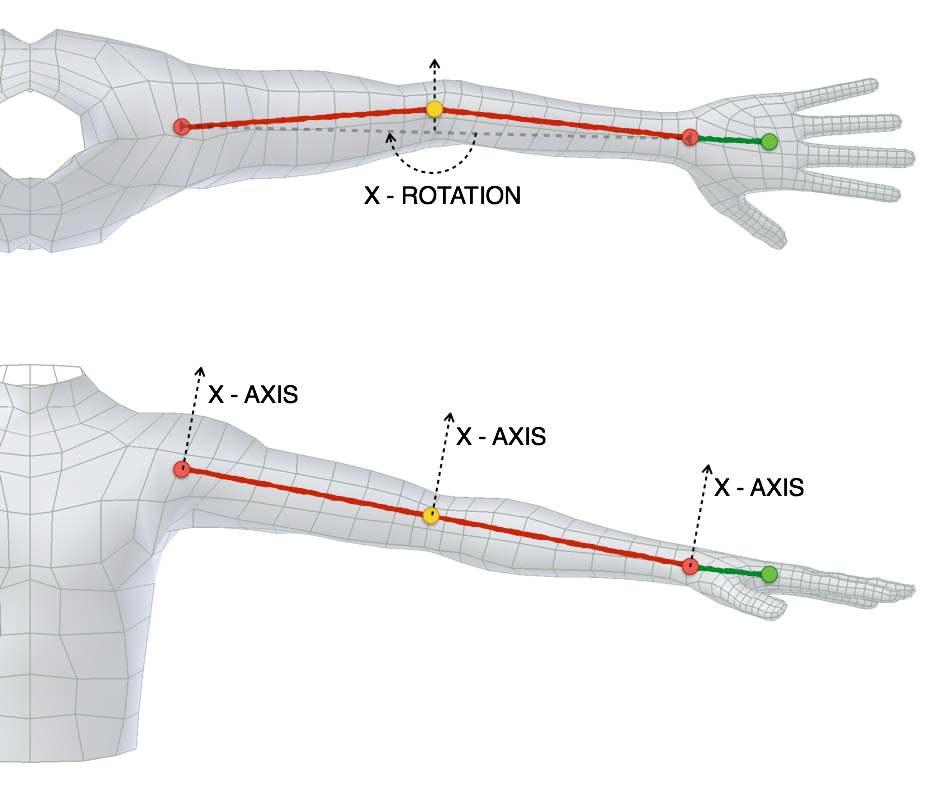
Định Vị các Xương Cánh Tay.
For the leg you can follow a similar process. Start by aligning the leg bones creating a straight line from the hips to the ankle, then place the foot and the toe accordingly. Remember to add a slight bend to the knee. This can be easily done by going in the side view, entering armature Edit Mode and sliding the bone junction between thigh and shin slightly toward the world's Y axis.

Định Vị các Xương Chân.
Finally align the heel bone by going in the front view and placing the head and tail to fill the foot size from side to side. Then, in the side view, align the bone at the point where the heel just touches the ground floor.
Ghi chú
From version 0.5 and above there is no more need of manual bone rolls alignment. The generate function will take care of that for you by evaluating it from bend axis; just insert a slight bend in your limb and it's done! If you need more control on the orientation, follow the guidelines described in Advanced Usage.
Xương Ngón Tay [Fingers Bones]
Start by placing, finger by finger, all the knuckles in place.
Mẹo
Đặt Ngón Tay
An easy and effective method to do this operation is to select on the mesh the corresponding edge loop in Edit Mode and use the Cursor to Selection snap. Then you can snap the bone to the corresponding loop using the Selection to Cursor snap.
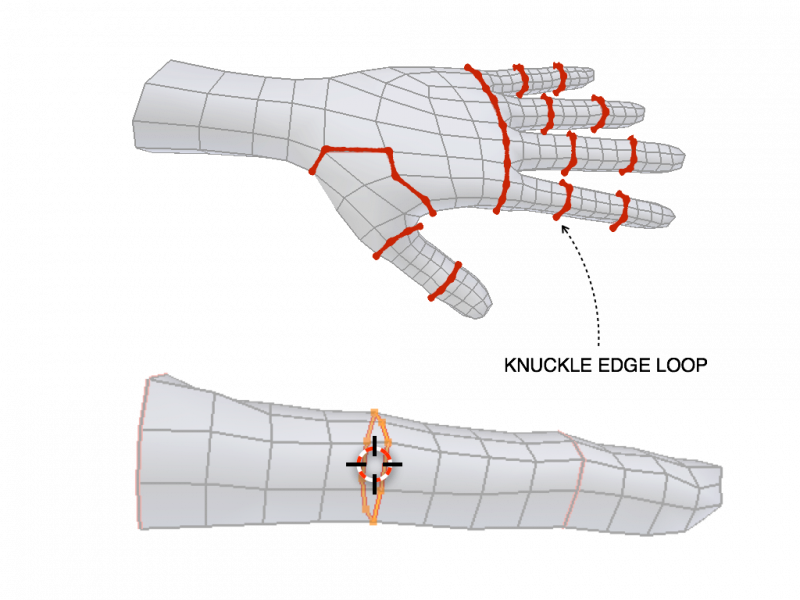
Knuckles Edge Loops and Cursor Snapping.
Finalize the positioning by taking care of bone rolls (the X axis is set as bend axis).
Mẹo
Lăn Xương (Bone Roll)
Finger axis alignment can be easily be made consistent by selecting all the finger bones and recalculating the bone rolls .
Thumb may require more tweaking depending on your character's mesh topology, usually is a good starting point.
Once your bone rolls are consistent, try generating the rig and scaling the finger master controls. This should cause the fingers to curl. If they are rotating on the wrong axis, change the Bend Rotation Axis parameter on the first finger's parameters under Rigify Type.
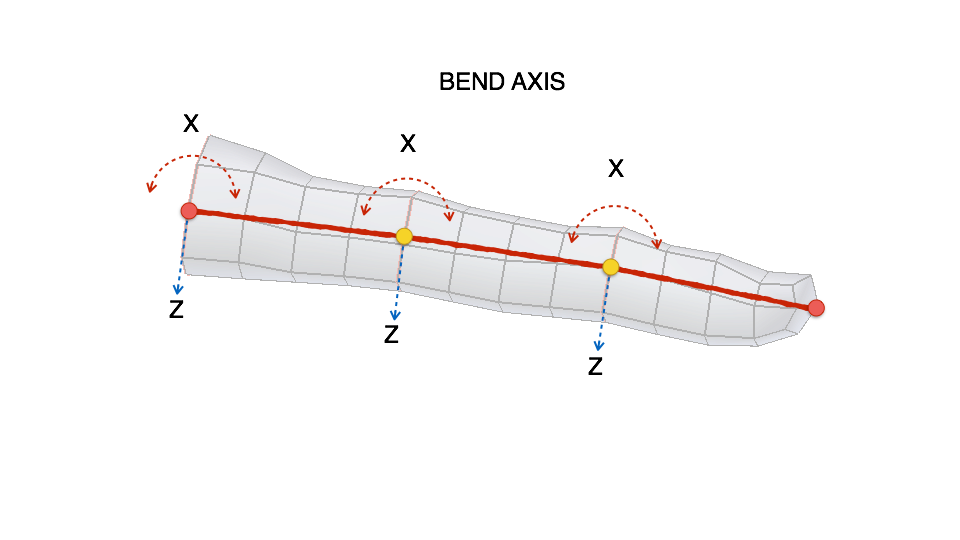
Trục Uốn Cong các Ngón Tay.
When the fingers are in place proceed placing the palm bones.
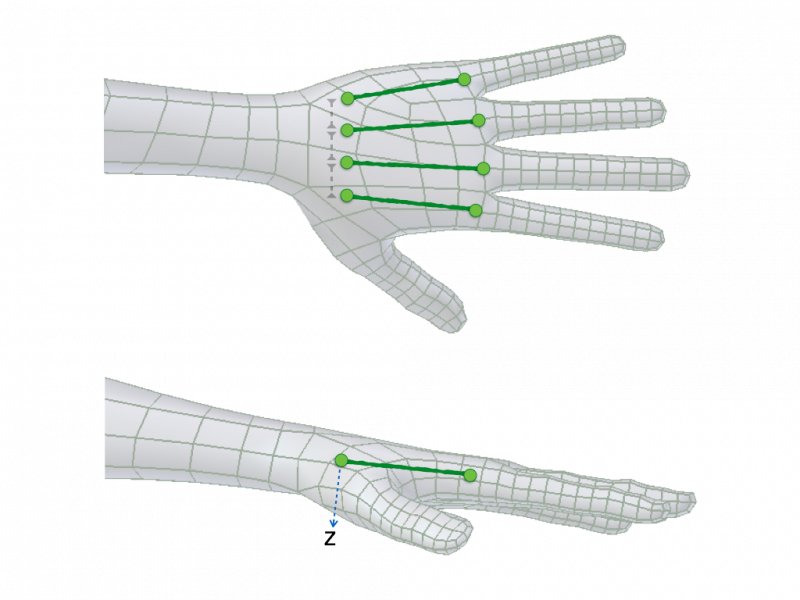
Căn Chỉnh Lòng Bàn Tay.
Mẹo
Đặt Lòng Bàn Tay
Try to keep palm bones' heads at a little distance between each other. This distance is required for Rigify to define the palm controls hierarchy. Palm axis alignment can be easily done by selecting all the palm bones and recalculating the bone rolls .
Xem thêm
For more detailed information on bones and rolls refer to the Bone Structure and Lăn Xương (Bone Roll).