VR-Szeneninspektion#
Das VR Szeneninspektions-Add-on erweitert die nativen Virtual-Reality-Funktionen von Blender und stellt sie in der Benutzeroberfläche bereit. Der Funktionsumfang ist auf Anwendungsfälle zur Szeneninspektion beschränkt. Fortgeschrittenere Anwendungsfälle können durch weitere Entwicklung innerhalb von Blender ermöglicht werden.
Die VR- Unterstützung in Blender basiert auf der OpenXR- Spezifikation und erfordert einige Einrichtungsschritte. Diese werden im Abschnitt Head-Mounted Displays (HMD) erklärt.
Activation#
Open Blender and go to Preferences then the Add-ons tab.
Click 3D View then VR Scene Inspection to enable the script.
Interface#
Zu finden im .

VR Sitzung#

- VR-Sitzung starten
Versuchen Sie, eine Verbindung zur OpenXR-Plattform herzustellen, um das Ansichtsfenster mit einem HMD zu teilen.
- Verfolgen
- Positionsbezogen
Nur die Drehungen des Kopfes verfolgen und nicht zulassen, dass das HMD die Position des Betrachters im virtuellen Raum beeinflusst.
- Absolut
Überspringen Sie die Augen-Offsets, die normalerweise hinzugefügt werden, um den Betrachter exakt an Landmarken zu platzieren. Dadurch kann der Tracking-Drehpunkt unabhängig von der HMD-Position definiert werden.
- Bedienaktionen verwenden
Aktivieren Sie Standard-Controller-Aktionen für Viewport-Navigation, Controller-Tracking und Haptik.
Ansicht#
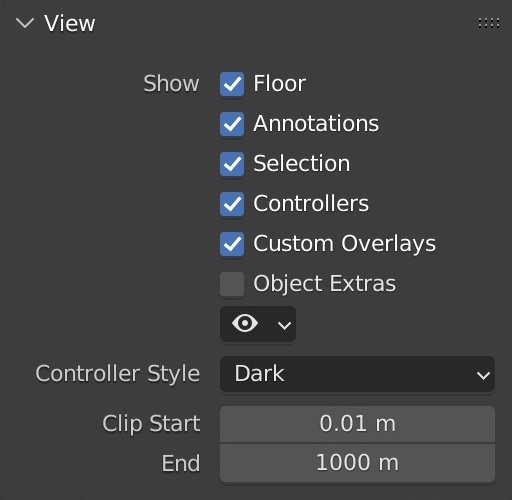
- Zeigen
- Boden
Legen Sie die Sichtbarkeit der Grundebene in der VR-Ansicht fest.
- Anmerkungen
Legen Sie die Sichtbarkeit der Anmerkungsstriche in der VR-Ansicht fest.
- Auswahl
Legen Sie die Sichtbarkeit von Auswahlkonturen in der VR-Ansicht fest.
- Controllers
Set visibility of VR motion controllers. Requires enabling the Use Controller Actions option.
- Custom Overlays
Set visibility of custom operator drawing (e.g. default teleport beam).
- Object Extras
Set visibility of object extras, including empties, lights, and cameras.
- Object Type Visibility
👁 Set visibility of objects by type.
- Controller Style
Bevorzugte Visualisierung von VR-Bewegungssteuerungen.
- Clip Start/End
Clipping values of the VR view, as in the 3D Viewport.
Landmarks#
Landmarks are used to store reusable base poses (position and rotation) for the viewer in the virtual space. In addition, a base viewer reference scale can be set for landmarks of types Custom Object and Custom Pose.

- Landmark
A list view.
- Selected Landmark
Defines which landmark’s settings are shown below the list. Changing the selected landmark does not have an influence on the VR view.
- Activate
〇 Activates a landmark, making it change the base pose of the VR view.
- Add (Hinzufügen)
+ Create a landmark.
- Remove
- Delete the selected landmark.
- Add from Session
⊕ Create a landmark from the viewer pose of the running VR session.
- Landmark Controls
v - Add Camera and VR Landmark from Session
Create a new camera and landmark from the viewer pose of the running VR session.
- Add Landmark from Camera
Add a new landmark from the active camera object.
- Update Custom Landmark
Update the selected landmark from the current VR viewer pose.
- Cursor to Landmark
Move the 3D Cursor to the selected landmark.
- Scene Camera to Landmark
Position the scene camera at the selected landmark.
- Camera from Landmark
Create a new camera from the selected landmark.
- Type
- Scene Camera
Follow the scene’s active camera to define the base pose of the viewer.
- Custom Object
Set an arbitrary object to define the base pose of the viewer.
- Custom Pose
Manually define a position and rotation to use as the base pose of the viewer.
Action Maps#
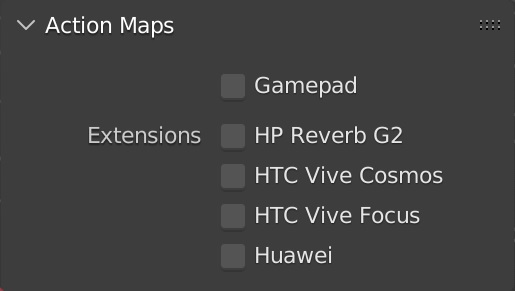
- Gamepad
Use input from a gamepad (Microsoft Xbox Controller) instead of motion controllers for VR actions such as viewport navigation.
- Endung
Enable additional controller bindings to ensure correct input-to-action mappings. Note that a given extension may not be supported by all VR platforms.
- HP Reverb G2
Enable bindings for the HP Reverb G2 controllers.
- HTC Vive Cosmos
Enable bindings for the HTC Vive Cosmos controllers.
- HTC Vive Focus
Enable bindings for the HTC Vive Focus 3 controllers.
- Huawei
Enable bindings for the Huawei controllers.
Viewport Feedback#
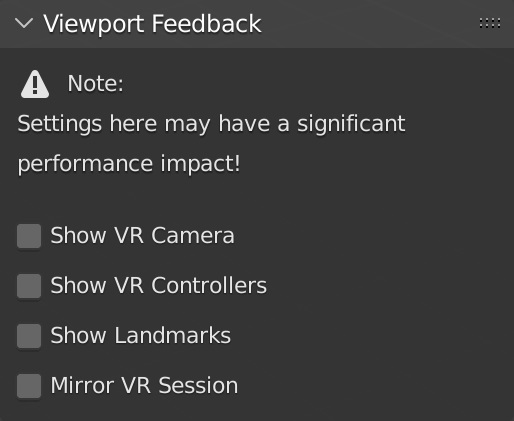
- Show VR Camera
Draw an indicator of the current VR viewer pose (location and rotation in the virtual space) in the current 3D Viewport.
- Show VR Controllers
Draw indicators of tracked VR motion controllers in the current 3D viewport. Requires enabling the Use Controller Actions option.
- Show Landmarks
Draw landmark indicators in the current 3D Viewport.
- Mirror VR Session
Make the current 3D Viewport follow the perspective of the VR view.
Referenz
- Kategorie:
3D Ansicht
- Beschreibung:
View the viewport with virtual reality glasses (head-mounted displays).
- Ort:
- Datei:
viewport_vr_preview folder
- Autor:
Julian Eisel, Sebastian Koenig, Peter Kim
- Maintainer:
Julian Eisel, Peter Kim
- Lizenz:
*GPL*
- Support Level:
Offiziell
- Beachte:
Dieses Add-on ist gebündelt mit Blender.