Blender 2.92 Manual Logo
  • Почин – Getting Started
  • Інтерфейс Користувача – User Interface
  • Редактори – Editors
    • 3D Оглядвікно – 3D Viewport
    • Редактор Зображень – Image Editor
      • Вступ – Introduction
      • Навігування – Navigating
      • Sidebar
        • Tool
        • Image
          • Image
          • Metadata
        • View Tab
          • Display
          • Annotations
        • Scopes
          • Histogram
          • Waveform
          • Vectorscope
          • Sample Line
          • Scope Samples
      • Overlays
      • Устави Зображення – Image Settings
      • Editing
    • Редактор UV – UV Editor
    • Редактор Шейдерів – Shader Editor
    • Compositor
    • Geometry Node Editor
    • Текстурові Вузли – Texture Nodes
    • Video Sequencer
    • Редактор Відеокліпів – Movie Clip Editor
    • Аркуш Експозицій – Dope Sheet
    • Часолінія – Timeline
    • Редактор Графів – Graph Editor
    • Редактор Драйверів – Drivers Editor
    • Нелінійна Анімація – Nonlinear Animation
    • Редактор Тексту – Text Editor
    • Консоль Python – Python Console
    • Редактор Інфо – Info Editor
    • Outliner
    • Properties
    • Браузер Файлів – File Browser
    • Уподобання – Preferences
  • Сцени та Об’єкти – Scenes & Objects
  • Моделювання – Modeling
  • Ліплення і Малювання – Sculpting & Painting
  • Нарисний Олівець – Grease Pencil
  • Анімація та Оснащування – Animation & Rigging
  • Фізика – Physics
  • Рендеринг – Rendering
  • Компонування – Compositing
  • Motion Tracking & Masking
  • Редагування Відео – Video Editing
  • Файли та Система Даних – Files & Data System
  • Додатки – Add-ons
  • Просунуте – Advanced
  • Усунення несправностей – Troubleshooting
  • Глосарій – Glossary
  • Contribute Documentation
Blender 2.92 Manual
  • »
  • Редактори – Editors »
  • Редактор Зображень – Image Editor »
  • Sidebar

Sidebar

Tool

Displays the settings of the active tool.

Image

Image

Tools for working with images, see Устави Зображення – Image Settings.

Metadata

Lists image metadata.

View Tab

Display

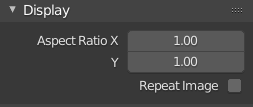
You can set the editors display options in this panel.
../../_images/editors_image_view-tab_panel.png

Display panel.

Aspect Ratio

Display Aspect for this image. Does not affect rendering.

Repeat Image

Duplicate the image until it is repeated to fill the main view.

Annotations

Options for the annotation tool. See Засіб Анотування – Annotation Tool.

Scopes
../../_images/editors_image_scopes_main.png

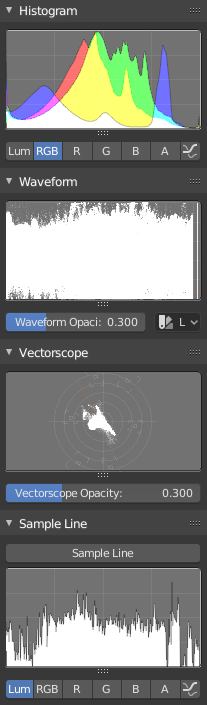
Scopes in the Image editor.

Histogram

This mode displays a graph showing the distribution of color information in the pixels of the currently displayed image. The X axis represents values of pixel, from 0 to 1 (or 0 to 255), while the Y axis represents the number of pixels in that tonal range. A predominantly dark image would have most of its information toward the left side of the graph.

Use this mode to balance out the tonal range in an image. A well balanced image should have a nice smooth distribution of color values.

Luma

Shows the luminosity of an image.

RGB

Shows the RGB channels stacked on top of each other.

R/G/B/A

Depending on the channel you choose the scope will show the appropriate channel.

Show Line

Displays lines rather than filled shapes.

Waveform

Waveform Opacity

Opacity of the points.

Waveform Mode
Luma

ToDo.

YCbCr

ToDo.

Parade

The RGB channels are shown side-by-side.

Red Green Blue

Shows the RGB channels overlaid as a «Full color» waveform. It is useful for color grading.

Vectorscope

Vectorscope Opacity

Opacity of the points.

Sample Line

The Sample Line scope is the same as the Histogram but allows you to get the sample data from a line.

Sample Line

Used to draw a line to use to read the sample data from.

Scope Samples

Full Sample

Sample every pixel.

Accuracy

Proportion of original image source pixel lines to sample.

Next Previous

© Авторські права : This page is licensed under a CC-BY-SA 4.0 Int. License Востаннє оновлено 02/25/2021.

  • Edit Page
  • Report Bug
  • 2.92
    • Loading...
  • uk
    • Loading...