Blender 2.93 Manual Логотип
  • Начало работы
  • Интерфейс пользователя
    • Система окон
    • Горячие клавиши
    • Элементы управления интерфейсом
      • Кнопки, различные элементы управления
        • Кнопки
        • Поля
        • Меню
          • Header Menus
            • Сворачивание меню
          • Меню выбора
          • Всплывающие меню
          • Context Menu
          • Специальные меню
          • Pie Menus
        • Пипетка
        • Декораторы
      • Продвинутые элементы управления
    • Инструменты
  • Editors (редакторы)
  • Сцены и Объекты
  • Моделирование
  • Скульптинг и Рисование
  • Grease Pencil
  • Анимация и Риггинг
  • Физика
  • Rendering (визуализация)
  • Compositing
  • Захват движения и Маскирование
  • Видео-редактирование
  • Files & Data System
  • Дополнения (Add-ons)
  • Расширения
  • Решение проблем
  • Словарь
  • Contribute Documentation
Blender 2.93 Manual
  • »
  • Интерфейс пользователя »
  • Меню

Меню

Blender uses a variety of different menus for accessing options and tools. Selecting menus can be interacted with in the following ways:

Выбор мышью

ЛКМ на нужном пункте.

Выбор с помощью цифровых клавиш

Вы можете использовать цифровые клавиши или цифровую клавиатуру, чтобы выбрать элемент в списе выбора. Например, Numpad1 выберет первый элемент, и так далее.

If the menu content is too large to fit on the screen, small menu scrolling indicator triangle appears on bottom or top of menu. Scrolling is done by moving the mouse below or above the scrolling indicator.

Горячие клавиши

  • Используйте Wheel во время наведения мышкой.

  • Для навигации можно использовать клавиши со стрелками.

  • Каждый пункт меню имеет подчёркнутый символ, нажатием на который его можно активировать.

  • Number keys or numpad can be used to access menu items. (Where 1 is the first menu item, 2 the second, etc. For larger menus Alt-1 the 11th… up to Alt-0 the 20th.)

  • Нажмите Return для активирования выбранного пункта меню.

  • Press Esc to cancel the menu, or move the mouse cursor far from the pop-up, or by LMB clicking anywhere out of it.

Header Menus
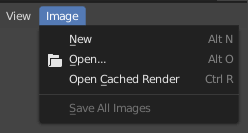
../../../_images/interface_controls_buttons_menus_menu-button.png

Меню Image в заголовке редактора изображений.

Most headers exhibit a set of menus, located at the start of the header. Header menus are used to configure the editor and access tools. All menu entries show the relevant shortcut keys, if any.
Сворачивание меню

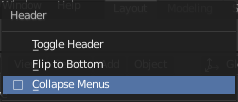
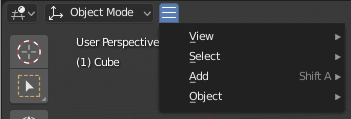
Sometimes it’s helpful to gain some extra horizontal space in the header by collapsing menus. This can be accessed from the header context menu, click RMB on the header and select Collapse Menus.

../../../_images/interface_controls_buttons_menus_header-menu-expand.png

ПКМ на любом заголовке меню.

../../../_images/interface_controls_buttons_menus_header-menu-collapsed.png

Доступ к меню из значка свёрнутого меню.

Меню выбора

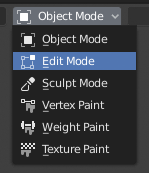
../../../_images/interface_controls_buttons_menus_select-menu.png

Режимы 3D вьюпорта в меню выбора.

The Select menu (short selector) lets you choose between a set of options. Select menu appears as an icon and/or text with down arrow on the right side of the button. The menu options are shown with LMB click on the button. The selected option is then shown as active on the menu button. You can also use Ctrl-Wheel to cycle through options without opening the menu.

Всплывающие меню
../../../_images/interface_controls_buttons_menus_popup-menu.png

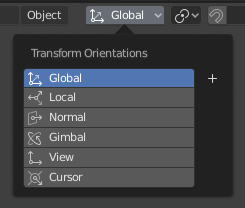
The Transform Orientations pop-up menu.

Popover menus are overlays. Like Select Menus, pop-up menus also include down arrow on the right side of menu button. However, pop-up menus allow more content to be shown, such as title, list options, buttons, sliders, etc. Popover menus group controls into a menu, which is automatically hidden when mouse pointer leaves menu boundaries (including a margin).

Context Menu

Context menus are pop-ups opened with the Menu key for editors and RMB for properties. Context menu contents depend on the location of the mouse pointer.

When invoked in an editor the menu contains a list of operators sensitive to the editor’s mode. Or when invoked over buttons and properties common options include:

Single

Set or get single value.

All

Include all combinations.

Reset to Default Value(s) Backspace

Заменяет текущее значение по-умолчанию.

Copy Data Path Shift-Ctrl-C

Copies the Python property Data path, relative to the data-block. Useful for Python scripting.

Copy Full Data Path Shift-Ctrl-Alt-C

Copies the full Python property Data path including any needed context information.

Copy As New Driver

Creates a new driver using this property as input, and copies it to the clipboard. Use Paste Driver to add the driver to a different property, or Paste Driver Variables to extend an existing driver with a new input variable.

Copy To Selected

Копирует значение свойства в соответствующее свойство выбранного объекта. Вариант использования — если контекст свойств закреплён.

Assign Shortcut (назначить горячую клавишу)

Lets you define a keyboard or mouse shortcut for an operation. To define the shortcut you must first move the mouse cursor over the button that pops up, and when «Press a key» appears you must press and/or click the desired shortcut. Press Esc to cancel.

См.также

Общие горячие клавиши.

Change Shortcut

Позволяет изменить горячую клавишу.

Remove Shortcut

Отменяет связь с существующей комбинацией.

Online Manual F1

Opens an online page of Blender Manual in a web browser.

Online Python Reference

Контекстно-зависимый доступ к Справочнику Python API.

Edit Source

Для разработки пользовательского интерфейса — создаёт текстовый блок данных с исходным кодом, связанным с элементом управления, если элемент управления основан на сценарии Python. В текстовом редакторе он указывает на строку кода, в которой определён элемент.

Edit Translation

Для разработки пользовательского интерфейса — указывает на строку кода перевода.

Специальные меню

The Specials pop-up menu contains a context-sensitive list of operators. It is opened by a button with a down arrow on dark background specials-button.

Pie Menus

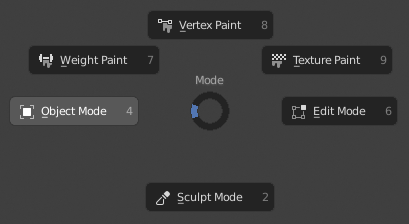
A pie menu is a menu whose items are spread radially around the mouse by a key press.
../../../_images/interface_controls_buttons_menus_pie-menu.png

Круговое меню режимов 3D вьюпорта.

Совет

Fastest way to operate a Pie menu is to press down key(s) that invoke the menu, then move mouse slightly towards a selection, and release key(s) to activate the selection.

Releasing the key without moving the mouse will keep the menu open and the user can then move the mouse pointer towards the direction of a pie menu item and select it by clicking. Releasing the key, after moving the mouse towards a pie menu item, will cause the menu to close and the selected menu item to activate.

An open disc widget at the center of the pie menu shows the current direction of the pie menu. The selected item is also highlighted. A pie menu will only have a valid direction for item selection, if the mouse is touching or extending beyond the disc widget at the center of the menu.

Pie menu items support key accelerators, which are the letters underlined on each menu item. Also number keys can be used to select the items.

Если есть доступные вложенные круговые меню, это обозначается значком плюса.

См.также

See Pie menu settings.

Следующая Предыдущая

© Copyright : This page is licensed under a CC-BY-SA 4.0 Int. License. Обновлено: 06/19/2023.

  • Edit Page
  • Report Bug
  • 2.93
    • Loading...
  • ru
    • Loading...