Oblasti
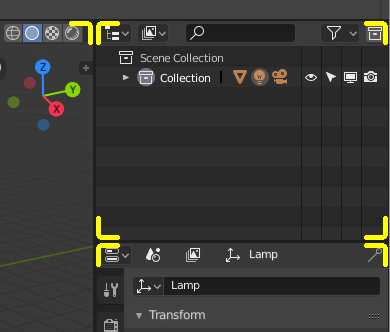
Hranice oblasti sú označené zaoblenými rohmi (žlté zvýraznenie).
The Blender window is divided up into a number of rectangles called Areas. Areas reserve screen space for Editory, such as the 3D Viewport, or the Outliner. In general an Editor provides a way to view and modify your work through a specific part of Blender. All hotkeys you press will affect the contents of the Editor in the Area the mouse pointer is located. Area boundaries are indicated by rounded (beveled) corners.
Areas can be customized to match specific tasks called Workspaces, which can then be named and saved for later use.
Zmena veľkosti

Veľkosť oblastí môžete zmeniť presunutím ich hranice ĽTM. Presuňte kurzor myši na hranicu medzi dvoma oblasťami tak, aby sa kurzor zmenil na dvojhlavú šípku, a potom kliknite a ťahajte.
Rozdelenie
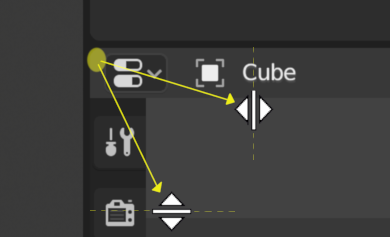
Splitting an area will create a new area. Placing the mouse cursor in an area corner will change the cursor to a cross (+) to indicate that pressing down LMB will activate splitting or joining operator. Dragging from area corner inward will split the area. You define the split direction by dragging either horizontally or vertically.
Spojenie

The Properties is being joined to the Outliner.
Dragging from an area corner outward will join two areas. The area that will be closed gets a dark overlaid arrow. You can select which area will be closed by moving the mouse over areas. Release the LMB to complete the join. If you press Esc or RMB before releasing the mouse, the operation will be aborted.
Poznámka
Areas to be joined must be the same size (width or height) in the direction you wish to join, otherwise nothing will happen. This is so that the combined area remains a rectangle.
Voľby oblasti
Kliknutím PTM na hranicu sa otvoria Voľby oblasti.
- Split Area
Zobrazuje čiaru indikátora, ktorá vám umožní zvoliť oblasť a pozíciu, kde sa chcete rozdeliť. Tab prepína medzi vertikálnou/horizontálnou.
- Spojiť oblasti
Zobrazuje prekrytím smer spojenia.
Prehodenie obsahu
You can swap the contents between two areas with Ctrl-LMB on one of the corners of the initial area, dragging towards the target area, and releasing the mouse there. The two areas do not need to be side-by-side, though they must be inside the same window.
Vytvoriť kópiu oblasti vnútri nového okna
Referencia
- Ponuka
Nové plávajúce okno obsahujúce oblasť je možné vytvoriť z . (V niektorých editoroch nie je dostupné.)
Nové okno je plne funkčným oknom, ktoré je súčasťou rovnakej inštancie Blenderu. To môže byť užitočné napr. ak máte viac monitorov.
You can also create a new window from an existing area by Shift-LMB on the area corner, then drag outward slightly.
The window can be closed with the OS Close Window button.
Prepnúť maximalizáciu oblasti
Referencia
- Ponuka
- Skratka
Ctrl+medzerník
The maximized area fill the whole application window. You can maximize an area with menu entry or keyboard shortcut. To return to normal size, use the keyboard shortcut again or the Back to Previous button on the Topbar.
Poznámka
The area your mouse is currently hovering over is the one that will be maximized using the keyboard shortcuts.
Prepnúť oblasť na celú obrazovku
Referencia
- Ponuka
- Skratka
Ctrl+Alt+medzerník
The fullscreen area contains only the main region of the editor. To exit fullscreen use the keyboard shortcut or move the mouse to the top right corner of the area to reveal the return icon.