查找
菜单搜索
参考
- 模式
所有模式
- 菜单
- 快捷键
F3
The Menu Search pop-up searches Blender's interface for a desired tool and allows you to execute that tool. It returns a list of matches and shows which menu the tool was found in. Start typing the name of the tool you want to refine the list. When the list is sufficiently narrowed, LMB on the desired tool or navigate with Down and Up, run the tool by pressing Return.
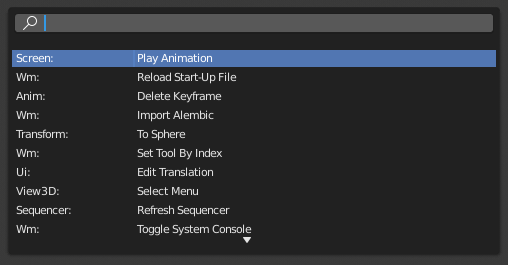
搜索弹出菜单。
See also
偏好设置中的 空格动作 选项。
运算符搜索
参考
- 模式
所有模式
- 菜单
When Developer Extras are activated the Operator Search can be accessed from the Edit menu in the Topbar. This search menu search all operators within Blender even if they are not exposed in a menu. This is useful for Python developers for testing purposes. Blender might also include a few advanced operators that are not exposed in a menu and can only be accessed via this search menu.