Régions
Chaque éditeur dans Blender est divisé en régions. Les régions peuvent avoir des éléments structurants plus petits comme de onglets et des panneaux avec des boutons, des contrôles et des widgets placés à l’intérieur.

Les régions de la Vue 3D montrant la Barre Latérale (Sidebar) et le panneau Adjust Last Operation après l’ajout d’un cube.
Entête (Header) (vert), Région principale (Main region) (jaune), Barre des outils (Toolbar) (bleu), Barre Latérale (Sidebar) (rouge) et Panneau Adjust Last Operation (rose).
Région principale
Au minimum une région est toujours visible. Elle est appelée la Région principale et c’est la partie la plus importante de l’éditeur.
Chaque éditeur a un objectif spécifique, de sorte que la région principale et la disponibilité de régions supplémentaires sont différentes d’un éditeur à l’autre. Voir la documentation spécifique sur chaque éditeur dans le chapitre Éditeurs.
Entête
Un entête est une petite bande horizontale, qui se trouve soit en haut soit en bas d’une zone. Tous les éditeurs ont un entête servant de conteneur pour les menus et les outils couramment utilisés. Les menus et les boutons changeront en fonction du type d’éditeur, de l’objet et du mode sélectionnés.

L’entête de la vue 3D.
Barre d’outils
The Toolbar (on the left side of the editor area) contains a set of interactive tools. T toggles the visibility of the Toolbar.
Paramètres de l’outil
A horizontal strip at the top or bottom of the editor (similar to the header) containing settings for the currently selected tool. Just like the header, it can be hidden and moved through its context menu.
Adjust Last Operation
Adjust Last Operation is a region that allows tweaking an operator after running it. For example, if you just added a cube, you can use this region to tweak its size.
Arrangement
Défilement
A region can be scrolled vertically and/or horizontally by dragging it with the MMB. If the region has no zoom level, it can also be scrolled by using the Wheel while the mouse hovers over it.
Some regions, in particular animation timelines, have scrollbars with added control points to adjust the vertical or horizontal range of the region. These special scrollbars will have added widgets at the ends, as shown in the following image:

Scrollbars with zoom widgets.
This can be used to stretch or compress the range to show more or less detail within the available screen space. Simply drag one of the dots to either increase or decrease the displayed range. You can also quickly adjust both the horizontal and vertical range by dragging in the editor with Ctrl-MMB.
Redimensionner et Masquer
Pour redimensionner des régions, faites glisser leur bordure, de la même manière que pour les zones.
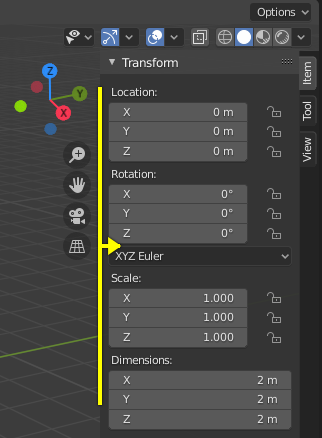
To hide a region, resize it down to nothing. A hidden region leaves a little arrow sign. LMB on this icon to make the region reappear.
|

|
Scaling
The scale of certain regions (such as the Toolbar) can be changed by dragging inside them with Ctrl-MMB, or using NumpadPlus and NumpadMinus while hovering the mouse cursor over them. Press Home to reset the scale to the default.