Sidebar (Barre Latérale)
Edited Action
Référence
- Panneau:
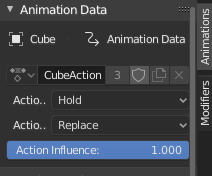
Panneau Edited Action.
This panel is available for actions that have not been « Pushed Down ».
- Action
A Data-Block menu that allows you to edit actions shown in the action track. See also the Action Editor’s Action.
- Extrapolation
Action to take for gaps past the strip extents.
- Hold
Affects both sides of the strip. This should only be set on the very first strip. When the order of strips changes (for example by dragging them in the NLA editor), a strip that is marked as Hold is no longer the very first strip will automatically be set to Hold Forward by Blender.
- Hold Forward
Affects the region after the clip, only. This can be set on any strip.
- Nothing
Affects only the region of the strip itself. This can be set on any strip.
- Blending
Affects how the property values directly produced by the strip are combined with the result of evaluating the stack below. The bottom-most strip is blended on top of the default values of the properties.
- Replace
The top strip is linearly blended in with the accumulated result according to influence, completely overwriting it if influence is set to 100%.
- Multiply, Subtract, Add
The result of the strip is multiplied, subtracted, or added to the accumulated results, and then blended in according to influence.
\(result = mix(previous, previous (+-*) value, influence)\)
- Combine
Selon le type de chaque propriété, l’une des méthodes suivantes est automatiquement choisie :
- Axis/Angle Rotation
\(result = previous + value * influence\)
Il en résulte une moyenne de l’axe et l’ajout de la quantité de rotation.
- Quaternion Rotation (Rotation de Quaternion)
Le Quaternion math est appliqué aux quatre canaux de la propriété à la fois :
\(result = {previous} \times {value} ^ {influence}\)
- Proportional (Scale)
\(result = previous * (value / default) ^ {influence}\)
- Others
\(result = previous + (value - default) * {influence}\)
This allows layering actions that can also be used as a standalone. Properties keyframed at their default values remain at default.
Note
Since this blending mode is based on using quaternion multiplication to calculate the Quaternion Rotation properties, it always drives all four channels during playback, and Insert Single Keyframe is forced to insert all four keys. Other types of channels can still be keyed individually.
- Influence
Amount the active Action contributes to the result of the NLA stack.
Strip
- Name
Name of the track which the strip currently belongs to.
- Mute
Toggles NLA strip evaluation, the strip outline will be dashed.
Active Strip
Référence
- Panneau:
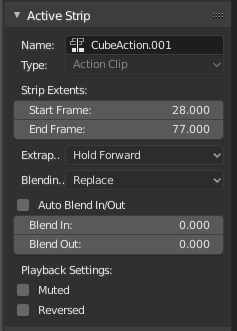
Panneau Active Strip.
- Frame Start, End
The boundaries of the strip itself. Note that this will stretch the duration of the Action, it will not cause greater or fewer keyframes from the Actions to play (see below for that option).
- Extrapolation
Voir Extrapolation.
- Blending
Voir Blending.
- Blend In, Out
The first and last frame that represents when this strip will have full influence.
- Auto Blend In/Out
Creates a ramp starting at the overlap of the strips. The first strip has full control, and it ramps linearly giving the second strip full control by the end of the overlapping time period.
- Playback
- Reversed
Cause this strip to be played completely backwards.
- Cyclic Strip Time
Cycle the animated time within the action start and end.
Animated Influence
Enabling alteration of the degree of influence this strip has as a keyframable value. If influence isn’t animated, the strips will fade linearly, during the overlap. These can be found in the Dope Sheet or Graph Editors under the NLA Control Curves and look like group channels. They appear before all the groups or F-Curves for that channel.
Animated Strip Time
Same as Animated Influence, but with Strip Time.
Action Clip
Référence
- Panneau:
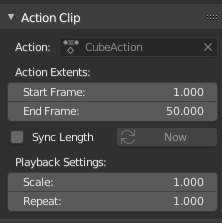
Panneau Action Clip.
This represents the “object data” of the strip. Much like the transform values of an object.
- Action
A reference to the Action contained within the strip. Can be changed to replace the current strip’s value with another Action.
- Frame Start, End
How much of the Action to use.
For instance, it is common to set the first and last keyframe of an Action to be the same keyframes. The problem with this is if you loop the animation, there is a slight hitch where the same keyframes are played twice. To fix this, simply reduce the End Frame.
Note
If you select values that are above or below the actual keyframe count of the Action, then the F-Curve Extrapolation will be applied.
- Sync Length
Causes the Start and End Frames, above, to be reset to the first and last keyframed frames of the Action.
- Now
The Now button causes the Start and End Frames, above, to be reset to the first and last keyframed frames of the Action.
- Playback Scale
Stretches strip, another way of increasing the Strip Extents: End Frame, above.
- Repeat
Also expands the strip, but by looping from the first keyframe and going forward.
Action
Référence
- Panneau:
This panel is identical to the one in Dope Sheet, and allows viewing or changing properties of the action used in the Action Clip, i.e. Manual Frame Range.
Modifiers
Référence
- Panneau:
Like its counterparts in graph and video editing, Modifiers can stack different combinations of effects for strips.
Voir Modificateurs Courbe-F.