Atomic Blender (PDB/XYZ)
The Atomic Blender (PDB/XYZ) add-on imports atomic structures
(molecules, crystals, clusters, particles, surfaces, etc.), which are described in
PDB (.pdb) and XYZ files (.xyz) (Import PDB/XYZ). The add-on reads the coordinates of
all atoms in the PDB/XYZ file and represents the atoms as balls in the Blender world.
Also the sticks, which are described in PDB files only, can be shown if the sticks are listed in the PDB file.
For the import, many options can be chosen, which allow representing the atoms and sticks in different ways.
With help of several tools in the Atomic Blender Utilities panel, the atomic structures can be modified
after the import. Note that the coordinates of selected atomic structures in the Blender 3D world
can also be exported into PDB/XYZ files.
Atomic Blender (PDB/XYZ) is interesting for scientists, who want to visualize their atomic structures described in PDB or XYZ files with Blender. Thanks to Blender, fancy graphics of molecules, crystal structures, surfaces, nanoparticles, clusters and complex atomic arrangements can be obtained. Such graphics meet the standards of top-level journals, which have a high impact factor. See Examples at the end of this page.
Viď aj
Info about PDB and XYZ
Opis formátu súboru XYZ: Wikipedia a Open Babel.
Some notes about PDB and XYZ files can also be found on one of the developer’s site and remarks.
Mnohé molekuly si môžete stiahnuť zo stránky RCSB (prejdite na ‚Download‘).
A list of software that deals with PDB in different ways can be found on the RCSB site. There also is Vesta, ASE and all the quantum chemical calculators used in research, which can create or even calculate atomic structures and store them in PDB/XYZ files.
Viď aj
Forum
Please, use the Blender Artists forum for comments and questions.
There also is the possibility to ask questions on Stack Exchange. However, note that some of the developers (like Blendphys) don’t have enough credits, which are needed to give answers on Stack Exchange.
Rada
Defects in an Atomic Structure
If you want to show defects like vacancies in an atomic structure, use an ‚X‘ for the element name in the PDB or XYZ file. A defect is shown in the form of a cube.
Import PDB/XYZ
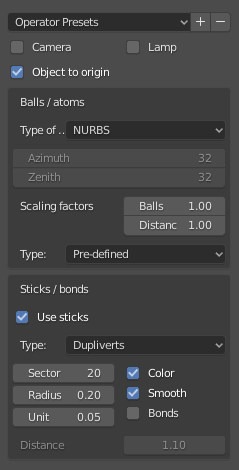
Panel s možnosťami importu PDB.
Kamera a svietidlo
Do 3D sveta sa umiestni kamera a/alebo zdroj svetla. Obe sú umiestnené tak, aby bola celá atómová štruktúra dobre viditeľná kamerou s dostatočným množstvom svetla zo zdroja svetla.
Objekt na počiatok (PDB)
Atómová štruktúra je umiestnená na počiatok (0,0, 0,0, 0,0) 3D sveta.
Objekt na počiatok (XYZ)
Buď len v prvom alebo vo všetkých snímkach je atómová štruktúra umiestnená na počiatok (0,0, 0,0, 0,0) 3D sveta.
Guľôčky/atómy
- Typ
Choose either NURBS, Mesh or Metaballs for the atoms. For option Mesh the Azimuth and Zenith values can be chosen. Metaballs can lead to some fancy effects: for instance, if enough large, their shapes melt together showing some kind of surface effect.

Panel s možnosťami importu XYZ.
- Faktory zmeny mierky
Polomery atómov, ako aj vzdialenosti medzi atómami sa dajú zväčšiť jednoduchým koeficientom.
- Typ
The type of atom radius (atomic, van der Waals or as specified in the custom data file [predefined]) can be chosen.
Tyčinky/Spojky (len PDB)
- Použiť tyčinky
Use sticks or not.
- Typ
Vo všeobecnosti možnosti Sektor a Polomer určujú presnosť a rozmer prepojok. Možnosť Vyhladiť vždy znamená, že na tyčinky sa použije operátor Vyhladiť. Možnosť Farba znamená, že prepojka je rozdelená na dve časti a zobrazuje farby príslušných dvoch atómov, ktoré spája.
- Vytváranie inštancie vrcholov
The sticks of one element are put into one instancing vertices structure and the sticks appear as cylinders. The instancing vertices structure makes the displaying and loading of many sticks relatively fast (Separate Atoms for more info). Options Unit is the length of a unit (a small cylinder): several of such units are put together forming actually the stick (cylinder). The longer the unit length is the less is the number of such units and thus the faster is the displaying. However, if the unit length is too long the stick becomes eventually longer than the bond length, which the stick will actually represent. This then creates some overlapping effects. Option Bonds displays apart from single also double, triple, etc. bonds whereas option Distance is the corresponding bond distance measured in stick diameter.
- Pokožka
Na stavbu prepojok sa používajú modifikátory pokožky a delenia. Vznikne tak pekná sieť prepojok, ktorú možno použiť na zobrazenie napr. len väzieb štruktúry (atómy predtým vymažte!). Možnosti SubDivV a SubDivR sú parametre operátora delenia. Ak je aktivovaná možnosť Vyhladiť, pôvodný hranatý profil prepojok sa zmení na viac kruhový. Všimnite si, že ak je zvolená táto možnosť, existuje len jeden objekt reprezentujúci všetky tyčinky.
- Normál
Používajú sa normálne valce. Pre každú väzbu sa používa jeden samostatný valec. Ak je aktivovaná možnosť Jeden objekt, približne Bez prepojok sa spojí do jednej povrchovej siete objektu. Vďaka tomu je zobrazenie prepojok veľmi rýchle. Jednotlivé tyčinky však už neexistujú.
Snímky (iba XYZ)
- Načítať všetky snímky
Načíta len prvé alebo všetky snímky.
- Preskočiť snímky
Preskakuje a načíta iba každý n-tú snímku. To je celkom užitočné pri veľkých údajoch, kde by mohlo stačiť zobraziť len každú štvrtú snímku.
- Snímky/Kľúče
Zobrazí určitý počet snímok na jednu kľúčovú. Veľa snímok v jednej kľúčovej vedie k plynulejšej prezentácii.
Dôležité
The number of atoms in a frame has to be the same for all frames!
Panel Nástroje Blenderu pre atómy
Panel Nástroje Blenderu pre atómy vám uľahčia život pri manipulácii s atómami importovaných štruktúr.
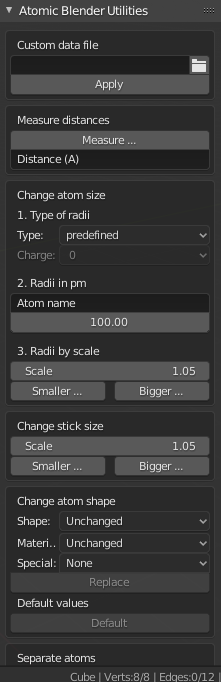
Panel Nástroje Blenderu pre atómy.
Vlastný súbor údajov
A separate custom data file containing all types of radii and colors of the atoms can be loaded. Such an option is useful when it is desired to use predefined values for radii and colors. An example can be downloaded from here: Custom data file.
The custom data file is an ASCII file, which can be duplicated and modified by the user.
The radius and/or color of the atoms can be permanently changed as follows:
Open the ASCII file with a standard text editor, search the name of the atom
and change the radius (Radius used). Do the same with the RGB values for the color.
The value RGBA(1.0, 1.0, 1.0, 1.0) corresponds to white and RGBA(0.0, 0.0, 0.0, 1.0) is black.
Note that the last value of a color tuple is the alpha value of the color.
Inside Blender, the data file needs to be loaded first. The colors and radii are changed after executing Apply. Note that only selected atoms are changed.
Meranie vzdialeností
This is to measure the distance of two objects in Object Mode but also in Edit Mode. The unit is Ångström.
Zmena veľkosti atómu
- Typ polomerov
- Typ
Týmto voličom možno vybrať typ polomerov. Buď sa použije Preddefinovaný, Atomický alebo Van der Waalsov polomer. Predvolené hodnoty pre preddefinované polomery sú Atomické polomery.
- Náboj
For option Ionic radii, the charge state can be chosen and the radii of selected objects are instantaneously changed. Select one type of atom (e.g. only all hydrogen ones) and then apply the charge state. Changes only apply if a charge state of an atom is available.
- Polomery v pm
All radii of a specific type of atom can be manipulated. Type in the name of the atom (e.g. ‚Hydrogen‘) and choose the radius in picometer.
- Polomery podľa mierky
This modifies the radii of all atoms with one scaling factor. Type in the scaling factor and increase or decrease the size of the radii by using the Bigger or Smaller button, respectively.
Zmena veľkosti tyčinky
The diameter of the sticks are changed. The buttons Bigger and Smaller allow increasing or decreasing the diameter, respectively. The scale factor determines, how strong the change of diameter will be. By using the Outliner, one can apply these operators on only a selection of sticks (e.g. only the sticks of the hydrogen atoms). Note that changes only apply if the sticks are individual objects, e.g. single cylinders or if the sticks are described in instancing vertices structures.
Zmena tvaru atómu
It is possible to change the shape (sphere, cube, icosphere, etc.) and material of the atoms. First, select your atoms in the 3D Viewport or the Outliner.
- Tvar
Vyberte tvar v prvom okne výberu.
- Materiál
Vyberte jeden z materiálov v druhom okne výberu. Uvedené materiály sú len príkladmi, ďalšie spresnenia môžete vykonať na karte Materiály v časti Vlastnosti.
- Špeciálne
Tu si môžete vybrať objekt so špeciálnym tvarom, materiálom atď. Takéto objekty sú celkom pekné na reprezentáciu defektov v atómových štruktúrach. Pri výbere takéhoto špeciálneho objektu už nemôžete samostatne vybrať tvar a materiál zhora. V záložkách Objekty a Materiály v časti Vlastnosti je možné vykonať ďalšie zmeny.
- Nahradiť
After all, push the Replace button. The shape and/or material of all selected atoms are then changed. This option works for objects and instancing vertices object structures.
- Predvolené
Ak chcete mať predvolené hodnoty (NURBS gule a špecifické farby a veľkosti prvkov) vybraných atómov, stlačte tlačidlo Predvolené.
Oddeliť atómy
When structures are imported via the PDB or XYZ importer, the atoms are put into a so-called instancing vertices structure, somewhat into ‚groups‘ of elements (e.g. all hydrogen atoms form one instancing vertices structure). In the Edit Mode of Blender, single atoms can be deleted or displaced by modifying the position of the vertices. However, they are always a part of the structure and are not independent objects. Sometimes one would like to mark a single atom or replace an atom by something different: for instance, imagine you have a NaCl cube where you would like to replace an atom by an atomic defect in form of a ball with a different color.
To separate single atoms, one needs to select the atom (vertices) first in the Edit Mode. In the Atomic Blender Utilities panel, the Object selector and the Separate button appear at the bottom. If the selector remains on Unchanged the type of object (NURBS, mesh, meta) and its properties will not be changed upon separation. If desired also an other type of object can be chosen, which then replaces the standard type of object.
After having chosen the type of object, use button Separate Atoms to separate the selected atoms:
the atoms are then single, new objects, which can be manipulated in any way.
They appear in the Outliner and carry the suffix _sep.
Rada
Converting All Atoms of an Instancing Vertices Structure to Real Independent Objects
Do the following: Select the whole atomic structure with the mouse then use Vytvoriť reálne inštancie. With this you produce real independent objects! In the Outliner delete the remaining instancing vertices structures, named like „Carbon“, „Hydrogen“, etc.
Príklady

Rôzne prezentácie jednej a tej istej molekuly.¶ |

Časť molekuly DNA.¶ |

Functionalized [5]helicene molecules on the NaCl(001) surface (Clemens Barth et al. – Link to publication).¶ |

Solar cell structure to underline the properties of silicon nanocrystals deposited by pulsed spray system (Mickael Lozac’h et al. – Link to publication).¶ |
The following movie was created by Sébastien Coget (responsible researcher: Frank Palmino) at the Femto-ST institute in Besançon (France). The movie demonstrates that with Blender, professional movies can be done for research. It was rendered with Cycles.