Skupiny uzlov
Príklad skupiny uzlov.
Grouping nodes can simplify a node tree by allowing instancing and hiding parts of the tree.
Conceptually, grouping nodes allows you to specify a set of nodes that you can treat as though it were „just one node“. Node groups are similar to functions in programming, they can be reused in many places in a node tree and can be customized by changing the „parameters“ of the node group.
As an example: If you have created a material that you would like to use with different inputs e.g. diffuse color: red plastic, green plastic. You could create different materials with Make Single User for each different color with a copy of the tree part describing the plastic material. If you like to edit the material you would need to redo the edit on all materials. A better method of reuse is to create node groups, exposing only the variable inputs (e.g. diffuse color).
Also nested node groups are supported. I.e. a node group can be inserted or created inside another node group.
Poznámka
Rekurzívne skupiny uzlov sú zakázané pre všetky súčasné systémy uzlov, aby sa zabránilo nekonečnej rekurzii. Skupina uzlov nikdy nemôže obsahovať seba (alebo inú skupinu, ktorá ju obsahuje).
Rozhranie
Keď sa vytvorí skupina uzlov, vygenerujú sa nové uzly Vstup skupiny a Výstup skupiny, ktoré reprezentujú tok údajov do a zo skupiny. Ďalej sa pripojenia k vstupným zásuvkám pochádzajúce z nevybraných uzlov pripoja k novým zásuvkám na uzle Vstup skupiny. Podobne sa odchádzajúce spojenia so vstupnými zásuvkami nevybraných uzlov pripoja k novému uzlu Výstup skupiny.
If you want to pass an additional parameter into the group, a socket must be added to the Group Input node. Therefore drag a connection from the hollow socket on the right side of the Group Input node to the desired input socket on the node requiring an input. The process is similar for the Group Output regarding data you want to be made available outside the group.
Panel
Referencia
- Režim
Všetky režimy
- Panel
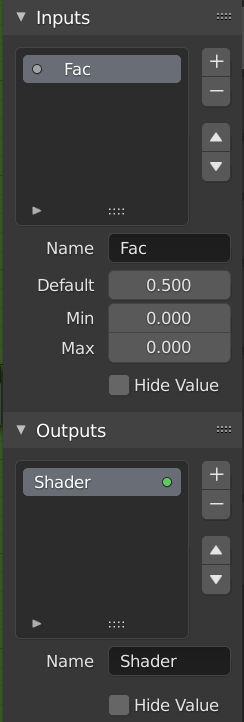
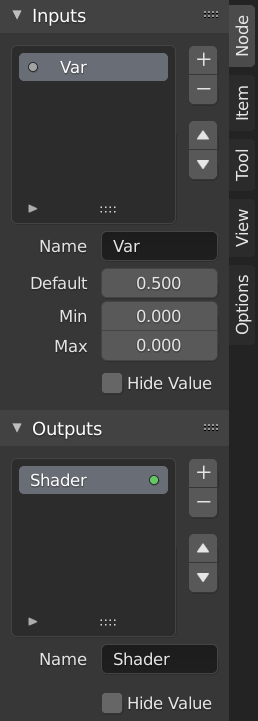
Panel rozhrania na úpravu skupín.
Sockets can be added, re-ordered, or removed, descriptive names can be added and the details of the input data value defined here.
If you have multiple inputs or outputs, they can be re-ordered by selecting the socket in the list. And then moving them up or down with the arrow buttons on the right side of the panel. The plus button will add an unconnected socket of the same type as the selected socket or a value socket if there is no selection. The minus button will remove the selected socket. The triangle at the bottom of the list has filtering functions to help finding nodes if the group has a large number of sockets.
- Názov
Názov zásuvky, ktorá sa má zobraziť v rozhraní uzla.
- Popis
The message displayed when hovering over socket properties. Currently only supported for Geometry Node Editor
- Predvolené
The value to use when nothing is connected to the node socket. Note, this will not affect the current node but will affect instances of the node.
- Min, Max
The minimum and maximum value for the UI button shown in the node interface. Note, this is not a minimum or maximum for the data that can pass through the node. If a socket passes a higher value than the maximum it will still pass into the node unchanged.
- Skryť hodnotu
Skryje hodnotu zásuvky, aj keď zásuvka nie je pripojená.
Upraviť skupinu
Referencia
- Režim
Všetky režimy
- Ponuka
- Záhlavie
- Skratka
Tab, Ctrl+Tab
With a node group selected, Tab expands the node to a frame, and the individual nodes within it are shown. You can move them around, play with their individual controls, re-thread them internally, etc. just like you can if they were a normal part of the editor view. You will not be able, though, to thread them to a node outside the group; you have to use the external sockets on the side of the node group. While Tab can be used to both enter and exit a group, Ctrl-Tab only exits.

Príklad rozšírenej skupiny uzlov.
Vytvoriť skupinu
Referencia
- Režim
Všetky režimy
- Ponuka
- Skratka
Ctrl+G
To create a node group, select the nodes you want to include, then press Ctrl-G, . A node group will have a green title bar. All selected nodes will now be contained within the node group. Default naming for the node group is „NodeGroup“, „NodeGroup.001“ etc. There is a name field in the node group you can click into to change the name of the group. Change the name of the node group to something meaningful.
Pri pripájaní skupín uzlov z jedného blend súboru do druhého Blender nerobí rozdiel medzi skupinami materiálových uzlov alebo zloženými skupinami uzlov. Preto sa odporúča použiť určitú konvenciu pomenovania, ktorá vám umožní rozlíšiť medzi týmito dvoma typmi.
Tip
What not to include in node groups:
Remember that the essential idea is that a group should be a reusable, self-contained software component. Material node groups should not include:
- Input nodes
If you include a source node in your group, you will end up having the source node appearing twice: once inside the group, and once outside the group in the new material node tree.
- Output node
If you include an output node in the group, there will not be an output socket available from the group!
Zrušiť skupinu
Referencia
- Režim
Všetky režimy
- Ponuka
- Skratka
Ctrl+Alt+G
The Ctrl-Alt-G tool removes the group and places the individual nodes into your editor workspace. No internal connections are lost, and now you can link internal nodes to other nodes in your workspace.
- Oddeliť P
Oddelí vybrané uzly zo skupiny uzlov.
- Kopírovať
Skopíruje do stromu rodičovského uzla, zachová skupinu neporušenú.
- Presunúť
Premiestni do stromu rodičovského uzla, odstráni zo skupiny.
Vložiť skupinu
Referencia
- Režim
Všetky režimy
- Ponuka
Výberom sústavy uzlov končiacich uzlom cieľovej skupiny a stlačením klávesovej skratky sa tieto uzly presunú do tejto skupiny. Presunuté uzly sa zhromaždia do vlastnej skupiny, aby sa zachoval ich kontext spojenia a majú vlastné vstupné a výstupné uzly skupiny. Existujúce vstupné a výstupné uzly skupiny sa aktualizujú o nové zásuvky, ak existujú, z nových uzlov. Skupinu uzlov je potrebné upraviť tak, aby obsahovala jeden uzol Vstup skupiny a jeden Výstup skupiny.
Appending Node Groups
Referencia
- Editor
Horný panel
- Režim
Všetky režimy
- Ponuka
Once you have appended a Node Tree to your blend-file, you can make use of it in a node editor by pressing Shift-A, , then selecting the appended group. The „control panel“ of the Group include the individual controls for the grouped nodes. You can change them by working with the Group node like any other node.