F-Curve Modifiers
Reference
- Panel:
F-Curve modifiers are similar to object modifiers, in that they add non-destructive effects that can be adjusted at any time and layered to create more complex effects.
Modifiers are evaluated from top to bottom. You can change their order by dragging the dots in their top right corner.
Some modifiers require being first and cannot be used together. These currently include the Cycles and Smooth (Gaussian) modifiers.
Interface
- Name
By default, modifiers are named after their function, but this can be changed.
- Mute
Click the checkbox in a modifier’s header to disable it.
- Delete
Click the cross in a modifier’s header to delete it.
- Influence
Lets you blend between the original curve and the modified one.
- Restrict Frame Range
- Start/End
The frame on which the modifier’s effect starts/ends.
- Blend In/Out
The number of frames, relative the start/end values above, it takes the modifier to fade in/out.
Adding a Modifier
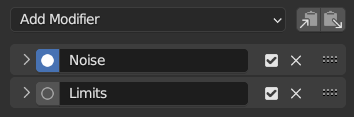
Modifiers panel.
F-Curve Modifiers can be added in several ways. Via the Channel Menu in the Graph Editor, the channel region context menu (right click in the channel region), plus they can be added and managed in the Modifiers tab of the Sidebar.
To add a modifier, first select an F-Curve (in the channel region or by selecting one of its keyframes), then chose Add F-Curve Modifer from one of the menus or by clicking the Add Modifier dropdown in the Sidebar. This will let you choose which type of the modifier to add to the selected F-Curves.
Deleting F-Curve Modifiers
Just like adding an F-Curve Modifier, there are several ways you can remove them. Single modifiers can be removed by clicking the X icon next to the modifier in the Sidebar. Multiple modifiers can be removed at once with the Delete F-Curve Modifiers operator.
This can be found in the Channel Menu, or the Channel Region context menu (right click in the channel region). After chosing this menu option, you can open the redo panel to adjust the settings if needed.

Redo Panel
- Mode
Method used to remove F-Curve Modifiers from the selected curves.
- Remove All:
This will delete all the F-Curve Modifiers from the selected curves (default option).
- Remove Type:
Only remove the specific type of modifier from the selected curves, leaving the others untouched.
- Remove First:
Remove the modifier that is at the top stack on each of the selected curves.
- Type
Specify which type of modifier to remove (this option will only be visible when the Mode is set to ’Remove Type’).
Types of Modifiers
Generator Modifier
Creates a polynomial function. These are basic mathematical formulas that represent lines, parabolas, and other more complex curves, depending on the values used.
Se også
The Wikipedia Page for more information on polynomials.
- Mode
Method used to represent the equation.
- Expanded Polynomial:
Equation in the form \(y = A + Bx^1 + Cx^2 + ... + Dx^n\).
- Factorized Polynomial:
Equation in the form \(y = (Ax + B)(Cx + D)\).
- Additive
Add the polynomial to the curve rather than replacing it.
- Order
The highest power of
xfor this polynomial.- Constant
The constants A, B, C… in the equation.
Built-in Function Modifier
These are additional formulas, each with the same options to control their shape. Consult mathematics reference for more detailed information on each function:
- Type
The built-in function to use:
Normalized Sine: \(sin(x)/x\)
- Additive
Add the function to the curve rather than replacing it.
- Amplitude
Adjusts the Y scaling.
- Phase Multiplier
Adjusts the X scaling.
- Phase Offset
Adjusts the X offset.
- Value Offset
Adjusts the Y offset.
Envelope Modifier
Lets you reshape the curve. First, you define an envelope, which consists of two horizontal lines that more or less match the curve’s lower and upper bounds. Then, you add control points, where each point can push, squeeze, and stretch the envelope (and the curve along with it) at a certain frame.
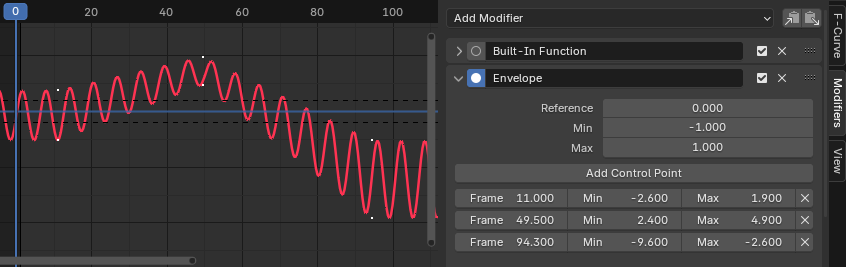
The Envelope modifier.
- Reference
The value which the envelope is centered around.
- Min/Max
The offset from the reference value to the envelope’s initial lower/upper bound.
- Add Control Point
Adds a control point at the current frame.
- Point
- Frame
The frame of the control point.
- Min/Max
The offset from the reference value to the envelope’s adjusted lower/upper bound at this frame.
Cycles Modifier
Makes the curve repeat itself.
Merknad
The Cycles Modifier has to be the first modifier in the list.
This modifier needs to know exactly where the keyframes are located, which is not possible when other modifiers are processed first. This means this modifier is not compatible with the Smooth (Gaussian) Modifier.
- Before/After Mode
- No Cycles
Do not repeat the curve before/after the original.
- Repeat Motion
Repeats the curve, keeping the values of each copy the same.
- Repeat with Offset
Repeats the curve, offsetting each copy vertically so that its first keyframe matches the previous last keyframe.
- Repeat Mirrored
Repeats the curve, flipping every other copy horizontally.
- Count
The number of copies to create. A value of 0 means infinite.
Trivially Cyclic Curves
When the Cycle Mode for both ends is set to either Repeat Motion or Repeat with Offset, and no other options of the modifier are changed from their defaults, it defines a simple infinite cycle.
This special case receives some additional support from other areas of Blender:
Automatic Bézier handle placement is aware of the cycle and adjusts to achieve a smooth transition.
The Cycle-Aware Keying option can be enabled to take the cycle into account when inserting new keyframes.
Noise Modifier
Modifies the curve with a noise formula. This is useful for adding subtle or extreme randomness to animated movements, like camera shake.
- Blend Type
- Replace:
Adds noise in the range [-0.5, 0.5].
- Add:
Adds noise in the range [0, 1].
- Subtract:
Subtracts noise in the range [0, 1].
- Multiply:
Multiplies by noise in the range [0, 1].
- Scale
Changes the horizontal scale of the noise. Higher values make for less dense oscillation.
- Strength
Changes the vertical scale of the noise.
- Offset
Offsets the noise in time.
- Phase
Adjusts the random seed of the noise.
- Depth
Adjusts how detailed the noise function is.
- Lacunarity
Gap between successive frequencies. Depth has to be greater than 0 for this to have an effect.
- Roughness
The amount of high frequency detail. Depth has to be greater than 0 for this to have an effect.
Limits Modifier
Limits the curve to specific time and value ranges.
- Minimum, Maximum X
Removes the original curve data to the left of the minimum frame and to the right of the maximum, replacing it by Constant extrapolation.
- Minimum, Maximum Y
Clamps the curve values, never letting them go below the minimum or above the maximum.
Stepped Interpolation Modifier
Gives the curve a stepped appearance by sampling it every N frames and making it hold its value after each sample. In a sense, this lowers the curve’s frame rate by letting it change its value less frequently, producing choppy movement as a result.
- Step Size
The number of frames to hold each step.
- Offset
The number of frames to offset the sample points.
- Start Frame
The frame where to start applying the effect.
- End Frame
The frame where to stop applying the effect.
Smooth (Gaussian) Modifier
Uses Gaussian smoothing to reduce detail and noise in the curve. It performs the same smoothing as the Smoothing Operator.
This uses linear interpolation for subframes which can introduce issues related to motion blur.
Note that this can be a resource-heavy modifier, and its effect on performance can become noticeable when used on many F-Curves.
Merknad
The Smooth (Gaussian) modifier has to be the first modifier in the list.
This modifier needs to know exactly where the keyframes are located, which is not possible when other modifiers are processed first. This means this modifier is not compatible with the Cycles Modifier.
- Sigma
The shape of the Gaussian distribution in frames. Lower values will increase sharpness, reducing the smoothing effect. Larger values will result in more smoothing, but are limited by the Filter Width (see below).
- Filter Width
The number of frames the filter «sees» around each keyframe. Higher values allow more smoothing (larger Sigma can then smooth over more frames), but this will decrease performance.