Asset Libraries
Asset Libraries define locations where Blender searches for assets.
Asset libraries can point to directories on the local file system or to online asset repositories. Once added, assets contained in those libraries are available in the Asset Browser and other asset selectors.
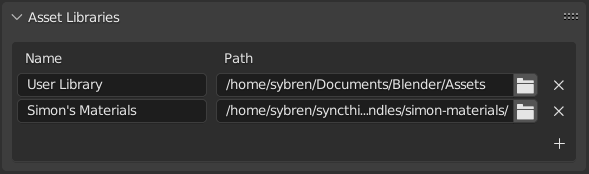
Name and location of asset libraries in the Preferences.
To create a local asset library, create an empty directory and add it to the List View. Any asset contained in blend-files within that directory or its subdirectories will automatically become available in the Asset Browser.
The library name is only used within Blender to identify the asset library and can be changed at any time.
選項
- Path
Directory containing the asset library.
Only available for local asset libraries.
- URL
URL of the online asset library.
Only available for online asset libraries.
- 匯入方法
Default method used when importing assets from this library.
This setting is used unless overridden by the Asset Browser.
This option is not available for built-in asset libraries.
- Link
Links the asset into the current blend-file.
Linked assets remain read-only and continue to reference the original asset library. Changes made to the source asset are reflected in all files that link it.
Note
Linking is not supported for online asset libraries.
- Append
Creates an independent copy of the asset and all of its dependencies.
Every imported asset is appended as new data, even if the same asset has already been imported previously.
Dependencies include any data referenced by the asset, such as meshes, materials, node groups, objects, constraints, or drivers.
Later changes made to the original asset library are not reflected in the appended copy.
- Append (Reuse Data)
Specific to the Asset Browser.
Behaves like Append the first time an asset is imported.
Blender remembers the source of imported assets and reuses compatible data on subsequent imports whenever possible.
For example, importing the same material multiple times reuses the existing material instead of creating duplicates, while importing an object multiple times creates new object instances that share the same mesh, materials, and other reusable data.
Like Append, later changes to the original asset library are not reflected in the current blend-file.
- Pack
Imports the asset as linked data and immediately packs it into the current blend-file.
This creates a self-contained blend-file while preserving the behavior of linked assets during import.
Useful when sharing files or archiving projects that should not depend on the original asset library.
- Relative Path
Stores the library location as a relative path whenever possible.
This is useful when the asset library resides alongside a project and may be moved together with it.
Essentials Library
The built-in Essentials asset library provides assets that are included with Blender.
- Include Online Essentials
Includes additional assets hosted online in the Essentials library.
Downloading these assets requires Online Access to be enabled in the Preferences.