Split
The Split menu can be accessed as a popover by pressing Alt-M.
These operators are about splitting meshes by disconnecting faces from each other. For splitting faces into smaller ones, see the Knife Topology Tool or the Connect Vertex Path operator.
Split Selection
Referenz
- Modus:
Edit Mode
- Menü:
- Tastenkürzel:
Y
Cuts the mesh along the border of the selected faces. The faces can then be moved elsewhere.
This operator can also disconnect „wires“ (edges that are not part of a face) from their surroundings. However, using it on edges that are part of a face will simply duplicate them.
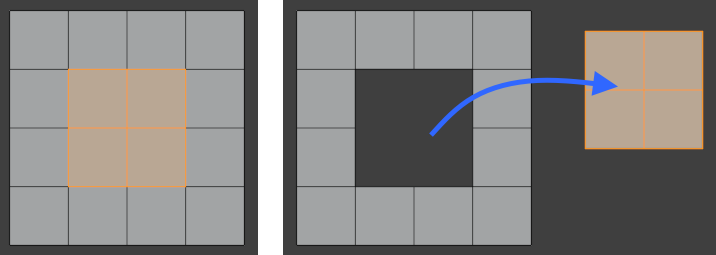
Disconnecting inner faces from their surroundings.
Siehe auch
The Separate operator disconnects the selection and moves it into a new mesh object.
Split Faces by Edges
Referenz
- Modus:
Edit Mode
- Menü:
Cuts the mesh along the selected edges. The vertices can then be pulled apart to create a hole.

Splitting by selected edges.
Siehe auch
Rip Vertices also cuts neighboring unselected edges.
Split Faces & Edges by Vertices
Referenz
- Modus:
Edit Mode
- Menü:
Cuts the mesh along all neighboring edges of each selected vertex. (This is different from Rip Vertices which only cuts two edges per vertex.)
The vertices can then be pulled apart to create a hole.

Splitting by selected vertices.