Warp
Referenz
- Modus:
Edit Modes
- Menü:
This transformation bends part of the selection into a circle segment. It’s similar to Bend, except that here, the 3D Cursor is at the center instead of on the circle.
Nutzung
Align the 3D Viewport’s viewpoint to the plane in which the warp should happen.
Place the 3D Cursor at the center point for the warp.
Click Warp in the menu.
Adjust the options in the Adjust Last Operation panel.
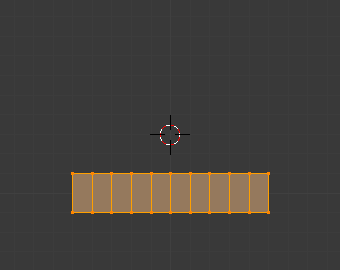
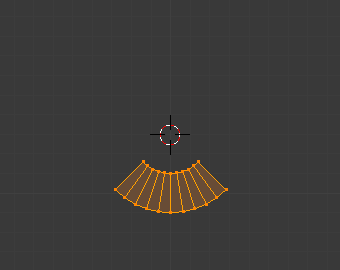
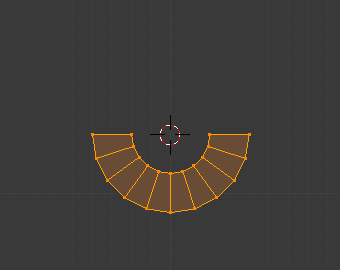
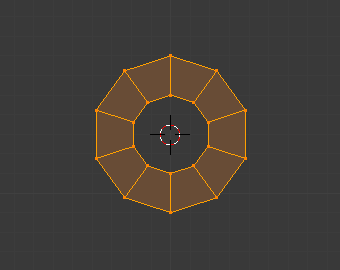
Bemerkung
Unlike most other transform tools, Warp does not take into account the transform orientation or the pivot point, instead always using the view plane and the 3D Cursor.
Options
- Warp Angle
The size of the circle segment along which to bend the selection.
- Offset Angle
Direction angle for the line going from the 3D Cursor to the center of the selection. A value of 0° means straight up, and higher values go clockwise.
- Min/Max
Distance from the above centerline to the leftmost/rightmost part of geometry that will be included in the circle segment. The geometry that „sticks out of“ these limits will be rotated but not bent.

Warping with an Offset Angle of 45°, a Min and Max of -0.5 and 0.5, and a Warp Angle of 90°.
Example
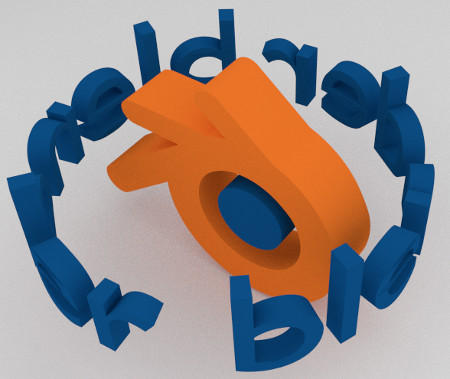
Text wrapped around logo.
This was made by creating the Blender logo and text as separate objects. The text was converted to a mesh and then warped around the logo.