Edge Slide
Reference
- Mode:
Edit Mode
- Menu:
- Shortcut:
G twice
Moves the selected edges across their neighboring faces.
Hint
Use Select Loops to quickly select a chain of edges that goes around the mesh.
Usage
Select one or more edges, press G twice, move the mouse, and click LMB to confirm (or RMB to cancel).
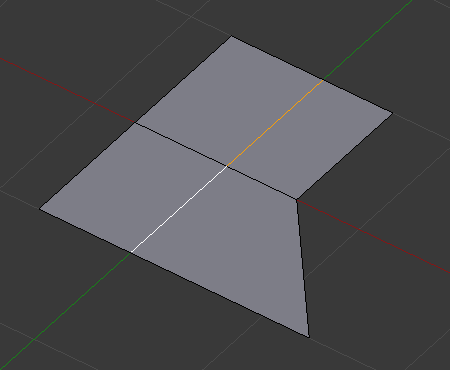
By default, the vertices on the selected edges all move by the same percentage towards their neighbor:
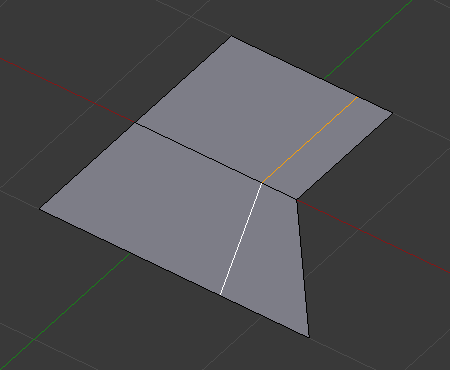
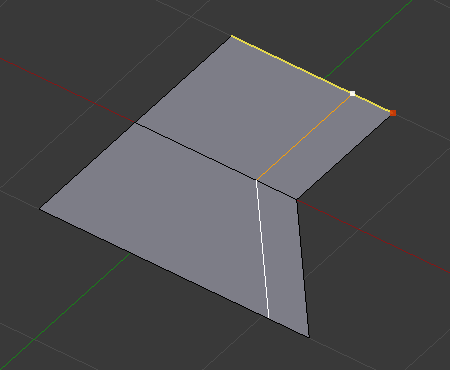
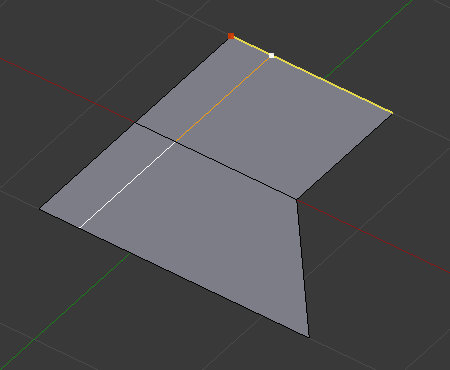
In Even mode, the vertices instead keep the same distance from their neighbor. The red dot indicates which side they look at (i.e. which neighbor they pick):
Options
While the tool is active, the Factor is shown at the top of the 3D Viewport and the shortcuts are shown in the status bar. After confirming with LMB, the options can still be changed in the Adjust Last Operation panel.
- Factor
Direction and amount to slide. Values of -1 and 1 move each selected edge fully towards one of its neighbors.
- Even E
By default, each vertex is moved by the same percentage along the length of its edge. Use Even to instead move all vertices so they’re at the same absolute distance from a neighboring vertex. (The Factor input is still a relative number, however.)
- Flipped F
Use the other neighboring vertex when Even is active.
- Clamp Alt or C
Prevents the edges from moving outside their neighboring faces.
- Mirror Editing
Also slide matching edges on the other side of the mesh. Mesh Symmetry needs to be enabled for this to work.
- Correct UVs
Corrects the UV coordinates of the moved vertices to avoid texture distortion.
See also