Draw Brushes
Riferimento
- Modalità:
Draw Mode
- Pennello:
The Draw brush allows you to draw free-hand strokes.
Brush Settings
- Materiale
Data-block selector for the material.
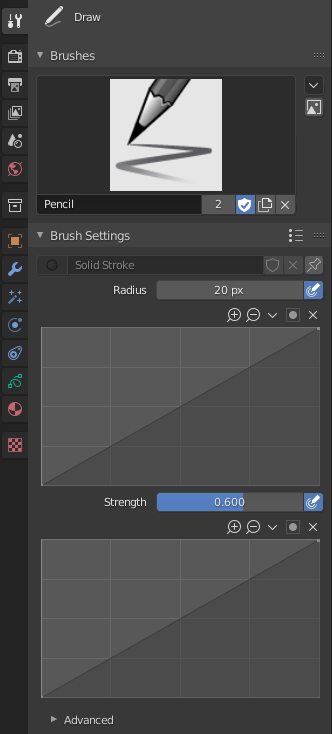
- Dimensione
The diameter of the brush in pixels.
F allows you to change the brush size interactively by dragging the pointer or by typing a number then confirm.
- (Size Pressure)
Adjusts the brush size based on the stylus pressure when using a Graphics Tablet. The gradient of the pressure can be customized using the curve widget.
- Forza
Control the stroke transparency (alpha). From fully transparent (0.0) to fully opaque (1.0).
You can change the brush strength interactively by pressing Shift-F in the 3D Viewport and then moving the pointer and then LMB. You can also enter the size numerically.
- (Strength Pressure)
Adjusts the strength based on the stylus pressure when using a Graphics Tablet. The gradient of the pressure can be customized using the curve widget.
- Stroke Mode
Defines which part of the Grease Pencil material is affected when drawing.
- Stroke:
Applies only the stroke (outline) component of the material. The fill is not created or modified.
- Fill:
Applies only the fill component of the material. No stroke outline is drawn.
- Both:
Applies both the stroke and fill components of the material when creating or editing strokes.
- Caps Type
The shape of the start and end of the stroke.
- Round:
Strokes start and stop with a curved shape.
- Flat:
Strokes start and stop with a straight cutoff.
Avanzate
- Spacing
Controls the minimum spacing between points in the stroke as a percentage of the brush size.
A lower spacing is useful when doing fast movements. Normally this would generate less samples and lead to a larger spacing between points. When the spacing percentage is lowered, more points are generated to ensure the minimum spacing.
When drawing slowly, the point density is usually already high. In this case the spacing setting doesn’t add new points. It only ensures a minimum spacing and won’t remove points.
- Active Smooth
The number of smoothing iterations to apply to the stroke while drawing.
- Angolo
Direction of the input device that gives the maximum thickness to the stroke (0° for horizontal).
- Fattore
Amount of thickness reduction when the stroke is perpendicular to the Angle value.
- Hardness
Amount of transparency (alpha) to apply from the border of the point to the center. Works only when the brush is using stroke materials of Dot or Box style.
- Aspect X, Y
Controls the width and height of the alpha gradient.
Stroke
Post-Processing
Post-processing methods that are executed on the strokes when you finished drawing, right after releasing the LMB or Pen tip. You can toggle the use of post-processing using the checkbox in the section panel header.
- Smooth
Strength of smoothing process on the points location along the stroke.
- Iterations
The number of smoothing iterations to apply to the stroke.
- Subdivisions
Number of subdivisions to apply to newly created strokes.
- Simplify
Reduces final points numbers in the stroke with an adaptive algorithm.
- Trim Strokes End
Automatically trim intersection strokes ends.
- Contorno
Activate the conversion of the newly created stroke to its outline.
- Materiale
Material used for outline stroke.
- Spessore
Thickness used for outline stroke.
- Curve Type
The type of curve used to interpolate between stroke points when drawing.
- Catmull Rom:
Creates a smooth interpolating curve that passes through all points, producing natural-looking strokes.
- Poly:
Connects points with straight line segments without smoothing.
- Bézier:
Generates a smooth curve using Bézier interpolation, allowing for more controlled and rounded stroke shapes.
- NURBS:
Uses Non-Uniform Rational B-Splines for smooth curves, suitable for precise and mathematically defined shapes.
- Threshold
The minimum distance between points required when converting strokes.
Points closer than this distance are merged or ignored during conversion, reducing the number of points and simplifying the resulting curve.
Randomize
Adds randomness to the position of the points along the stroke. You can toggle the use of Randomize using the checkbox in the section panel header.
- Radius
The amount of randomness to apply using the pressure of the input device.
- Forza
The amount of randomness to apply to the stroke strength value (alpha).
- UV
The amount of randomness to apply to the UV rotation.
- Hue, Saturation, Value
Randomizes the hue, saturation, and value of the stroke’s Color.
- Jitter
The amount of jittering to add to the stroke.
Opzioni Comuni
- Stroke Random
Use randomness only at stroke level.
- Use Pressure
Uses the stylus pressure to control how strong the effect is. The gradient of the pressure can be customized using the curve widget.
Stabilize Stroke
Stabilize Stroke helps to reduce jitter of the strokes while drawing by delaying and correcting the location of points. You can toggle the use of Stabilize Stroke using the checkbox in the section panel header.
- Radius
Minimum distance from the last point before the stroke continues.
- Fattore
A smooth factor, where higher values result in smoother strokes but the drawing sensation feels like as if you were pulling the stroke.
Cursore
The cursor can be disabled by toggling the checkbox in the Cursor header.
- Show Fill Color while Drawing
Shows the brush linked material color in the viewport.