Select More/Less
Seleziona altro
Riferimento
- Modalità:
Modalità Modifica
- Menù:
- Scorciatoia:
Ctrl-NumpadPlus
Grows the selection to include the elements at its border. Specifically, this adds the neighbors of the currently selected elements, with the type of those neighbors (vertices, edges, or faces) depending on the Selection Mode.
Opzioni
- Face Step
Add whole neighboring faces even if they only share a single vertex.
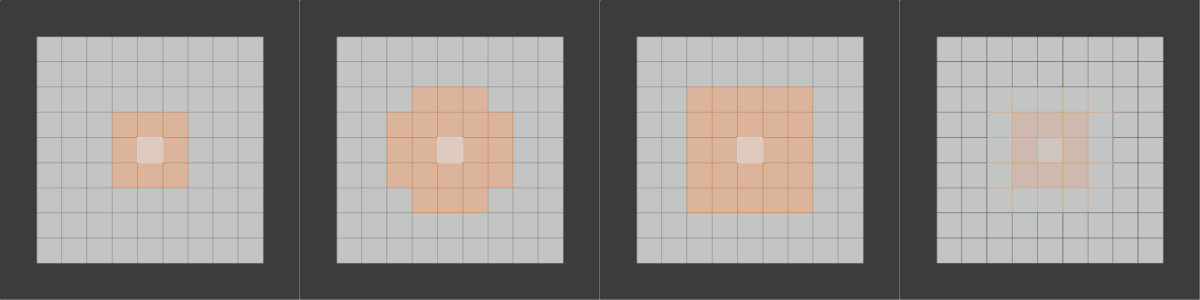
From left to right: initial selection – Select More – Face Step enabled
Seleziona Meno
Riferimento
- Modalità:
Modalità Modifica
- Menù:
- Scorciatoia:
Ctrl-NumpadMinus
Shrinks the selection to exclude the elements at its border. Specifically, this deselects elements that have any unselected neighbors, with the type of those neighbors (vertices, edges, or faces) depending on the Selection Mode.
Opzioni
- Face Step
Deselect elements that share a vertex with an unselected face.
Select Next Active
Riferimento
- Modalità:
Modalità Modifica
- Menù:
- Scorciatoia:
Shift-Ctrl-NumpadPlus
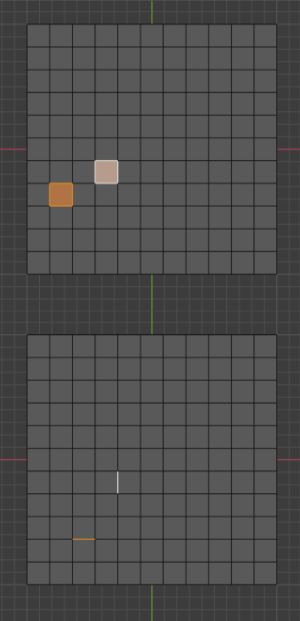
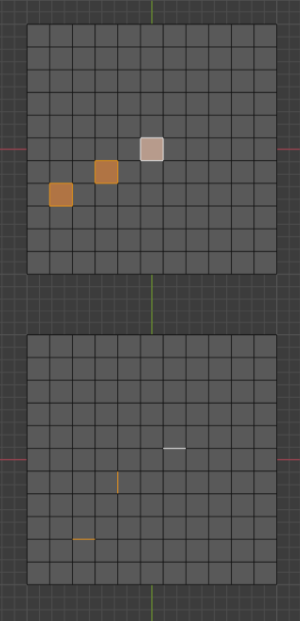
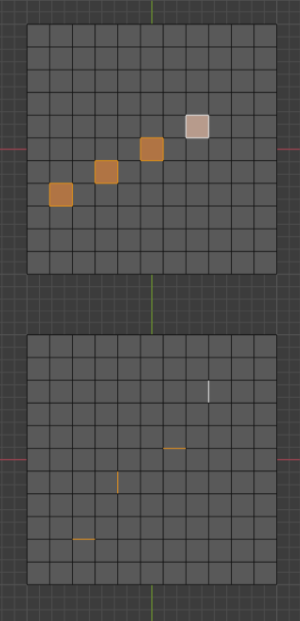
Selects the element that «logically follows» the two most recently selected ones.
Select Previous Active
Riferimento
- Modalità:
Modalità Modifica
- Menù:
- Scorciatoia:
Shift-Ctrl-NumpadMinus
Deselects the last selected element and makes the next-to-last one active again.