Bridge Edge Loops
Riferimento
- Modalità:
Modalità Modifica
- Menù:
Deletes any selected faces, then creates new faces between two or more selected edge loops.
Nota
In Blender terminology, an edge loop is any chain of connected edges – it doesn’t have to be a closed loop. See Select Loops.
Opzioni
- Connect Loops
- Open Loop
The last edge loop is not connected back to the first.
- Closed Loop
The last edge loop is connected back to the first.
- Loop Pairs
The first edge loop is connected to the second, the third to the fourth, and so on.
- Merge
Instead of creating faces, merges all the edge loops (or each pair of edge loops if Loop Pairs is selected) into a single edge loop.
- Merge Factor
When set to 0, the loops are merged into the first loop. When set to 1, they’re merged into the last. Other values result in interpolation.
- Twist
Offsets the choice of target vertex which each source vertex is connected to. This makes the generated tube twist along its axis.
- Number of Cuts
The number of intermediate edge loops to create between each pair of existing edge loops.
- Interpolation
How to calculate the new edge loops when Number of Cuts is greater than zero.
- Lineare
Create the new edge loops in a straight line.
- Blend Path
Create the new edge loops along a Bézier spline, disregarding any neighboring surfaces.
- Blend Surface
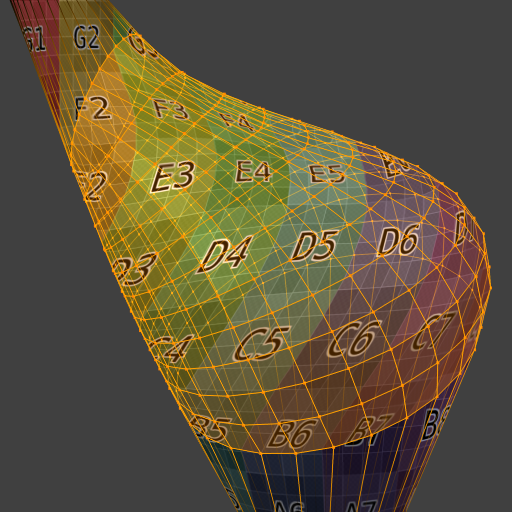
Create the new edge loop vertices along Bézier splines, taking into account the normals of neighboring surfaces.
- Smoothness
Smoothness factor for the Blend Path and Blend Surface interpolations. A value of 1 uses full Bézier splines, while a value of 0 is essentially the same as using Linear.
- Profile Factor
Strength factor for the Profile Shape. A negative value will shrink each tube segment in the middle, while a positive value will inflate it.
- Profile Shape
How to vary the thickness of each tube segment from one original edge loop to the next. See the Proportional Editing page for a description of each option.


Esempi
Bridging two edge loops with the same number of vertices:
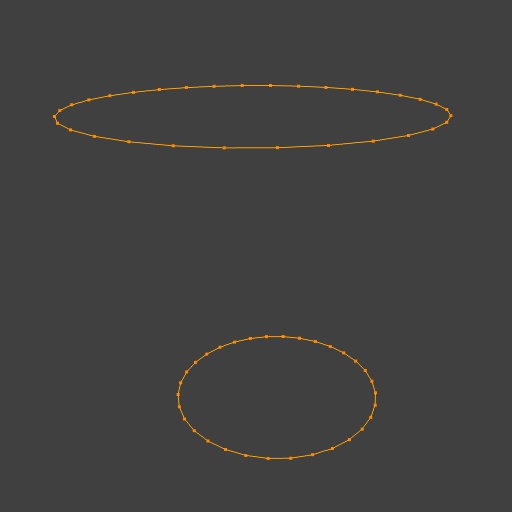
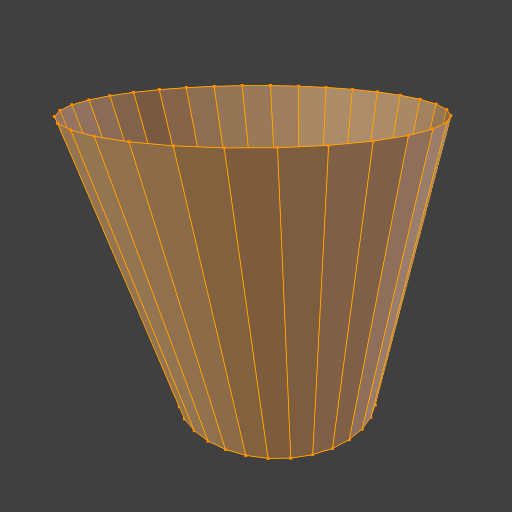
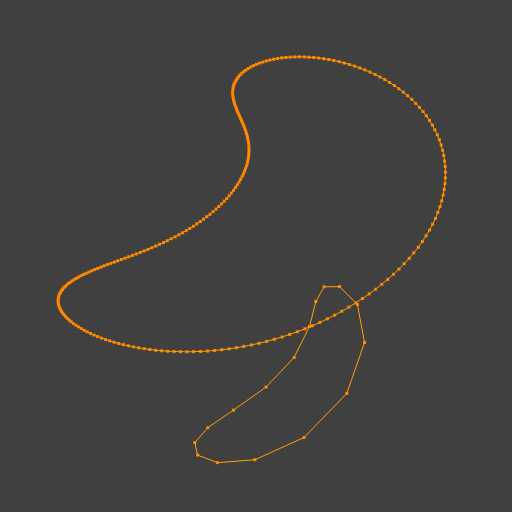
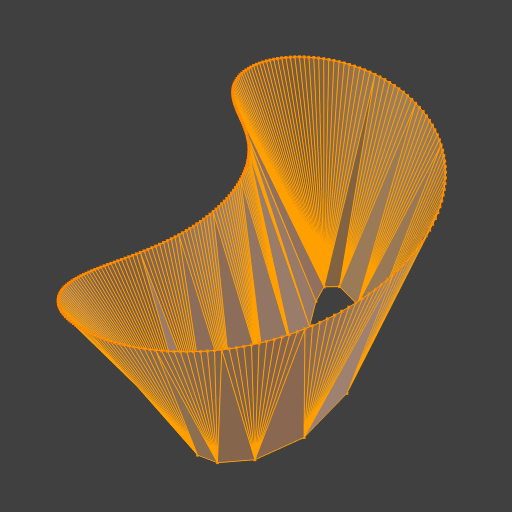
Bridging edge loops with different numbers of vertices:
Cutting holes in surfaces and connecting them:
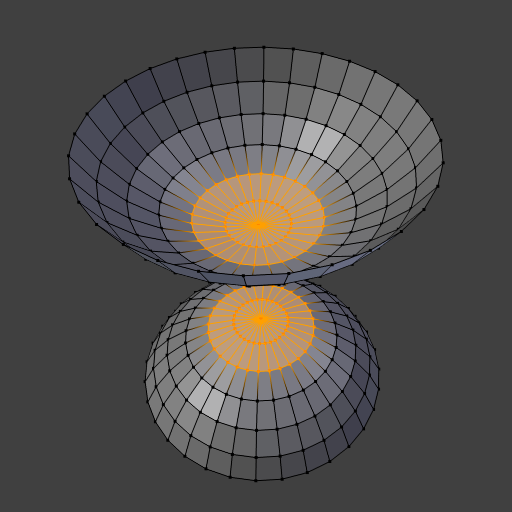
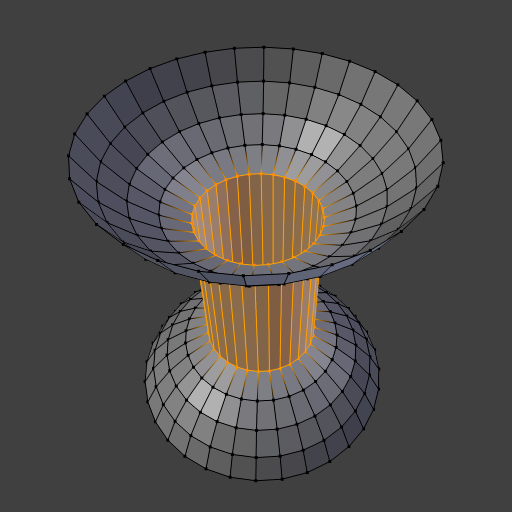
Connecting a series of loops in one go:
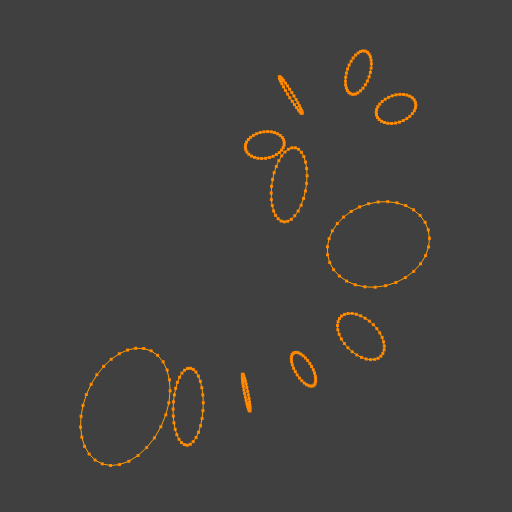
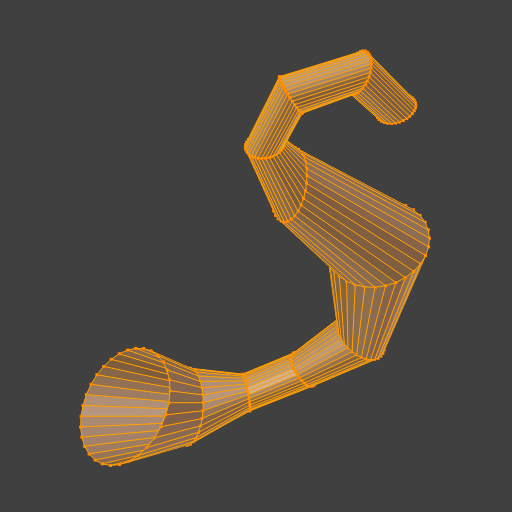
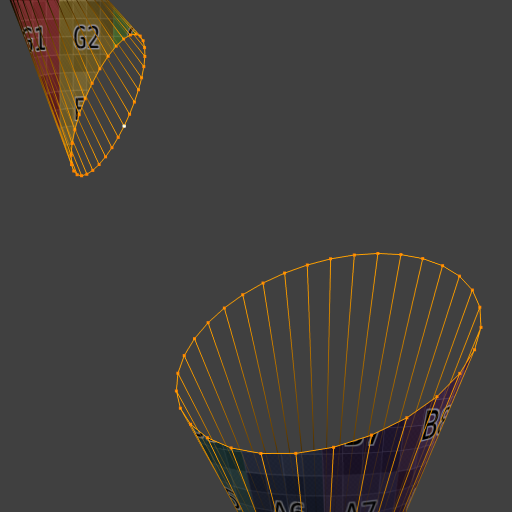
Using Blend Surface interpolation to connect textured surfaces:
Vedi anche