Knife Project
Riferimento
- Modalità:
Modalità Modifica
- Menù:
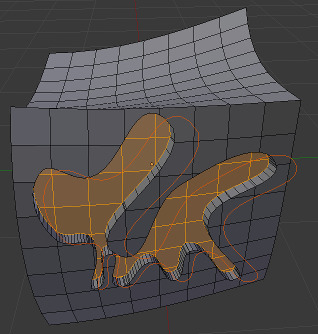
Projects the outline of one or more «cookie cutter» objects onto the edited object and creates new edges there.
The cutter objects must be Curves or non-manifold meshes (e.g. flat shapes, loose edges).
Suggerimento
Select Non-Manifold will highlight the cutting edges of mesh objects.
Projection is done along the viewing direction.
Uso
Select the object(s) that should receive the cut and switch to Edit Mode.
Select the object(s) that should perform the cut by clicking them with Ctrl-LMB in the 3D Viewport or the Outliner.
Click in the menu.
If Blender switches back to Object Mode when selecting the cutting objects, make sure that is checked in the topbar.
Opzioni
- Cut Through
Projects the cut through the entire mesh, including back faces not currently visible.
Esempi
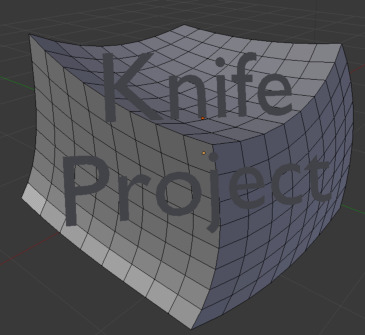
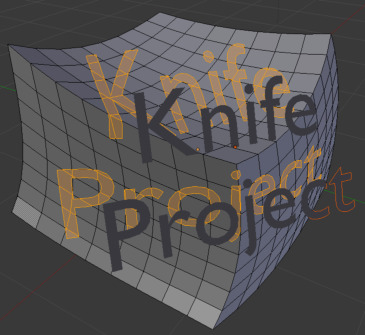

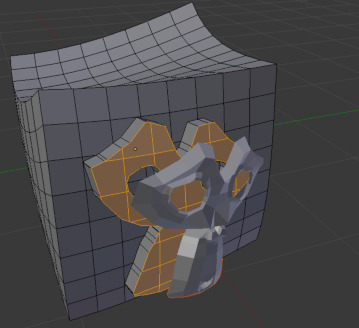
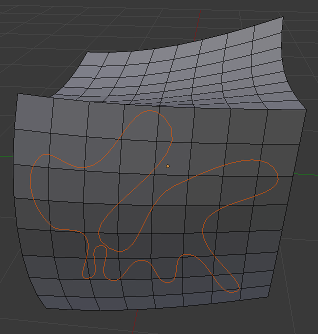
Known Limitations
When cutting multiple meshes in Edit Mode at once, geometry from these meshes does not occlude separate mesh objects behind them.