헤더(header)
Every constraint has a header at the top:
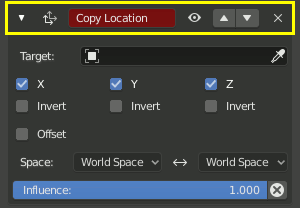
Constraint header
- / Expand/Collapse
Show or hide the settings of the constraint. Collapsed constraints remain active.
- Icon
Icon representing the constraint’s type. If this icon is red, one or more settings are not correctly filled in and the constraint has no effect.
- Name
Initially this is simply the constraint type, but it can be customized to something more specific.
- Enabled
Enable or disable the constraint. Disabling a constraint turns off its effects while keeping its settings around for the future.
Another way of disabling a constraint is to set its Influence to zero. Unlike the Enabled setting, this can be animated.
- Extras
- Apply Ctrl-A
Applies the constraint’s result to the object’s/bone’s own transformation, then deletes the constraint.
경고
Applying a constraint that is not first in the stack will ignore the constraints before it, which may produce undesired results.
더 보기
Apply Visual Transform to apply the combined result of all constraints without deleting them.
- Duplicate Shift-D
Creates a copy of the constraint just below current one.
- Copy to Selected
Copies the constraint from the Active object to all selected objects.
- Move to First/Last
Moves the constraint to the first or last position in the stack.
- Delete X, Delete
Delete the constraint from the stack. Its settings will be lost and it will no longer affect the object/bone.
- Move
Drag to move the constraint up or down in the stack. Since the stack is evaluated from top to bottom, moving a constraint can significantly affect the final outcome.