작업공간(workspace)
Workspaces are essentially predefined window layouts. Each Workspace consists of a set of Areas containing Editors, and is geared towards a specific task such as modeling, animating, or scripting. You’ll typically switch between multiple Workspaces while working on a project.

작업공간들은 상단 막대(top bar)에 놓여 있어요.
조작
- 탭
Click on the tabs to switch between workspaces. Double-click a tab to rename the workspace.
- Add Workspace
Adds a new workspace from a predefined template (e.g. Modeling, Sculpting, Compositing).
Context Menu RMB
- Duplicate
Makes a copy of the selected workspace, including its screen layout and editors.
- Delete
Deletes the selected workspace. If it is the last workspace, it cannot be removed.
- Reorder to Front/Back
Moves the workspace tab to the first (front) or last (back) position in the tab list.
- Previous Workspace Ctrl-PageUp
Activates the workspace immediately to the left of the current one.
- Next Workspace Ctrl-PageDown
Activates the workspace immediately to the right of the current one.
- Delete Other Workspaces
Removes all workspaces except the one that was right-clicked on.
블렌더의 기본 작업공간들
Blender’s default startup shows the “Layout” workspace in the main area. This workspace is a general workspace to preview your scene and contains the following Editors:
3D Viewport on top left.
Outliner on top right.
Properties on bottom right.
Timeline on bottom left.
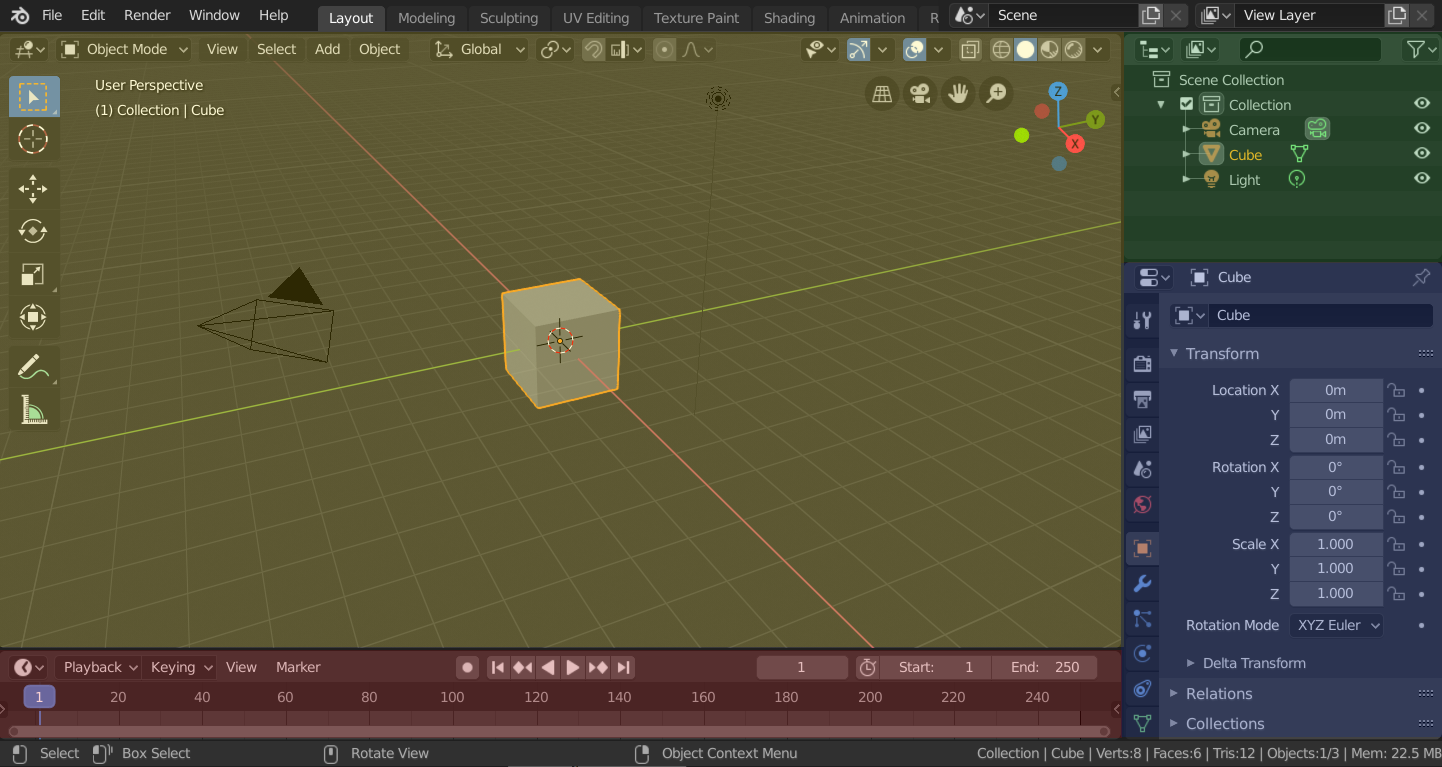
Blender’s ‘Layout’ Workspace with four editors.
3D Viewport (yellow), Outliner (green), Properties (blue) and Timeline (red).
또한 블렌더는 기본적으로 몇 개의 다른 작업공간이 추가되어 있어요.
- 모델링:
모델링(modeling) 도구로 입체도형을 수정하는 곳.
- Sculpting:
조각(sculpting) 도구로 모형을 빚는 곳.
- UV Editing:
For mapping of image texture coordinates to 3D surfaces.
- Texture Paint:
For coloring image textures in the 3D Viewport.
- Shading:
For specifying material properties for rendering.
- 애니메이션:
For making properties of objects dependent on time.
- Rendering:
렌더 결과를 보면서 분석하는 곳.
- 합성하기(compositing):
For combining and post-processing of images and rendering information.
- Geometry Nodes:
For procedural modeling using Geometry Nodes.
- Scripting:
For interacting with Blender’s Python API and writing scripts.
추가적인 작업공간들
블렌더에는 새로운 작업공간을 추가할 때, 선택할 수 있는 몇가지 작업공간들이 있어요.
2D Animation
- 2D Animation:
Grease Pencil로 작업하는 일반적인 작업공간이에요.
- 2D Full Canvas:
“2D Animation”과 비슷하지만 더 큰 캔버스를 가지고 있어요.
VFX
- Masking:
For creating 2D masks for compositing or video editing.
- Motion Tracking:
For calculating camera motion and stabilizing video footage.
Video Editing
- Video Editing:
For sequencing together media into one video.
저장하거나 덮어쓰기
The workspaces are saved in the blend-file. When you open a file, enabling Load UI in the File Browser indicates that Blender should use the file’s screen layout rather than the current one.
A custom set of workspaces can be saved as a part of the Defaults.
Workspace Settings
Reference
- Editor:
- 패널:
- Pin Scene
When enabled, the current workspace will remember the currently selected scene. Then, whenever you activate the workspace, it’ll automatically switch back to that scene.
- Mode
Switch to this Mode when activating the workspace.
- Sequencer Scene
The scene containing the edit that is used by the video sequence editor. See Sequencer Scene.
- Sync Scene Time
Sync the active scene and time based on the current scene strip in the video sequence editor. See Sequencer Scene.
- Filter Add-ons
Determines which add-ons are enabled in the active workspace. When unchecked, the global add-ons will be used. When checked, you can enable individual add-ons in the list below.