Select Loops
Select Edge Loops
Reference
- Mode:
Edit Mode (Vertex or Edge select mode)
- Menu:
- 단축키(hotkey):
Alt-LMB or Shift-Alt-LMB
Selecting an edge with Alt-LMB will also select the edges that are connected to it in a (topologically) straight line. Use Shift-Alt-LMB to add to the previous selection instead of replacing it.
The resulting chain of edges is called an edge loop in Blender terminology because it typically forms a closed loop around the mesh. However, as shown below, this doesn’t have to be the case.
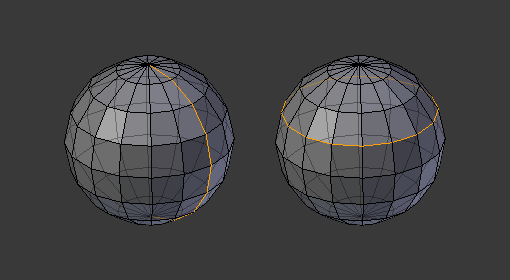
Selecting edge loops. The clicked edge is highlighted in green.
힌트
Selecting edge loops by clicking edges is also possible in the Vertex selection mode.
참고
When Emulate 3 Button Mouse is enabled, the Alt-LMB shortcut won’t work because it serves as a replacement for MMB. To select edge loops in this case, double-click with LMB instead.
All Boundaries
Running the edge loop selection on a boundary edge twice will select the whole boundary.
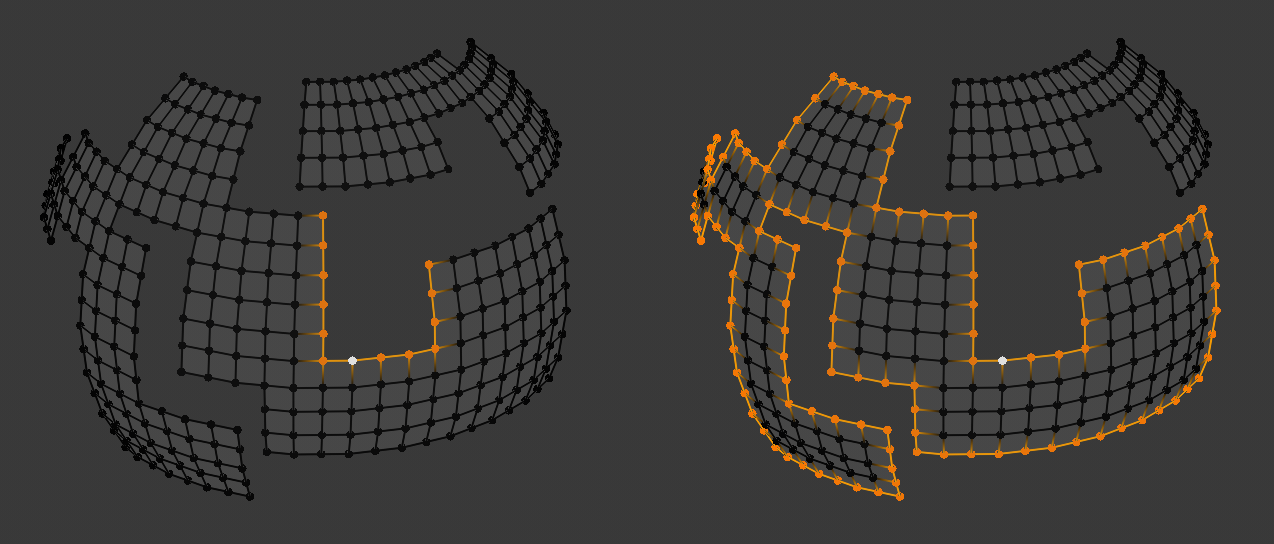
First and second edge loop selection.
See also Boundary of Selection.
Select Face Loops
Reference
- Mode:
Edit Mode (Face select mode)
- 단축키(hotkey):
Alt-LMB or Shift-Alt-LMB
In Face selection mode, clicking an edge with Alt-LMB will select the row of faces that’s perpendicular to that edge. Use Shift-Alt-LMB to add to the previous selection instead of replacing it.
The resulting row of faces is called a face loop in Blender terminology because it typically forms a closed loop around the mesh. However, as shown below, this doesn’t have to be the case.
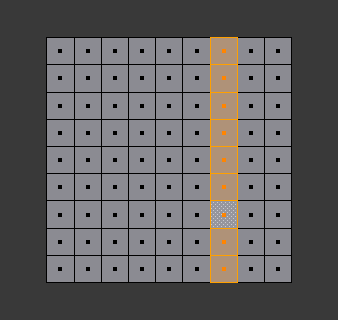
Selecting face loops. The clicked edge is highlighted in green.
In Vertex selection mode, the same can be achieved using Select Edge Rings.
참고
When Emulate 3 Button Mouse is enabled, the Alt-LMB shortcut won’t work because it serves as a replacement for MMB. To select face loops in this case, double-click the edge with LMB instead.
Select Edge Rings
Reference
- Mode:
Edit Mode (Edge select mode)
- Menu:
- 단축키(hotkey):
Ctrl-Alt-LMB or Shift-Ctrl-Alt-LMB
Selecting an edge with Ctrl-Alt-LMB will also select the parallel edges that lie in the face row perpendicular to the edge. Use Shift-Ctrl-Alt-LMB to add to the previous selection instead of replacing it.
The resulting set of edges is called an edge ring in Blender terminology because it typically forms a closed ring around the mesh. However, as shown below, this doesn’t have to be the case.
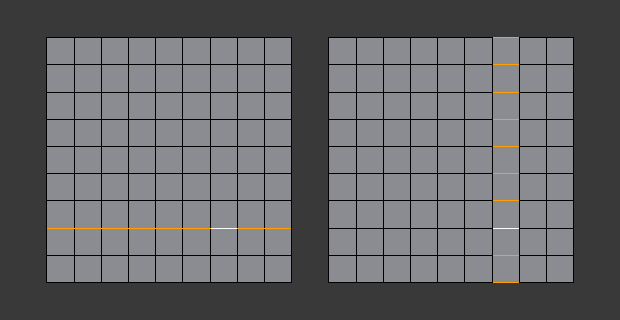
Selecting edge rings in Edge mode. The clicked edge is highlighted in green.
This shortcut also works in Vertex selection mode, but results in a face loop selection instead:

Selecting edge rings in Vertex mode.
힌트
To convert an edge ring selection to a face loop, either switch to Vertex mode or switch to Face mode while holding Ctrl (see Expand/Contract Selection).
Boundary Loops
Reference
- Mode:
Edit Mode (Edge Select Mode)
- Menu:
Selects the entire boundary loop for each selected boundary edge.
A boundary edge is an edge connected to only one face. This operator expands the selection to include all connected boundary edges, forming one or more continuous loops.

Selecting Boundary Loops.
참고
At least one boundary edge must be selected to start a boundary loop selection.
Options
- Extend
Adds the detected boundary loops to the existing selection instead of replacing it.
- Delimit
Restricts how far the boundary loop selection can propagate.
- Seam:
Stops the selection at edges marked as seams.
- Sharp:
Stops the selection at edges marked as sharp.
- N-gons:
Stops the selection when encountering faces with more than four sides.
- Inner Corners:
Stops at vertices connected to more than three edges.
- Outer Corners:
Stops at vertices connected to exactly two edges when those edges share a face that is not an n-gon.
Select Loop Inner-Region
Reference
- Mode:
Edit Mode (Edge select mode)
- Menu:
Selects all faces that are inside the selected, closed loop of edges. While it’s possible to use this operator in the Vertex and Face selection modes, results may be unexpected.
Note that if the selected edges do not form a closed loop, all connected faces will be selected.
Options
- Select Bigger
Select the faces outside the edge loop instead of those inside it.
예시
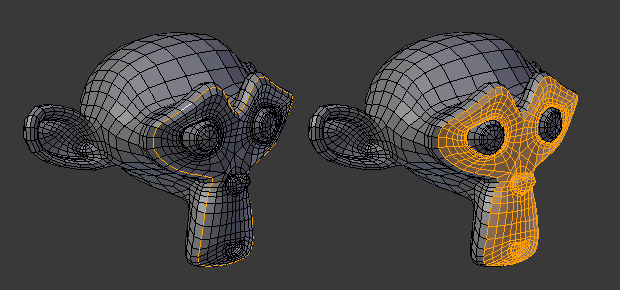
Single edge loop to region.
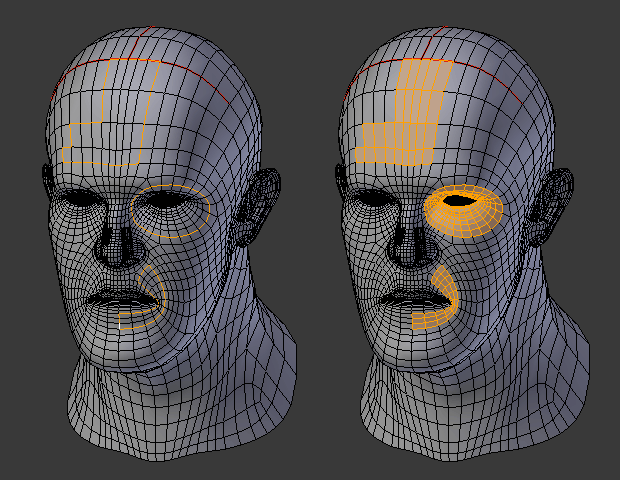
Multiple edge loops.
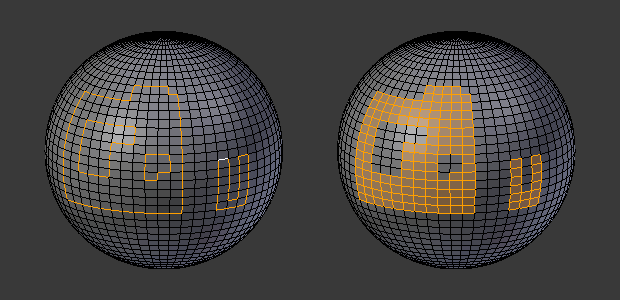
Holes are also supported.
Boundary of Selection
Reference
- Mode:
Edit Mode
- Menu:
Replaces the current face selection by an edge selection going around the border of each face “island.” This is essentially the opposite of Select Loop Inner-Region.
This operator can be run in any selection mode. When run in Face mode, it will automatically switch to Edge mode.
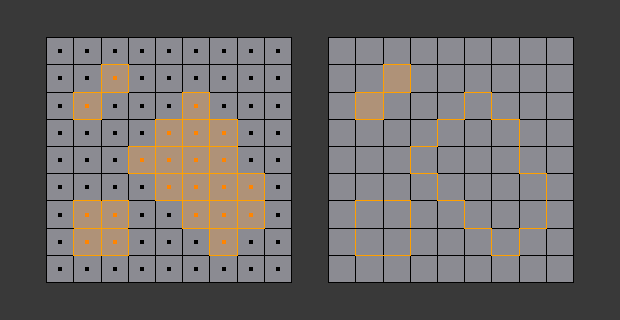
Before and after running Select Boundary Loop.