ინტერფეისი (Interface)
Interface configuration lets you change how UI elements are displayed and how they react.
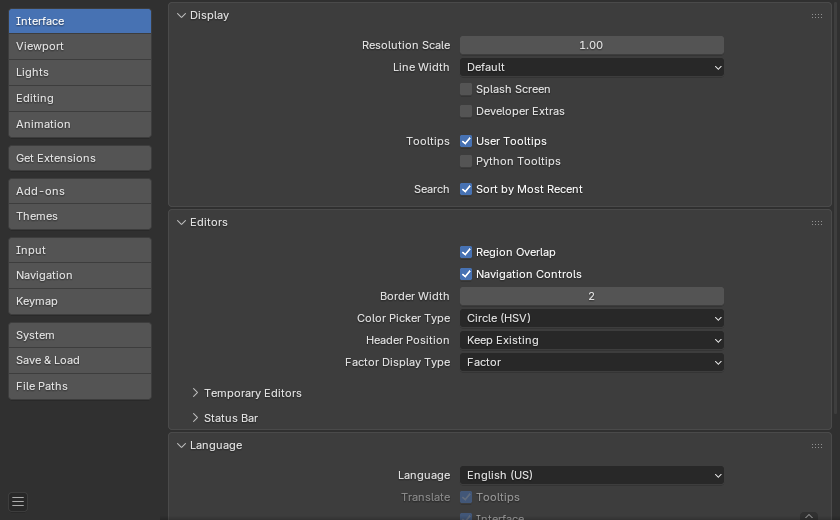
Display
- Resolution Scale
Adjusts the size of fonts and buttons relative to the automatically detected DPI. During typical usage, you may prefer to use zoom which is available in many parts of Blender interface.
- Line Width
Scale of lines and points in the interface e.g. button outlines, edges and vertex points in the 3D Viewport.
Thin, Default, Thick
- ქუდი
Display the ქუდი when starting Blender.
- Developer Extras
Show settings and menu items which are intended to help developers, this includes:
Shows the name of icons in the tooltip when hovering over icon buttons.
Adds several option to the RMB button context menu:
Online Python Reference -- To open the Python reference manual.
Copy Python Command -- To copy the expression used when pressing the button.
Edit Source -- To edit Python source code that defines the button.
Edit Translation -- The option to edit UI translations (only available when the Manage UI translations add-on is also enabled).
- მინიშნებები (Tooltips)
- User Tooltips
When enabled, a tooltip will appear when your mouse pointer is over a control. This tip explains the function of what is under the pointer, shows the associated hotkey (if any). When disabled, you can still force the tooltip display by holding Alt then hovering the control.
- Python Tooltips
Displays a property's Python information below the tooltip.
- Search -- Sort by Most Recent
Show most recently selected items at the top of search results, otherwise search results are sorted alphabetically.
რედაქტორები
- Region Overlap
This makes regions overlap the viewport. It means that the Toolbar and Sidebar regions, will be displayed overlapping the main area.
- ჩვენება (Show) -- კუთხის სახელურები (Corner Handles):
Displays small handles in the corners of each არეები. These can be used to split or join areas with a click-and-drag action.
This option is especially useful on touch-enabled devices, where precise right-click or edge selection is more difficult.
- Show -- Numeric Input Arrows
When enabled always display arrows in numeric input fields for increasing or decreasing values.
When disabled, arrows are shown when hovering over the property.
- Border Width
Sets the padding around each editor area. A larger value increases the hit zone for area controls, which can improve usability on pen tablets, touch screens, or for users with visual or physical accessibility issues.
- Color Picker Type
Choose which type of Color Space you prefer for the Color picker. It will show when clicking LMB on any color field.


- Header Position
The default header position when opening a new editor.
- Keep Existing:
Uses top for most editor types and the positions saved in the start-up file.
- Top/Bottom:
Always positions the header at the top or the bottom of the editor.
- Factor Display Type
How factor value types are displayed in the user interface.
- კოეფიციენტი (Factor):
Values are displayed as float numbers between 0.0 and 1.0.
- პროცენტი (Percentage):
Values are expressed as a percentage between 0 and 100.
დროებითი რედაქტორები
When performing certain operations, Blender will open a new window. The behavior of these operations can be configured here.
- Render In
When rendering, the user interface can do any of:
- Keep User Interface:
The user interface does not change and the render is computed in the background.
- არის გამაქსიმალურება (Maximize Area):
A new Image editor is opened as a temporary window in full screen mode.
- გამოსახულების რედაქტორი:
The area that is the largest on screen is replaced by a temporary Image editor.
- ახალი ფანჯარა (New Window):
A new Image editor is opened as a regularly sized temporary window.
- ფაილების ბრაუზერი
When opening files from the computer, the user interface can do any of:
- არის გამაქსიმალურება (Maximize Area):
A new File Browser editor is opened as a temporary window in full screen mode.
- ახალი ფანჯარა (New Window):
A new File Browser editor is opened as a regularly sized temporary window.
- სასურველი პარამეტრები (Preferences)
Controls how the User Preferences editor is displayed when opened.
- არის გამაქსიმალურება (Maximize Area):
Opens the Preferences as a temporary full-screen editor within the current window.
- ახალი ფანჯარა (New Window):
Opens the Preferences in a new, separate window of regular size.
სტატუსის ზოლი
Preferences that affect the სტატუსის ზოლი.
ჩვენება (Show)
- სცენის სტატისტიკა
აჩვენებს ინფორმაციას აქტიური სცენის მონაცემების შესახებ.
კოლექცია (Collection): აქტიური კოლექციის სახელი.
აქტიური ობიექტი (Active Object): აქტიური მონიშნული ობიექტის სახელი.
გეომეტრია (Geometry): ინფორმაცია მიმდინარე სცენის შესახებ, რეჟიმისა და ობიექტის ტიპის მიხედვით. ეს შეიძლება, იყოს წვეროების, წახნაგების, სამკუთხედების, ან ძვლების რაოდენობა.
ობიექტები (Objects): მონიშნული ობიექტებისა და ობიექტთა სრული რაოდენობის რიცხვი.
- სცენის ხანგრძლივობა
აჩვენებს დაკვრის სრულ დროს, მიმდინარე კადრის ნომერსა და კადრთა სრულ რაოდენობას. ხანგრძლივობის ტექსტის ფორმატს დროის კოდირების სტილი განსაზღვრავს.
- სისტემური მეხსიერება
აჩვენებს ბლენდერი მიერ RAM-ის სავარაუდო მოხმარებას. ერთ ინსტანციიანი და ერთ-აპარატიანი სცენარის შემთხვევაში ეს ვარაუდი იძლევა აპარატურის ლიმიტთან დაკავშირებულ აზომვებს.
- გაფართოებების განახლებები
აჩვენებს ხელმისაწვდომი განახლებების მქონე გაფართოებათა რაოდენობას.
- ბლენდერის ვერსია
აჩვენებს ამჟამად გაშვებული ბლენდერის ვერსიის ნომერს.
ენა (Language)
- ენა (Language)
მომხმარებლის ინტერფეისის სათარგმნად გამოყენებული ენა (UI). სია დაყოფილია კატეგორიებად, რომლებიც განსაზღვრავენ, თუ რამდენად დასრულებულია თარგმანები.
- Translate
- მინიშნებები (Tooltips)
თარგმნის UI ელემენტებზე გადატარებისას გამოჩენილ აღწერებს.
- ინტერფეისი (Interface)
თარგმნის ყველა ჭდეს მენიუებში, ღილაკებსა და პანელებში.
- New Data
თარგმნის მონაცემთა ახალი ბლოკების სახელებს.
- Date Format
Format used to display dates.
- ნაგულისხმები (Default):
Uses the default date format for the selected language.
- dd/mm/yyyy:
Displays dates as day/month/year, for example
27/02/2019.- dd.mm.yyyy:
Displays dates as day.month.year, for example
27.02.2019.- dd-mm-yyyy:
Displays dates as day-month-year, for example
27-02-2019.- mm/dd/yyyy:
Displays dates as month/day/year, for example
02/27/2019.- yyyy/mm/dd:
Displays dates as year/month/day, for example
2019/02/27.- yyyy.mm.dd:
Displays dates as year.month.day, for example
2019.02.27.- yyyy-mm-dd:
Displays dates as year-month-day, for example
2019-02-27.
- Time Format
Format used to display times.
- 24-Hour (23:59):
Displays times using a 24-hour clock, for example
23:59.- 12-Hour (11:59 PM):
Displays times using a 12-hour clock, for example
11:59 PM.
წვდომადობა
- მოძრაობის შემცირება (Reduce Motion)
Avoids interface animations and motion effects. This option helps reduce visual distractions and can improve comfort for users sensitive to motion or those who prefer a more static interface.
ტექსტის დარენდერება
- განკბილვა (Anti-Aliasing)
Enable interface text Anti-Aliasing. When disabled, texts are rendered using straight text rendering (filling only absolute pixels).
- Subpixel Anti-Aliasing
Render text for optimal horizontal placement.
- Hinting
Adjust font hinting, controls the spacing and crispness of text display.
- Interface Font
Replacement for the default user interface font.
- Mono-space Font
Replacement for the default mono-space interface font (used in the Text editor and Python Console).