glTF 2.0
Referência
- Categoria:
Import-Export
- Menu:
Activando Adição
This add-on is enabled by default, in case it is not:
Abra o Blender e vá para a seção Complementos do Preferencias.
Search «glTF 2.0» and check the Enable Add-on checkbox.
Uso
glTF™ (GL Transmission Format) é usado para transmissão e carregamento de modelos 3D em aplicações web e nativas. glTF reduz o tamanho dos modelos 3D e o processamento em tempo de execução necessário para desempacotar e renderizar esses modelos. Esse formato é comumente usado na web, e tem suporte em vários motores 3D como Unity3D, Unreal Engine 4, and Godot.
O importador/exportador suporta as seguintes funcionalidades:
Malhas
Materiais (Principled BSDF) e Sem sombra (Shadeless - Unlit)
Texturas
Câmeras
Luzes pontuais (point, spot e direcional)
Extensões (listadas abaixo)
Extras (propriedades customizadas)
Animação (keyframe, shape key, e skinning)
Malhas
A estrutura interna do glTF mimetiza os buffers de memória comumente usados por chips gráficos quando renderizando em tempo real, de modo que os modelos podem ser entregues para clientes desktop, web, ou dispositivos móveis e ser prontamente exibido com processamento mínimo. Como resultado, quads e n-gons são automaticamente convertidos em triângulos ao exportar para glTF. UVs discontínuas e arestas sombreadas planas podem resultar em contagens de vértices moderadamente maiores no glTF comparado ao Blender, como tais vértices são separados para exportação. Da mesma forma, curvas e outros dados não-malha não são preservados, e devem ser convertidos para malha antes da exportação.
Instâncias de GPU
When the option is enabled in Exporter, instances are exported using the EXT_mesh_gpu_instancing extension.
There are some limitations, at export:
Instances must be meshes, and don’t have any children themselves
Instances must all be children of the same object.
This extension doesn’t manage material variation. That means that the generated file may include all instances with same materials.
Instances detected are objects sharing the same mesh data.
At import, instances are created by creating objects sharing the same mesh data.
Materiais
O sistema de materiais central no glTF suporta um fluxo de trabalho PBR metal/rough com os seguintes canais de informação:
Cor Base
Metallic
Rugosidade
Baked Ambient Occlusion
Normal Map (tangent space, +Y para cima)
Emissive
Some additional material properties or types of materials can be expressed using glTF extensions. The complete list can be found in Extensions part of this documentation.
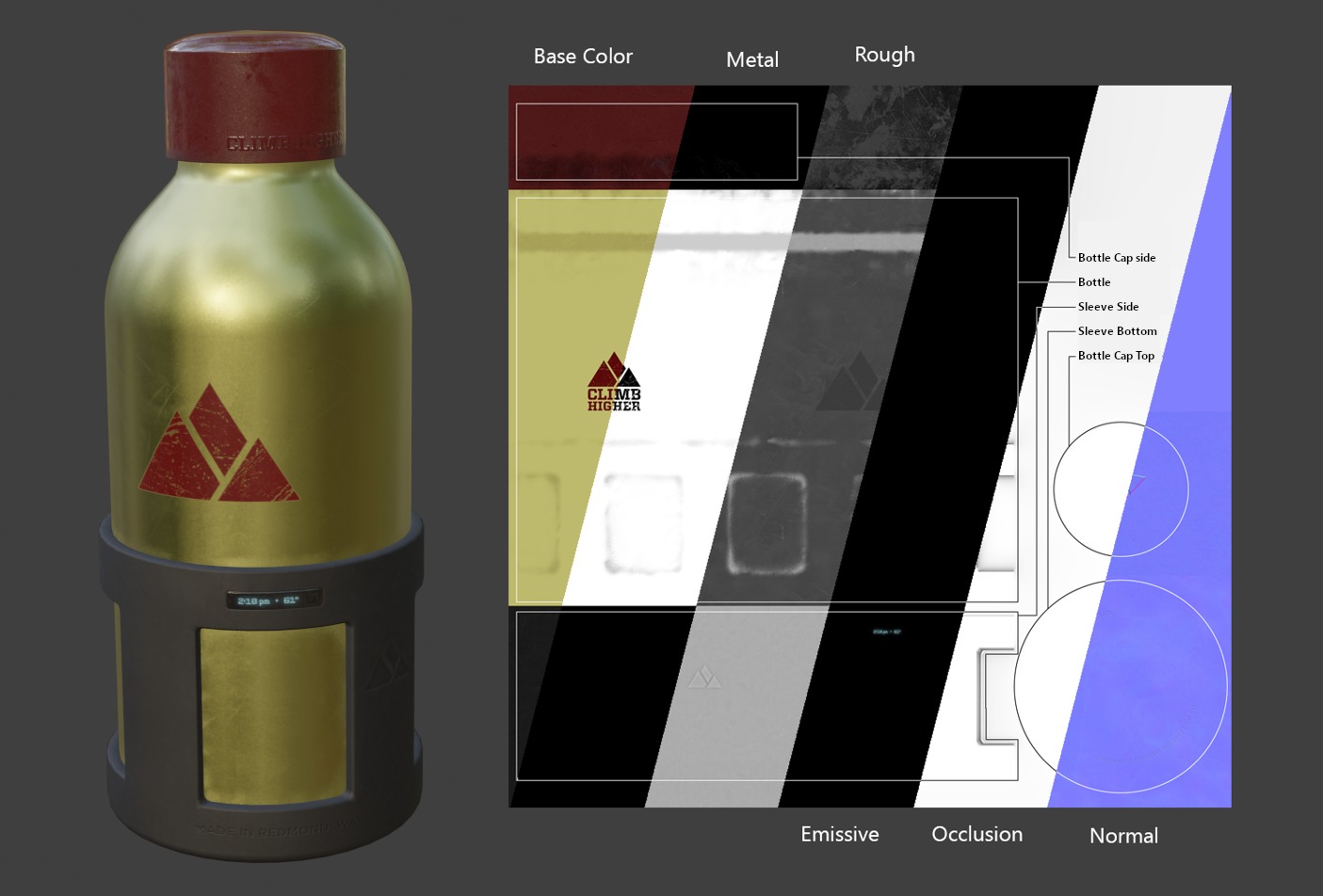
An example of the various image maps available in the glTF 2.0 core format. This is the water bottle sample model shown alongside slices of its various image maps.
Materiais Importados
O sistema de materiais glTF é diferente dos materiais do próprio Blender. Quando um arquivo glTF é importado, o add-on irá contruir um conjunto de nós do Blender para replicar cada material glTF o mais próximo possível.
The importer supports Metal/Rough PBR (core glTF), Spec/Gloss PBR (KHR_materials_pbrSpecularGlossiness)
and some extension materials. The complete list can be found in Extensions part of this documentation.
Dica
Examinar o resultado do processo de importação é uma boa maneira para ver exemplos dos tipos de nós de materiais e configurações que podem ser exportadas para glTF.
Materiais Exportados
O exportador suporta os materiais Metal/Rough PBR (core glTF) e Shadeless (KHR_materials_unlit). Ele irá construir um material glTF baseado nos nós que ele reconhecer no material Blender. O processo de exportação lida com as configurações descritas abaixo.
Nota
Quando texturas com imagens são usadas por materiais, o glTF requer que as imagens estejam no formato PNG ou JPEG. O add-on irá converter automaticamente outros formatos de imagens, aumentando o tempo de exportação.
Cor Base
A cor base do glTF é determinada procurando por uma entrada de Base Color em um nó Principled BSDF. Se a entrada está desconectada, a cor padrão de entrada (o campo de cor perto do soquete desconectado) é usado como Base Color para o material glTF.
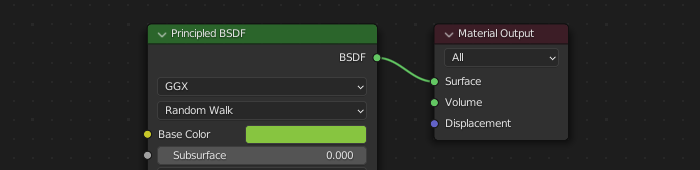
Uma cor base sólida pode ser especificada diretamente no nó.
Se um nó Image Texture é encontrado conectado à entrada Base Color, a imagem será usada como a cor base do glTF.
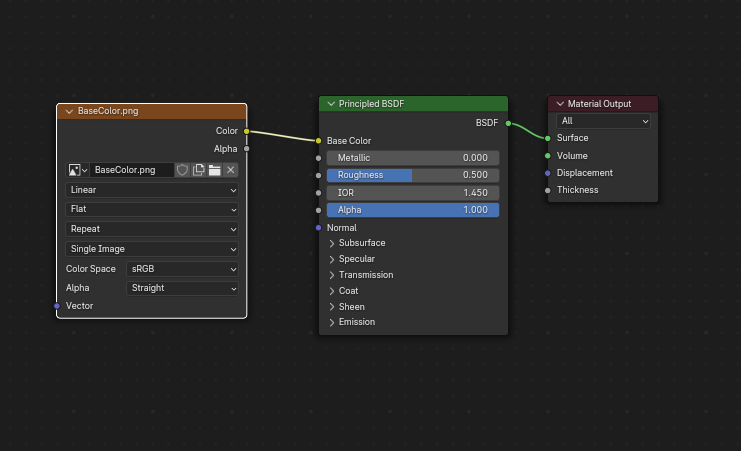
Uma imagem é usada como cor base glTF.
If no texture is connected, the base color can be specified:
From the Principled BSDF node’s Base Color input, which is the default.
From a RGB node connected to the Base Color input.
From an Ambient Occlusion node connected to the Base Color input. (The AO socket is not used in glTF, but the color output can be used as a base color.)

Metallic e Roughness
Esses valores são lidos a partir do nó Principled BSDF. Se essas duas entradas estão desconectadas, o nó irá mostrar deslizadores para controlar seus respectivos valores entre 0.0 e 1.0, e esses valores serão copiados no glTF.
Ao usar uma imagem, o glTF espera os valores metálicos serem codificados no canal azul (B), e roughness codificado no canal verde (G) da mesma imagem. Se imagens são conectadas ao nó do Blender em uma maneira que não segue essa convenção, o add-on pode tentar adaptar a imagem à forma correta durante a exportação (com um aumento no tempo de exportação).
Na árvore de nós do Blender, é recomendado usar o nó Separate RGB para separar os canais a partir de um nó Image Texture, e conectar o canal verde (G) no Roughness, e azul (B) no Metallic. O exportador glTF irá reconhecer esse arranjo como compatível ao padrão glTF, e isso irá permitir ele simplesmente copiar a imagem da textura no arquivo glTF durante a exportação.
O nó Image Texture para isso deve ter o seu Color Space definido como Non-Color.
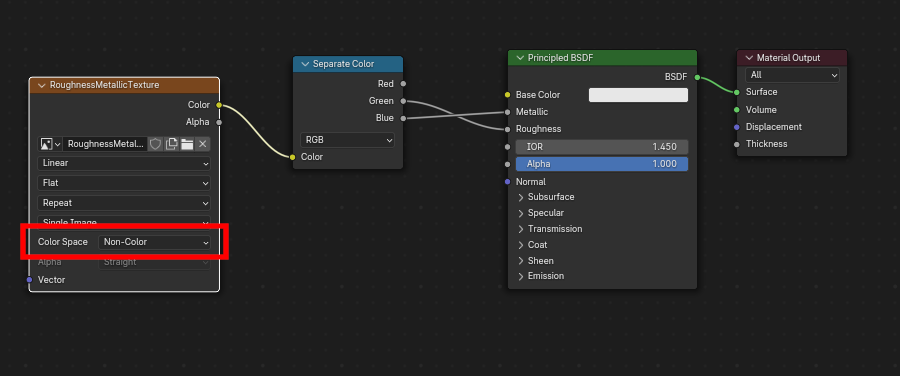
Uma imagem metallic/roughness conectada de maneira consistente com o padrão glTF, permitindo ser usado literalmente dentro de um arquivo glTF exportado.
Baked Ambient Occlusion
glTF is capable of storing a baked ambient occlusion map.
Currently there is no arrangement of nodes that causes Blender
to use such a map in exactly the same way as intended in glTF.
However, if the exporter finds a custom node group by the name of glTF Material Output, and
finds an input named Occlusion on that node group,
it will look for an Image Texture attached there to use as the occlusion map in glTF.
The effect need not be shown in Blender, as Blender has other ways of showing ambient occlusion,
but this method will allow the exporter to write an occlusion image to the glTF.
This can be useful to real-time glTF viewers, particularly on platforms where there
may not be spare power for computing such things at render time.
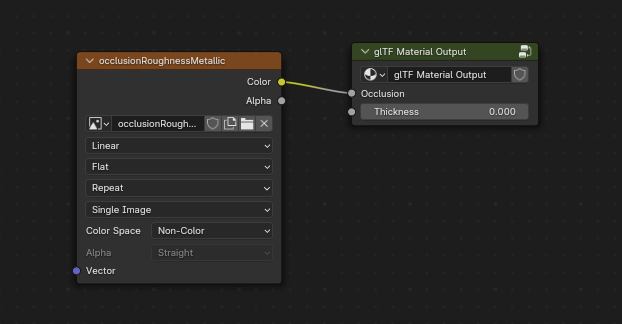
Um mapa ambient occlusion pré gravado, conectado a um nó que não renderiza mas irá exportar para glTF.
Dica
If you enable Shader Editor Add-ons in preferences, you will be able to add this custom node group from Menu: Add > Output > glTF Material Output

glTF armazena oclusão no canal vermelho (R), permitindo compartilhar a mesma imagem com os canais roughness e metallic opcionalmente.
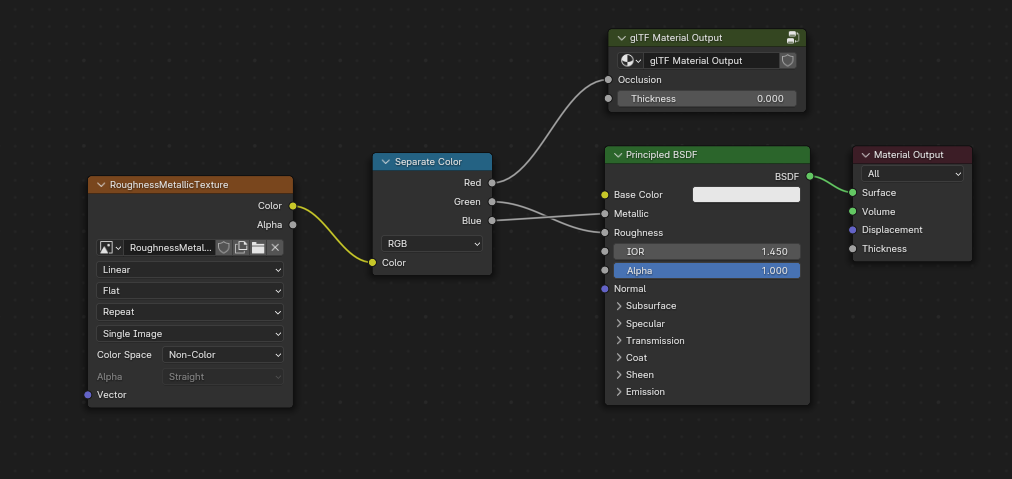
Essa combinação de nós mimetiza a maneira que o glTF empacota os valores occlusion, roughness e metallic em uma única imagem.
Dica
The Cycles render engine has a Bake panel that can be used to bake
ambient occlusion maps. The resulting image can be saved and connected
directly to the glTF Material Output node.
Normal Map
Para usar um mapa normal no glTF, conecte a saída de um nó Image Texture a entrada de um nó Normal Map, e conecte a saída do Normal Map à entrada de normal do nó Principled BSDF. O nó Image Texture para isso deve ter sua propriedade Color Space definida para Non-Color.
O nó Normal Map deve permanecer na sua propriedade padrão de Tangent Space já que esse é o único tipo de mapa normal suportado atualmente pelo glTF. A força do mapa normal pode ser ajustada nesse nó. O exportador não está exportando esses nós diretamente, mas ira usá-los para localizar a imagem correta e irá copiar a configuração de força no glTF.
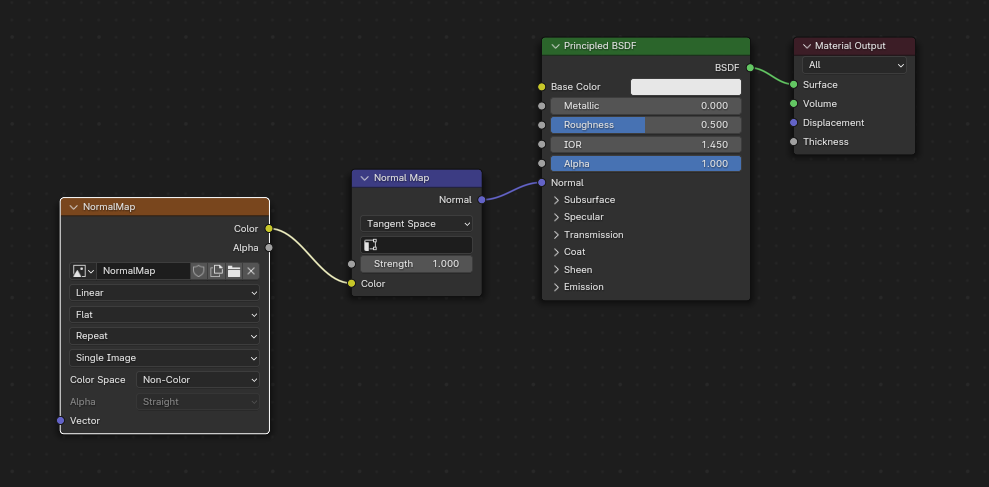
Uma imagem de mapa normal conectada de modo que o exportador irá encontrá-la e copiá-la no arquivo glTF.
Dica
O motor de render Cycles tem um painel Bake que pode ser usado para gravar mapas normais em tangent-space para quase qualquer outro arranjo de nós de normais vetoriais. Troque o tipo de Bake para Normal. Mantenha as configurações padrão de espaço (space: Tanget, R: +X, G: +Y, B: +Z) ao usar esse painel bake para glTF. A imagem grava resultante pode ser salva e ligada em um novo material usando o nó Normal Map como descrito acima, permitindo exportá-la corretamente.
Veja: Cycles Render Baking
Emissive
Um nó Image Texture pode ser conectado à entrada Emission no nó do Principled BSDF para incluir um mapa emissivo com o material glTF. Alternativamente, o nó Image Texture pode ser conectado a um nó Emission shader, e opcionalmente combinado com propriedades do nó Principled BSDF através de um nó Add Shader.
Se o mapa emissivo está sozinho no material, é melhor definir a Base Color padrão para preto, e o Roughness padrão para 1.0. Isso minimiza a influência de outros canais se eles não são necessários.
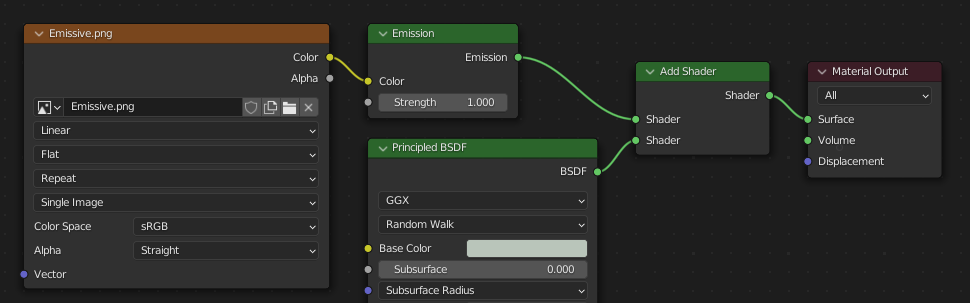
Esse arranjo é suportado para compatibilidade com versões anteriores. É mais simples utilizar o nó Principled BSDF diretamente.
If any component of emissiveFactor is > 1.0, KHR_materials_emissive_strength extension will be used.
Clearcoat
Quando a entrada Clearcoat no nó Principled BSDF tem um valor padrão não-zero ou um nó Image Texture conectado, a extensão glTF KHR_materials_clearcoat será incluída na exportação. Essa extensão irá incluir também um valor ou Image Texture da entrada Clearcoat Roughness se disponível.
Se são usadas Image Textures, o glTF requer que os valores clearcoat sejam escritos no canal vermelho (R), e Clearcoat Roughness no canal verde (G). Se imagens monocromáticas são conectadas, o exportador irá remapeá-las para esses canais de cor.
A entrada Clearcoat Normal aceita os mesmos tipos de entradas que a entrada Normal base, especificamente um mapa normal tangent-space com o +Y para cima, e uma força definida pelo usuário. Essa entrada pode reusar o mesmo mapa normal que o material base está usando, ou pode ser atribuído seu próprio mapa normal, ou pode ser deixado desconectado para um revestimento liso.
Todos os nós Image Texture usados para sombreamento clearcoat devem ter seus Color Space definidos para Non-Color.
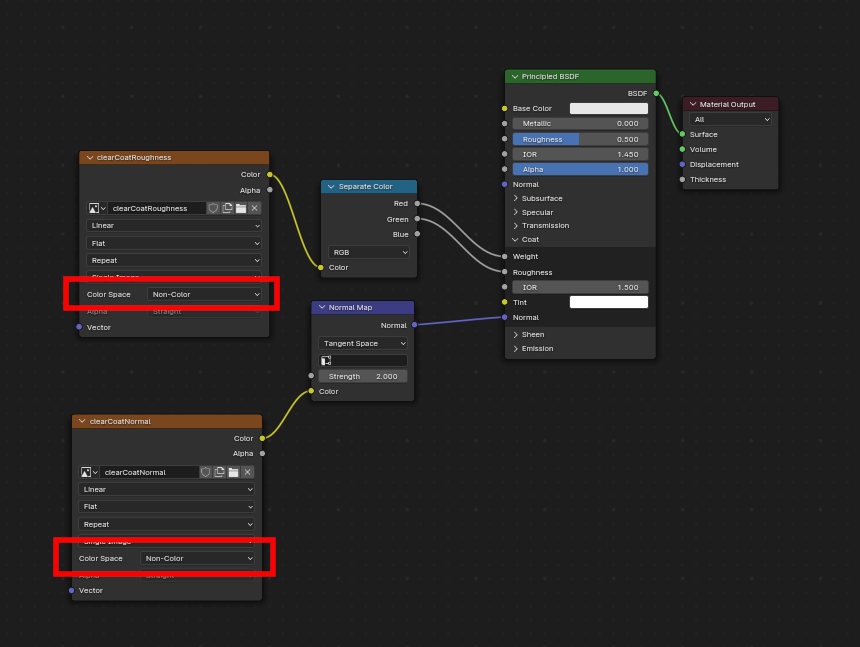
Um exemplo de uma aplicação complexa de clearcoat que irá exportar corretamente para glTF. Um muito mais simples, smooth coating pode ser aplicado apenas a partir do nó Principled BSDF sozinho.
Sheen
If a Sheen Roughness Texture is used, glTF requires the values be written to the alpha (A) channel.
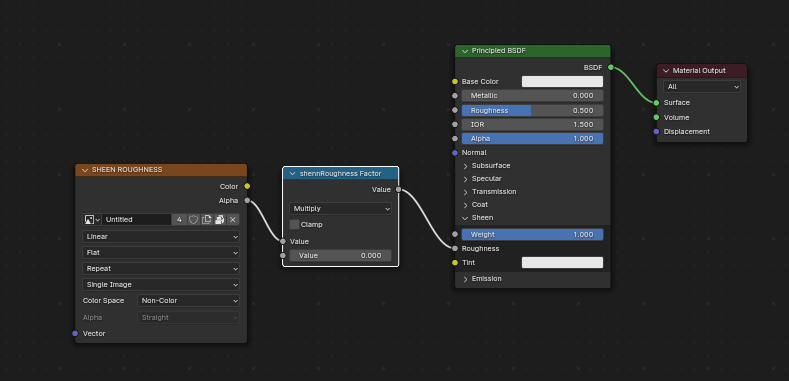
Dica
Sheen BSDF node is only available on Cycles render engine. You may have to temporary switch to Cycles to add this node, and get back to EEVEE.
Especular
When the Specular IOR Level or Specular Tint input of Principled BSDF node have a non default value or
Image Texture node connected, the KHR_materials_specular glTF extension will be
included in the export.
Anisotropy
Anisotropic textures and data need to be converted at export, and at import.
At import, some nodes are created to manage this conversion
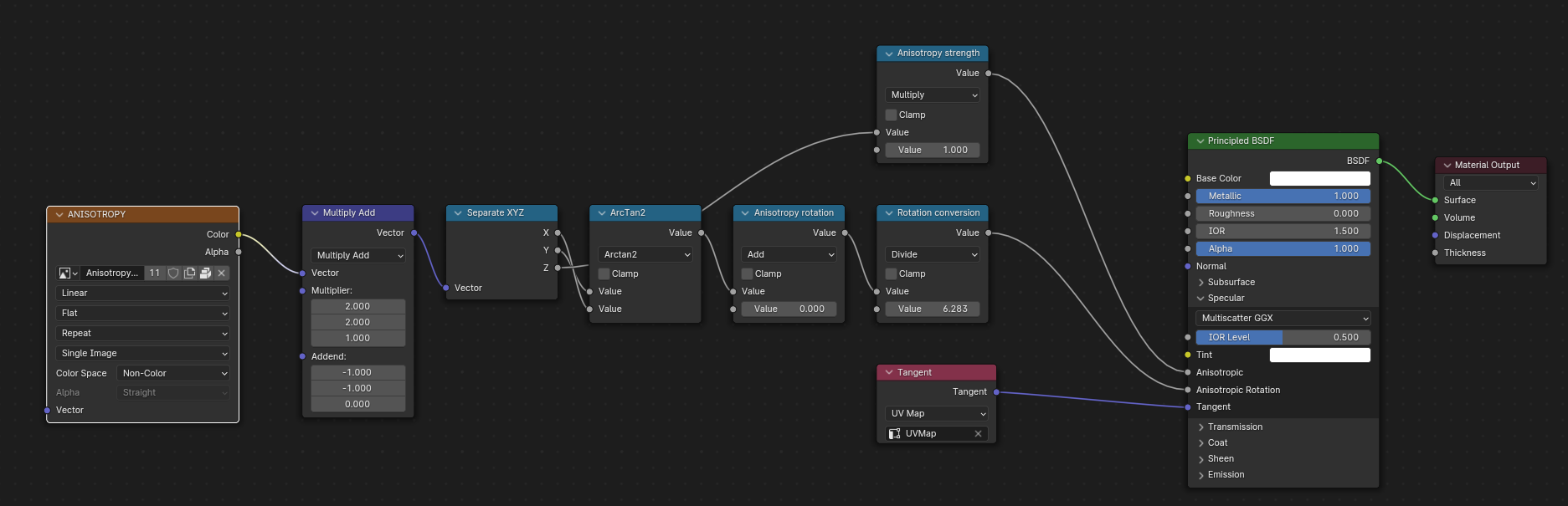
At export, this exact same nodes are detected, and used to export data.
At export, you can also plug some grayscale textures for Anisotropic and Anisotropic Rotation sockets. Then, exporter will convert these texture into a glTF compatible texture.
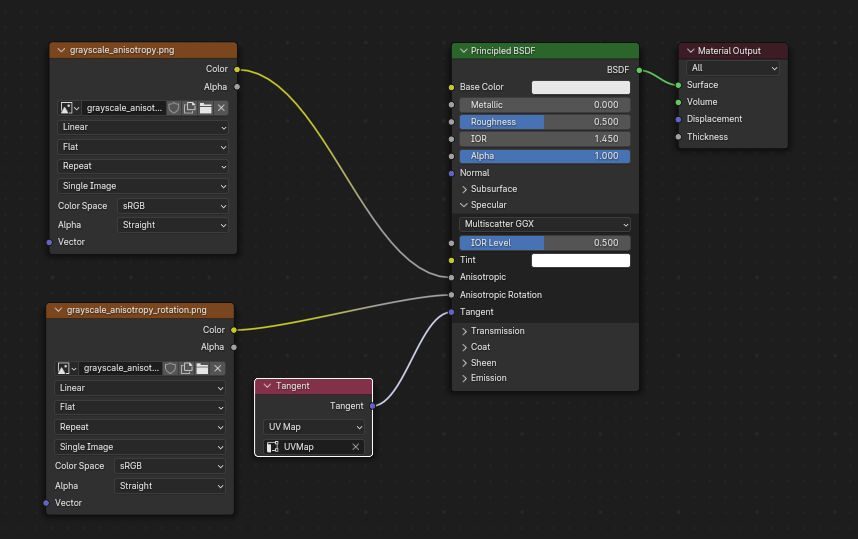
Note that the tangent socket must be linked to a tangent node, with UVMap. The chosen UVMap must be the UVMap of the Normal Map.
Transmissão
Quando a entrada Transmission no nó Principled BSDF tem um valor padrão não-zero ou um nó Image Texture conectado, a extensão KHR_materials_transmission será incluída na exportação. Quando uma textura é usada, o glTF armazena os valores no canal vermelho (R). O Color Space deve ser definido para Non-Color.
Transmission é diferente de alpha blending, porque o transmission permite reflexões especulares de força máxima. Em glTF, alpha blending é destinado a representar materiais físicos que estão parcialmente ausentes na geometria especificada, como gaze médica. Transmission é destinada a representar materiais físicos que são sólidos mas permitem transmitir luz refletida não-especular através do material, como vidro.
Dica
A rugosidade base do material pode ser usada para desfocar a transmissão, como o vidro fosco.
Dica
Tipicamente o modo alpha blend de um material transmissivo deve permanecer «Opaque», a configuração padrão, a menos que o material cubra apenas parcialmente a geometria especificada.
Nota
Em motores tempo-real onde transmission é suportada, várias limitações técnicas no motor podem determinar quais partes da cena são visíveis através da superfície transmissível. Em particular, materiais transmissíveis podem não ser visíveis atrás de outros materiais transmissíveis. Essas limitações afetam transmissões baseadas em física, mas não materiais alpha-blended não-transmissivos.
Nota
If you want to enable refraction on your model, KHR_materials_transmission must also
be used in addition with KHR_materials_volume. See the dedicated Volume part of
the documentation.
Aviso
Transmission é complexo para motores de renderização em tempo-real implementar, e suporte para a extensão glTF KHR_materials_transmission ainda não é difundido.
IOR (IdR)
At import, there are two different situation:
if
KHR_materials_ioris not set, IOR value of Principled BSDF node is set to 1.5, that is the glTF default value of IOR.If set, the
KHR_materials_ioris used to set the IOR value of Principled BSDF.
At export, IOR is included in the export only if one of these extensions are also used:
KHR_materials_transmissionKHR_materials_volumeKHR_materials_specular
IOR of 1.5 are not included in the export, because this is the default glTF IOR value.
Volume
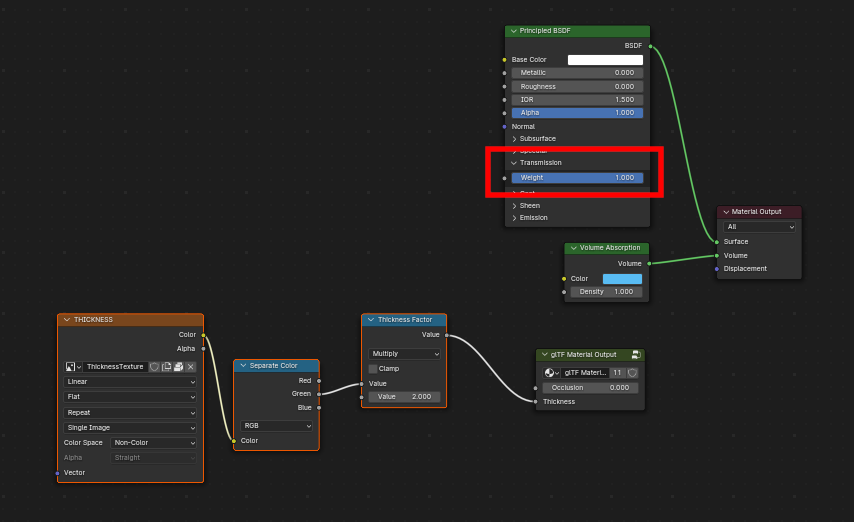
Volume can be exported using a Volume Absorption node, linked to Volume socket of Output node.
Data will be exported using the KHR_materials_volume extension.
For volume to be exported, some transmission must be set on Principled BSDF node.
Color of Volume Absorption node is used as glTF attenuation color. No texture is allowed for this property.
Density of Volume Absorption node is used as inverse of glTF attenuation distance.
Thickness can be plugged into the Thickness socket of custom group node
glTF Material Output.If a texture is used for thickness, it must be plugged on (
G) Green channel of the image.
Dispersão
Dispersion can be exported only if the material also uses the KHR_materials_volume extension.
Data will be exported using the KHR_materials_dispersion extension.
The dispersion socket of the custom group node glTF Material Output is used for this extension.
Iridescence
Iridescence can be exported using the KHR_materials_iridescence extension.
Data will be exported using the following nodes:
Iridescence Thickness Maximum can be plugged into the Thickness socket of custom group node
glTF Material Output. If a texture is used, it must be plugged on (R) Red channel of the image.Iridescence IOR can be plugged into the Thin Film IOR socket of Principled BSDF node.
Iridescence Factor can be plugged into the thickness socket of Principled BSDF node.
Iridescence Maximum Thickness can be plugged into the Iridescence Thickness Maximum socket of custom group node
glTF Material OutputTexture for Iridescence Factor can be plugged on (
R) Red channel of an image plugged into this socket. You can use a Multiply node to multiply this texture with the Iridescence Factor value.Texture for Iridescence Thickness can be plugged on (
G) Green channel of an image, used as a mix factor for thickness between Minimum and Maximum thickness.

glTF Variants
Nota
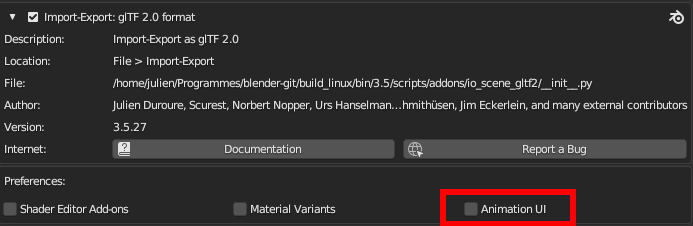
For a full Variants experience, you have to enable UI in Add-on preferences
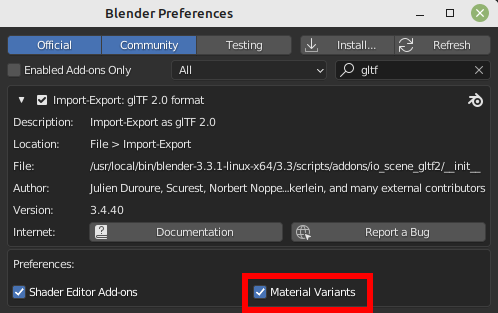
There are two location to manage glTF Variants in Blender
In 3D View, on
glTF VariantstabFor advanced settings, in Mesh Material Properties (see Advanced glTF Variant checks)
The main concept to understand for using Variants, is that each material slot will be used as equivalent of a glTF primitive.
glTF Variants switching
After importing a glTF file including KHR_materials_variants extension, all variants can be displayed.
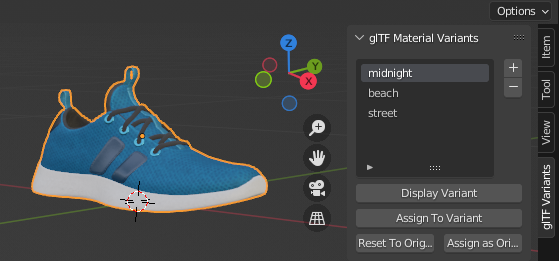
You can switch Variant, by selecting the variant you want to display, then clicking on Display Variant.
You can switch to default materials (when no Variant are used), by clicking on Reset to default.
glTF Variants creation
You can add a new Variant by clicking at right of the Variant list. Then you can change the name by double-clicking.
After changing Materials in Material Slots, you can assign current materials to the active Variant using Assign to Variant.
You can also set default materials using Assign as Original.
These materials will be exported as default material in glTF.
This are materials that will be displayed by any viewer that don’t manage KHR_materials_variants extension.
Advanced glTF Variant checks
If you want to check primitive by primitive, what are Variants used, you can go to Mesh Material Properties.
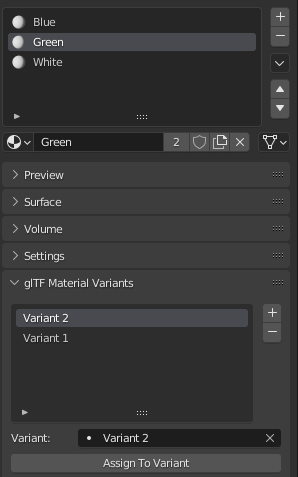
The glTF Material Variants tab refers to the active material Slot and Material used by this slot. You can see every Variants that are using this material for the given Slot/Primitive.
You can also assign material to Variants from this tab, but recommendation is to perform it from 3D View tab.
Double-Sided / Backface Culling
For materials where only the front faces will be visible, turn on Backface Culling (Camera) in the Settings panel of an EEVEE material. When using other engines (Cycles, Workbench) you can temporarily switch to EEVEE to configure this setting, then switch back.
Deixe essa opção desmarcada para materiais dupla-face.
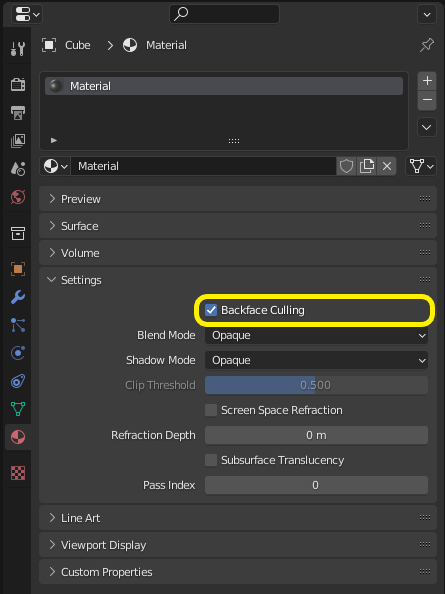
O inverso dessa configuração controla a bandeira DoubleSided do glTF.
Alpha Modes
glTF has three alpha modes, depending on whether the alpha value is always 1, always 0 or 1, or can be between 0 and 1. The exporter determines the alpha mode automatically from the nodes connected to the Alpha socket.
- Opaco
In opaque mode, the material alpha is always 1.
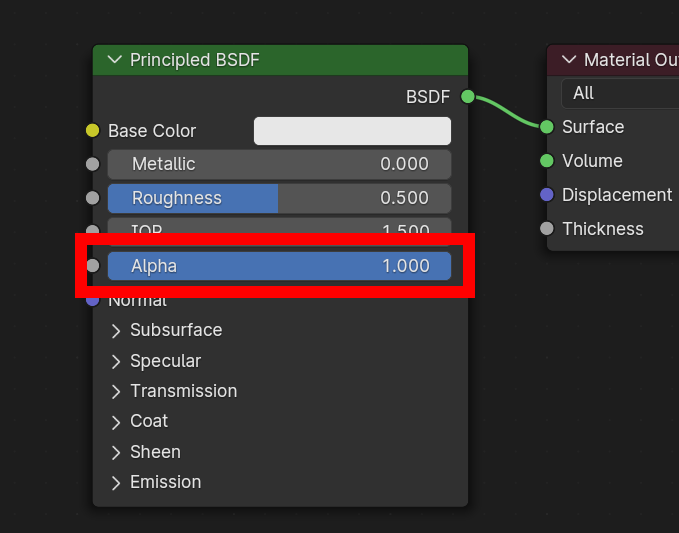
- Máscara
In mask mode, the material alpha is always 0 or 1. This creates «cutout» transparency, where there is a hard edge between opaque and transparent regions, and can be used for things like leaves or cloth with holes. To enable this mode, use a Math node to round the alpha value to either 0 or 1.
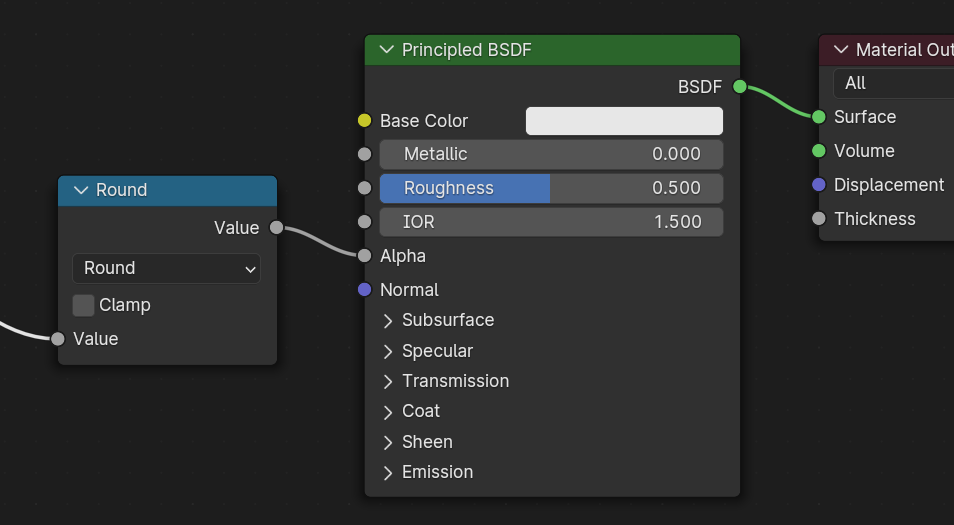
Rounding snaps alpha values that are 0.5 or greater up to 1, and ones below 0.5 down to 1. It is also possible to use a cutoff value different than 0.5 by using Math nodes to do
1 - (alpha < cutoff).Mask mode is essentially the same as EEVEE’s «Alpha Clip» blend mode, but is done with shader nodes so it works in other render engines.
- Blend
Materials that use neither of these will use blend mode. Blend mode allows partially transparent surfaces that tint the objects seen through them, like layers of colored film. However, partial transparency is complex to render, and glTF viewers may show visual artifacts in non-trivial scenes that use blend mode.
To avoid artifacts, it may be a good idea to separate out parts of a model that can use opaque or mask mode, and use blend mode only on the parts where it is necessary, or to use only a single layer of transparent polygons in front of opaque objects.
UV Mapping
Controle seleção e transformações do mapa UV é disponível conectando um nó UV Map e um nó Mapping a qualquer nó Image Texture.
Configurações do nó Mapping são exportadas usando a extensão glTF chamada KHR_texture_transform. Há um seletor de tipo de mapeamento na parte superior. Point é o tipo recomendado para exportar. Texture e Vector também são suportados. Os deslocamentos suportados são:
Location - X e Y
Rotation - Z apenas
Scale - X e Y
Para o tipo Texture, Scale X e Y devem ser iguais (escalonamento uniforme).
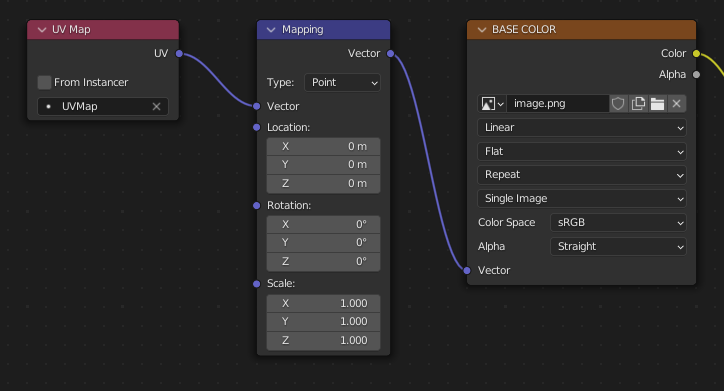
Uma escolha deliberada de mapeamento UV.
Dica
Esses nós são opcionais. Nem todos os leitores glTF suportam múltiplos mapas UV ou transformações de textura.
Fatores
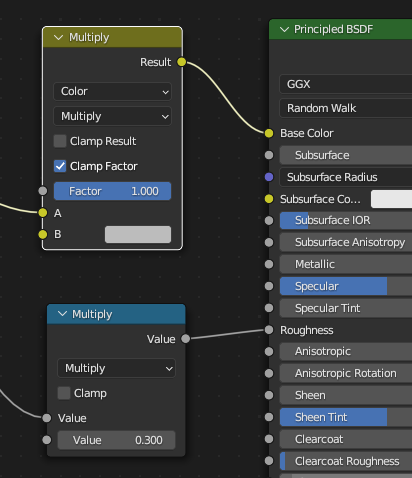
Qualquer nó Image Texture pode opcionalmente ser multiplicado com uma cor ou escalar constante. Eles serão gravados como fatores no arquivo glTF, que são números que são multiplicados com as texturas de imagem especificadas. Isso não é comum.
Use Math node (multiply) for scalar factors. Use second value as factor
Use Mix node (color / multiply) for color factors. Set Factor to 1, and use Color2 (B) as factors
Exemplo
Um único material pode usar todos os itens acima ao mesmo tempo, se desejado. Essa figura mostra uma estrutura de nós típica quando várias das opções acima são aplicadas de uma vez:
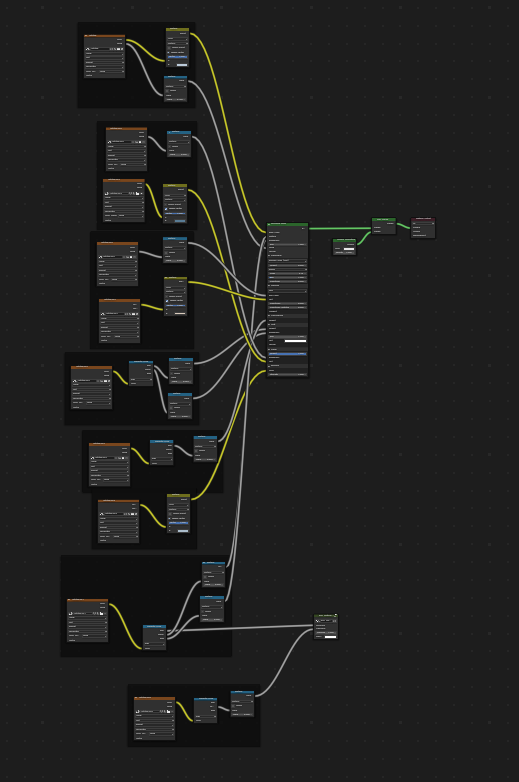
Um material Principled BSDF com uma textura emissiva.
UDIM
UDIM is a way to store multiple textures in a single image file. The UDIM system is supported by Blender, but is not supported by glTF. When exporting a model that uses UDIM, the add-on will automatically split the image into multiple images, one for each tile, and will update the material nodes to use the new images. All UDIM texture must use the same UV map to be exported.
Exportando um Material Shadeless (Não iluminado)
Para exopotar um material não iluminado, misture um camera ray, e evite usar o nó Principled BSDF.
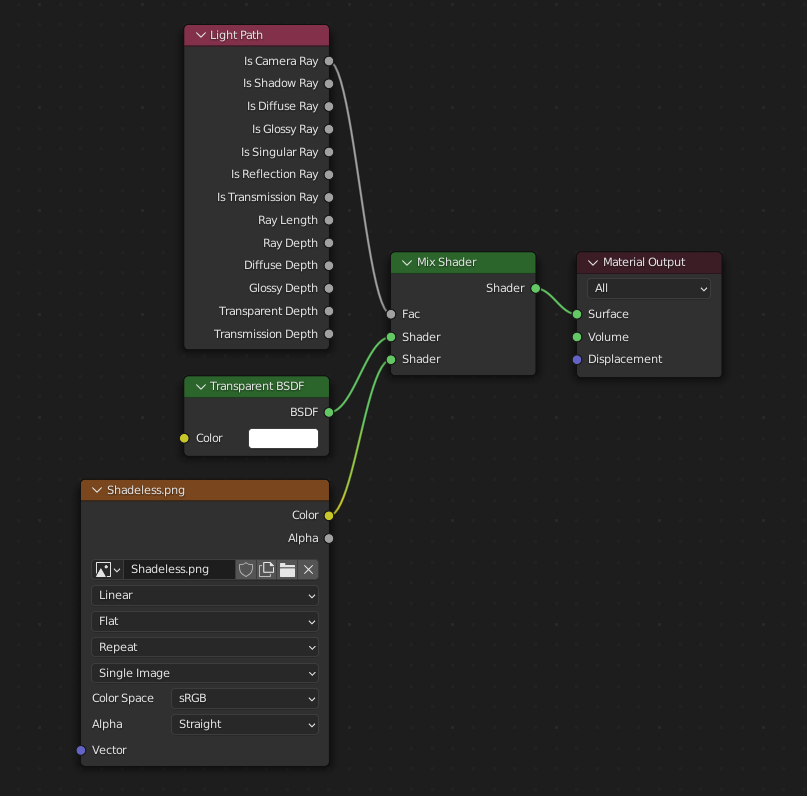
Um dos vários arranjos de nós que irá exportar KHR_materials_unlit e renderizar shadeless no Blender.
Lights
The glTF format supports three types of punctual lights: point, spot, and directional (Sun in Blender). Blender’s Area light type and World lighting are not supported by glTF, and will be ignored during export.
To enable light export, make sure to check the Include Punctual Lights option in the exporter.
This will use the KHR_lights_punctual glTF extension.
Light Color
The color of a glTF light is determined by the product of: - The color field on the light object, and - The color output of an Emission shader node, if the light is using nodes and has an Emission shader connected to its output.
If you are using EEVEE render engine, only the color field on the light object is used, and Emission shader node is ignored. (This reflects Viewport rendering)
Light Intensity
For Sun lights, the intensity is determined by the strength field on the light object. For Point and Spot lights, the intensity can also be determined by the Strength socket of a Light Falloff Node.
If you are using EEVEE render engine, the node setup will be ignored, and only the strength field on the light object is used.
Extensões
O núcleo do formato glTF 2.0 pode ser extendido com informações extras, usando extensões glTF. Isso permite o formato de arquivo contenha detalhes que não foram considerados universais no momento da primeira publicação. Nem todos leitores glTF suportam todas extensões, mas algumas são bastante comuns.
Certain Blender features can only be exported to glTF via these extensions. The following glTF 2.0 extensions are supported directly by this add-on:
Import
KHR_materials_pbrSpecularGlossinessKHR_materials_clearcoatKHR_materials_transmissionKHR_materials_unlitKHR_materials_emissive_strengthKHR_materials_volumeKHR_materials_sheenKHR_materials_specularKHR_materials_anisotropyKHR_materials_dispersionKHR_materials_iorKHR_materials_variantsKHR_lights_punctualKHR_texture_transformKHR_mesh_quantizationEXT_mesh_gpu_instancingEXT_meshopt_compressionKHR_meshopt_compressionKHR_animation_pointer
Export
KHR_draco_mesh_compressionKHR_lights_punctualKHR_materials_clearcoatKHR_materials_transmissionKHR_materials_unlitKHR_materials_emissive_strengthKHR_materials_volumeKHR_materials_sheenKHR_materials_specularKHR_materials_anisotropyKHR_materials_dispersionKHR_materials_iorKHR_materials_variantsKHR_texture_transformEXT_mesh_gpu_instancingEXT_meshopt_compressionKHR_meshopt_compressionKHR_animation_pointer
Extensões glTF de Terceiros
It is possible for Python developers to add Blender support for additional glTF extensions by writing their own third-party add-on, without modifying this glTF add-on. For more information, see the example on GitHub and if needed, register an extension prefix.
Propriedades personalizadas
Propriedades personalizadas são sempre importadas, e serão exportadas da maioria dos objetos se a opção é selecionada antes da exportação. Elas são armazenadas no campo extras no objeto correspondente no arquivo glTF.
Diferente das extensões glTF, propriedades personalizadas (extras) não tem namespace definido, e podem ser usadas para qualquer propósito específico d.
Animations
Uma animação glTF muda as transformações de objetos ou bone poses, ou os valores de shape keys. Uma animação pode afetar múltiplos objetos, e pode haver múltiplas animações em um arquivo glTF.
Import
Modelos importados são configurados para que a primeira animação no arquivo seja reproduzida automaticamente. Deslize a Timeline para ver ela rodar.
Quando o arquivo contém múltiplas animações, o resto será organizado usando o editor Nonlinear Animation. Cada animação torna-se uma ação armazenada em uma trilha do NLA. O nome da trilha é o nome da animação glTF. Para tornar a animação dentro dessa trilha visível, clique em Solo (ícone de estrela) ao lado da trilha que deseja reproduzir.
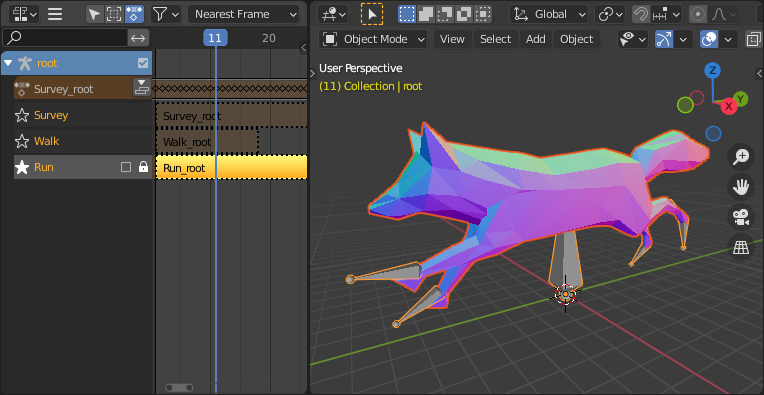
This is the fox sample model showing its «Run» animation.
Se uma animação afeta múltiplos objetos, ela será quebrada em múltiplas partes. A parte da animação que afeta um objeto torna-se uma ação armazenada naquele objeto. Use o nome das trilhas para dizer quais ações são parte da mesma animação. Para reproduzir toda a animação, você precisa habilitar o Solo (ícone de estrela) para todas as suas trilhas.
Each animation will be imported as a single action, with multiple slots if the animation affects multiple objects. One slot will be created for TRS, one for shape keys, etc…
You can find more information about action slots in Animation.
Nota
Atualmente não é possível ver a pose não-animada de um modelo que tinha animações.
You can also use the animation switcher that can be found in Dope Sheet editor.
Nota
You have to enable UI in Add-on preferences for seeing the animation switcher
You can switch all animation imported. It automatically enables Solo (star icon) for all needed tracks. It also reset non animated object to Rest transformation.
Export
You can export animations using different ways. How glTF animations are made from actions / NLA is controlled by the export option.
Acções (predefinidas)
An action will be exported if it is the active action on an object, or it is stashed to an NLA track (e.g. with the Stash or Push Down buttons in the Action Editor). Actions which are not associated with an object in one of these ways are not exported. If you have multiple actions you want to export, make sure they are stashed!
Uma animação glTF pode ter um nome, que é o nome da ação por padrão. Você pode substituí-lo renomeando sua trilha NLA do NLATrack/[Action Stash] para o nome que quiser usar. Por exemplo, a Fig. fox model irá exportar três animações, «Survey», «Walk», e «Run». Se você renomear duas trilhas em dois objetos diferentes para o mesmo nome, eles irão se tornar parte da mesma animação glTF e irão reproduzir juntas.
O importador organiza ações para que elas sejam exportadas corretamente com esse modo.
This mode is useful if you are exporting for game engine, with an animation library of a character. Each action must be on its own NLA track.
Before Blender 4.4, tracks were merged regarding their name. With Blender 4.4, and the introduction of slotted actions, this default behavior has been changed. Now, tracks are merged by the action they are using, and not by their name. You can find more information about action slots in Animation.
Active Actions merged
Nesse modo, a organização NLA não é usada, e apenas uma animação é exportada usando as ações ativas em todos os objetos.
NLA Tracks
In this mode, each NLA Track will be export as an independent glTF animation. This mode is useful if you are using Strip modifiers, or if you get multiple action on a same Track.
If you rename two tracks on two different objects to the same name, they will become part of the same glTF animation and will play together.
Cena
Using Scene option, animations will be exported as you can see them in viewport. You can choose to export a single glTF animation, or each object separately.
Nota
Lembre-se que apenas certos tipos de animação são suportados:
Transformação de objeto (localização, rotação e escala)
Pose bones
Valores de Shape key
Animações de outras propriedades, como física, luzes, ou materiais, serão ignoradas.
Nota
Para amostrar animações de shape key controladas por drivers usando transformações de bone, elas devem estar em um objeto malha que é filho direto da armadura de bones.
Nota
Only Actions (default) and Active Actions merged mode can handle not sampled animations.
Animation Pointer
Animation Pointer is a way to export some properties of a material, or a light, or a camera, as an animation. This is an experimental feature.
Custom Properties (extras in glTF) can be animated, but only for 1 composant data for now (float, int, bool).
Variações de Formato de Arquivo
A especificação glTF identifica diferentes maneiras que os dados podem ser armazenados. O importador lida com todas essas formas. O exportador irá perguntar ao usuário para selecionar uma das seguintes formas:
glTF Binary (.glb)
Isso produz um arquivo .glb único com todos dados de malha, imagens de texturas, e informações relacionadas empacotadas em um único arquivo binário.
Dica
Usar um único arquivo torna fácil compartilhar ou copiar o modelo para outros sistemas e serviços.
glTF Separate (.gltf + .bin + textures)
Isso produz um arquivo .gltf baseado em texto JSON descrevendo a estrutura geral, junto com um arquivo .bin contendo dados de malha e vetor, e opcionalmente um número de arquivos .png ou .jpg contendo imagens de texturas referenciadas pelo arquivo .gltf.
Dica
Ter uma variade de arquivos separados torna muito mais fácil para o usuário voltar e editar qualquer JSON ou imagens depois da exportação completada.
Nota
Esteja ciente que compartilhar esse formato requer compartilhar todos os arquivos separados juntos como um grupo.
glTF Embedded (.gltf)
This produces a JSON text-based .gltf file, with all mesh data and
image data encoded (using Base64) within the file. This form is useful if
the asset must be shared over a plain-text-only connection.
Aviso
This is the least efficient of the available forms, and should only be used when required. Available only when you activated it in addon preferences.
Propriedades
Import
- Unir Vértices
The glTF format requires discontinuous normals, UVs, and other vertex attributes to be stored as separate vertices, as required for rendering on typical graphics hardware. This option attempts to combine co-located vertices where possible. Currently cannot combine verts with different normals.
- Shading
Como as normais são computadas durante a importação.
- Modo de Iluminação
Optional backwards compatibility for non-standard render engines. Applies to lights. Standard: Physically-based glTF lighting units (cd, lx, nt). Unitless: Non-physical, unitless lighting. Useful when exposure controls are not available Raw (Deprecated): Blender lighting strengths with no conversion
Texture
- Pack Images
Empacota todas imagens no arquivo blend.
- Import WebP textures
If a texture exists in WebP format, loads the WebP texture instead of the fallback png/jpg one.
- Import unused Materials & Textures
Import all materials and textures, even if they are not used in the scene.
Bones & Skin
- Bone Direction
Changes the heuristic the importer uses to decide where to place bone tips. Note that the Fortune setting may cause inaccuracies in models that use non-uniform scaling. Otherwise this is purely aesthetic. The default value will not change axis, and is best for re-exporting from Blender. This default option will change display mode (adding shape and changing relationship line) to have a better view, even if original bones axis are not the most accurate (aesthetically speaking)
- Guess Original Bind Pose
Determina a pose para bones (e consequentemente, malhas skinned) no modo Edit. Quando ativado, tenta adivinhar a pose que foi usada para computar a matriz de ligação inversa.
- Disable Bone Shape
Do not display bone shapes in the 3D View.
- Bone Shape Scale
Scale of the bone shapes in the 3D View.
Pipeline
- Import Scenes as Collections
Import glTF scenes as collections. This is the default. For single scene import, all objects are created in active collection For multiple scenes import, each scene is imported as a collection. Non default scene are excluded from View Layer. If there are some orphan nodes (not in any scenes), an Orphan Collection is created (excluded from View Layer too). When off, the glTF scene is imported in the Blender active scene. Other glTF scenes are imported as new Blender Scenes.
- Select Imported Objects
Select created objects after import.
- Import Scene Extras
Import glTF extras as custom properties, at scene level.
Export
- Formato
Veja: File Format Variations.
- Manter Original
For glTF Separate file format only. Keep original textures files if possible. Warning: if you use more than one texture, where PBR standard requires only one, only one texture will be used. This can lead to unexpected results
- Texturas
For glTF Separate file format only. Folder to place texture files in. Relative to the gltf-file.
- Copyright
Direitos legais e condições para o modelo.
- Lembrar Definições de Exportação
Armazena as configurações de exportação no arquivo blend, de modo que elas serão lembradas a próxima vez que o arquivo for aberto.
Include
- Objectos Seleccionados
Exporta apenas objetos selecionados.
- Objectos Visíveis
Exportar apenas objectos visíveis.
- Objectos Renderizáveis
Exportar apenas objectos renderizáveis.
- Active Collection
Export objects from active collection only.
- Include Nested Collections
Only when Active Collection is On. When On, export recursively objects on nested active collections.
- Cena Activa
Exportar apenas cena activa.
- Propriedades personalizadas
Exporta propriedades personalizadas como extras glTF.
- Câmeras
Exporta câmeras.
- Punctual Lights
Exporta luzes direcionais, pontuais e spot. Usa a extensão glTF
KHR_lights_punctual.
Transformar
- Y Up
Exporta usando a convenção glTF, +Y para cima.
Data - Scene Graph
- Instâncias Geometry Nodes
Exporta instâncias de Geometry nodes. Este recurso é experimental
- Instâncias de GPU
Export using
EXT_mesh_gpu_instancingextensions.- Flatten Object Hierarchy
Useful in case of non-decomposable TRS matrix. Only skinned meshes will stay children of armature.
- Full Collection Hierarchy
Export collections as empty, keeping full hierarchy. If an object is in multiple collections, it will be exported only once, in the first collection it is found.
Data - Mesh
- Apply Modifiers
Export objects using the evaluated mesh, meaning the resulting mesh after all Modifiers have been calculated.
- UVs
Exporta UVs (coordenadas de texturas) com malhas.
- Normais
Exporta normais de vértices com malhas.
- Tangentes
Exporta tangentes de vértices com malhas.
- Atributos
Export Attributes with meshes, when the name starts with underscore.
- Loose Edges
Exporta bordas soltas como linhas, usando o material do primeiro slot de materiais.
- Loose Points
Exporta pontos soltos como pontos glTF, usando o material do primeiro slot de materiais.
- Shared Accessor
For triangles, use shared accessor for indices. This is more efficient (smaller files when you have lots of materials).
Data - Mesh - Vertex Color
- Use Vertex Color
- Material:
Export vertex color when used in material node tree as Base Color multiplier. This is the default, and the most accurate regarding glTF specification.
- Ativo(a):
Export active vertex colors, even if not used in material node tree. A fully compliant glTF viewer should display this VC as Base Color multiplier.
- Nome:
Export vertex color with the given name. A fully compliant glTF viewer should display this VC as Base Color multiplier.
- Nenhum:
Do not export vertex color.
- Exportar todas as cores de vértices
Export all vertex colors, additional VC will be COLOR_1, COLOR_2, etc.
- Export active vertex color when no material
Export active vertex color when no material is assigned to the object.
Dados - Material
- Materiais
- Export:
Export full materials, including all textures and shaders from node tree.
- Placeholder:
Export only the material placeholder, without any texture or shader. Primitives are not merged, so material slot information is kept.
- Porta de visão:
Export only the viewport material (Base Color, Roughness, and Metalness).
- No Export:
Does not export materials. Primitives are merged, losing material slot information.
- Imagens
Output format for images. PNG is lossless and generally preferred, but JPEG might be preferable for web applications due to the smaller file size. If WebP is chosen, all textures will be saved as WebP, without any png/jpg fallback. If None is chosen, materials are exported without textures.
- Image Quality
When exporting jpeg or WebP files, the quality of the exported file.
- Create WebP
Creates WebP textures for every textures, in addition to the existing texture. For already WebP textures, nothing happens.
- WebP fallback
For all WebP textures, create a png fallback texture.
- Imagens não usadas
Export images that are not used in any material.
- Unused textures
Export texture info (sampler, image, texcoord) that are not used in any material.
Data - Shape Keys
Exporta chaves de formato (morph targets).
- Normais de Formas Chave
Exporta normais de vértices com chaves de formato (morph targets).
- Tangentes de Formas Chave
Exporta tangentes de vértices com chaves de formato (morph targets).
Data - Shape Keys - Optimize
- Use Sparse Accessor if better
Sparse Accessor will be used if it saves space (if the exported file is smaller)
- Omitting Sparse Accessor if data is empty
If data is empty, omit to export Sparse Accessor. Not all viewer managed it correctly, so this option is Off by default
Dados - Armação
- Usar Armação em Posição de Descanso
Export Armatures using rest position as joint rest pose. When Off, the current frame pose is used as rest pose.
- Export Deformation Bones only
Export Deformation bones only, not other bones. Animation for deformation bones are baked.
- Remove Armature Object
Remove Armature Objects if possible. If some armature(s) have multiple root bones, we can’t remove them.
- Flatten Bone Hierarchy
Useful in case of non-decomposable TRS matrix.
Data - Skinning
Export skinning data
- Bone influences
How many joint vertex influences will be exported. Models may appear incorrectly in many viewers with value different to 4 or 8.
- Incluir Todas as Influências dos Ossos
Export all joint vertex influences. Models may appear incorrectly in many viewers.
Data - Lighting
- Modo de Iluminação
Optional backwards compatibility for non-standard render engines. Applies to lights. Standard: Physically-based glTF lighting units (cd, lx, nt). Unitless: Non-physical, unitless lighting. Useful when exposure controls are not available Raw (Deprecated): Blender lighting strengths with no conversion
Data - Draco Compression
Comprime as malhas usando Google Draco.
- Compression Level
Maiores compressões resultam em codificação e decodificação mais lentos.
- Quantization Position
Valores maiores resultam em melhores taxas de compressão.
- Normal
Valores maiores resultam em melhores taxas de compressão.
- Texture Coordinates
Valores maiores resultam em melhores taxas de compressão.
- Color
Valores maiores resultam em melhores taxas de compressão.
- Generic
Valores maiores resultam em melhores taxas de compressão.
Data - Meshopt Compression
Compress using Meshoptimizer.
- Meshopt Extension
Choose between
EXT_meshopt_compressionandKHR_meshopt_compressionextensions.
Animação
- Animation mode
Animation mode used for export (See Animations)
Animation - Bake & Merge
- Bake All Objects Animations
Useful when some objects are constrained without being animated themselves.
- Merge Animation
Merge animation mode. Can be by Action (using slot), by NLA Track Name, or no merge. When merging by NLA Track Name, all animation with the same NLA Track name will be merged. When merging by Action, all animations with the same action will be merged. When no merge, all animations will be exported as separate animations.
Animation - Rest & Ranges
- Use Current Frame as Object Rest Transformations
Export the scene in the current animation frame. When off, frame 0 is used as rest transformation for objects.
- Limit to Playback Range
Corta animações para o intervalo de reprodução selecionado.
- Set all glTF Animation starting at 0
Set all glTF Animation starting at 0. Can be useful for looping animation
- Negative Frames
When some frames are in negative range, slide or crop the animation.
Animation - Armature
- Export all Armature Actions
Export all actions, bound to a single armature. Warning: Option does not support exports including multiple armatures.
- Reset pose bones between actions
Reset pose bones between each action exported. This is needed when some bones are not keyed on some animations.
Animation - Shape Keys
- Shape Keys Animations
Export Shape Keys Animation. Need Shape Keys to be exported (See Data - Shape Keys)
- Reset Shape Keys between actions
Reset Shape Keys between each action exported. This is needed when some shape keys are not keyed on some animations.
Animation - Sampling
Apply sampling to all animations. Do not sample animation can lead to wrong animation export.
- Sampling Rate
Com que frequência avaliar valores animados (em quadros).
- Sampling Interpolation Fallback
Interpolation chosen for properties that are not keyed (LINEAR or STEP/CONSTANT)
Animation - Pointer
This enables to export some of the materials, light & camera property animations that are valid in glTF.
- Animation Pointer (Experimental)
Export some of the materials, light & camera property animations that are valid in glTF. This is an experimental feature, and not all properties are supported yet.
- Convert TRS/Weights to Animation Pointer
Convert TRS & Shape Keys to animation pointer
Animation - Optimize
- Optimize Animation Size
Reduce exported file size by removing duplicate keyframes when all identical.
- Force keeping channel for armature / bones
if all keyframes are identical in a rig, force keeping the minimal animation.
- Force keeping channel for objects
if all keyframes are identical for object transformations, force keeping the minimal animation.
- Disable viewport for other objects
When exporting animations, disable viewport for other objects, for performance reasons, when possible.
Animation - Filter
Restrict actions to be exported to the ones matching the filter.
Collection Exporters
This exporter can be used as a collection exporter. See Collections for more information about collections and their exporters.
Here are the options & specificity for collection export:
Include part of options are not available for collection exporter (like every other exporter).
Option to export at collection center (at center of mass of all root objects of the collection).
Custom Properties of the collection are exported as Scene glTF extras.
Contribuindo
Esse importador/exportador é desenvolvido através do glTF-Blender-IO repository, onde você pode preencher reportes de bugs, enviar requisições de funcionalidades, ou contribuir com código.
Discussão e desenvolvimento do formato glTF 2.0 em si acontece no Khronos Group glTF GitHub repository, e feedbacks lá são bem-vindos.