Grupos de nodos
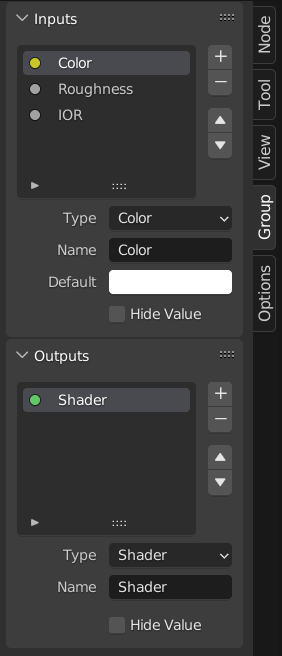
Ejemplo de un grupo de nodos.
Grouping nodes can simplify a node tree by hiding complexity and reusing common functionality. A node group is visually identified by its green title bar.
Conceptually, node groups allow you to treat a set of nodes as a single unit. They are similar to functions in programming: reusable, composable, and parametrizable.
For example, suppose you create a «Wood» material and want to use it in multiple colors. You could duplicate the entire node setup for each color, but maintaining those duplicates would be tedious if you later decide to change the wood grain detail. Instead, you can move the nodes that generate the wood pattern into a node group. Each material can then reuse this group and supply a custom color as input. Any updates to the grain detail need to be made only once—inside the node group.
Node groups can be nested; that is, a group can contain other groups.
Nota
Recursive node groups are prohibited to avoid infinite recursion. A group cannot contain itself, directly or indirectly.
Truco
Like other data-blocks, node groups with names that start with . are hidden
from menus and lists and can only be accessed via search.
This is useful for node asset authors who want to hide internal utility groups from end users.
Group Input and Group Output nodes are used to represent data flowing into and out of the group.
The Group Input node provides access to the group’s input sockets from within the node group. These sockets act as parameters that control the behavior of the group from the outside. You can connect them to internal nodes to drive values such as factors, colors, or geometry inputs.
Nota
Input values that do not affect the output will be grayed out.
The Group Output node defines the data that is passed out of the node group. Only sockets connected to this node will be available as outputs on the group itself.
Importante
Avoid using output nodes such as Material Output inside node groups. These should be used on the top level node tree to improve re-usability of node groups.
Use Group Output to pass data out of a node group.
Uso
Managing Inputs/Outputs
You can add, remove, and reorder input and output sockets in the Group panel in the Sidebar. New sockets can also be created directly by dragging a link to or from the hollow socket on the Group Input or Group Output node to another socket in the node editor.
Reutilización de grupos de nodos
Referencia
- Menú:
- Atajo:
Mayús-A
Los grupos de nodos existentes podrán ser reubicados después de haber sido definidos inicialmente, ya sea en el mismo árbol de nodos o en uno diferente. También será posible importar grupos de nodos desde un archivo .blend diferente, usando .
Truco
When appending node groups from another blend-file, Blender does not distinguish between types such as material or compositing groups. To avoid confusion, it is recommended to adopt a naming convention, like using prefixes (Mat_, Comp_, Geo_, etc.), to indicate the group’s context.
Propiedades
Grupo
Referencia
- Panel:
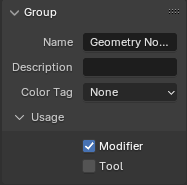
El panel Grupo.
This panel contains properties that relate the group node such as its name and look.
- Nombre
El nombre del conector, tal como se muestra en el Título del nodo.
- Descripción
El mensaje mostrado al posar el puntero sobre la barra de Título o en los menús Agregar.
- Etiqueta de color
Etiqueta de color del nodo de grupo, que afectará al color de su encabezado.
- Ancho del nodo
El ancho para los nuevos nodos de grupo creados.
- (Definir ancho predefinido del nodo)
Permitirá definir el ancho basándose en el nodo de grupo superior en el contexto actual
- Show Manage Panel Geometry Nodes
Enables displaying the Administrar panel in Geometry Nodes modifiers when creating a modifier from a node group asset.
Uso Nodos de geometría
Este panel sólo será visible dentro del editor de Nodos de geometría.
- Modificador
The node group is intended for use with the Modificador Nodos de geometría.
- Herramienta
El grupo de nodos será usado como una Herramienta basada en nodos.
The data-block menu in the header of the Geometry Node Editor only lists the node groups whose Usage matches the current Node Tree Sub-Type.
Truco
Si de forma accidental se hubieran deshabilitado ambos tipos de uso, el grupo de nodos ya no será accesible a través del menú de bloques de datos. Para volver a hacerlo accesible, podrá ser agregado como un nodo en otro grupo de nodos (), seleccionar ese nodo y pulsar la tecla Tab para ingresar al mismo. Desde allí podrá habilitarse nuevamente uno de los tipos de uso posibles.
Conectores del grupo
Referencia
- Panel:
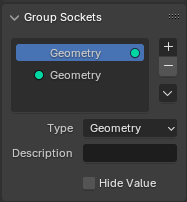
El panel Conectores del grupo.
This panel is used to add, remove, reorder, and edit the user interface elements of a node group. It defines how sockets appear on the group node and organizes them for clarity and usability.
Los tipos de elementos disponibles incluyen:
Inputs: Define input sockets for the node group.
Outputs: Define output sockets for the node group.
- Paneles:
Group and organize related sockets together. Useful for structuring complex node setups. Panels always appear at the bottom of the node interface. They can be nested by dragging one panel on top of another in the interface item list.
- Panel Toggle:
Adds a boolean checkbox to a panel’s header, allowing control over its contents. This option is only available when a panel is selected in the interface item list.
Panel toggles have their own options under the Panel Toggle subpanel. Note that toggle sockets are not listed directly in the interface list—panels with toggles instead show a boolean socket icon next to their name. To make the toggle socket visible again, it must be unlinked from the panel.
Nota
A panel toggle does not automatically disable or gray out its sockets. To visually and functionally disable sockets, use a Switch Node or similar logic and disconnect the socket manually.
- Lista de elementos de la interfaz
A UI list view showing all input/output sockets and panels. Each item can be renamed and configured individually. The name appears in the node’s user interface.
Truco
Selecting a socket label on the node itself will also select that socket in the Interface Item List.
Especiales
- Duplicar elemento
Duplicará el conector o panel seleccionado.
- Make Panel Toggle
Converts the selected boolean input into a toggle for its parent panel. Only available when a panel is selected and the active item is a boolean socket.
- Unlink Panel Toggle
Removes the toggle relationship between a boolean socket and a panel, making it a regular stand-alone input again.
Conectores
The properties available for sockets depend on several factors, including whether it is an input or output socket, the data type, and the type of node tree.
- Tipo
The type of Socket generated by this interface item.
- Descripción
The tooltip text displayed when hovering over the socket.
- Attribute Domain Geometry Nodes – Output – Integer Color Vector Boolean Float
The type of geometry element the attribute corresponds to. See Dominios de atributos for a complete list of attribute domains.
- Default Attribute Geometry Nodes – Integer Color Vector Boolean Float
The attribute name used by default when the node group is used as a geometry nodes modifier.
- Subtype Integer Float Vector String
Specifies how the data is interpreted, displayed, and sometimes constrained in the user interface. The visual representation, unit suffix, and input behavior often depend on the Scene Units.
Changing the subtype does not change the underlying data type. It only affects how the value is presented and edited.
- Enteros
- Ninguno:
Standard integer values with no special interpretation.
- Píxel:
Represents values in pixels, showing a «px» suffix. Typically used for dimensions, resolutions, image sizes, or other screen-space measurements.
- Porcentaje:
Displayed as a percentage. Typically used with Min and Max values set to 0 and 100.
- Factor:
Represents a normalized factor between a lower and upper bound, often used in the 0.0-1.0 range.
- Decimales
- Ninguno:
Standard floating-point values with no special unit.
- Píxel:
Represents values in pixels, showing a «px» suffix. Typically used for dimensions, resolutions, image sizes, or other screen-space measurements.
- Porcentaje:
Displayed as a percentage. Typically used with Min and Max values set to 0 and 100.
- Factor:
A normalized value between a lower and upper bound, commonly in the 0.0-1.0 range.
- Masa:
A mass value using the scene’s unit system.
- Ángulo:
A rotational measurement displayed in degrees or radians, depending on scene unit settings.
- Tiempo (relativo a la escena):
Time in frames, automatically converted to seconds based on the scene frame rate.
- Tiempo (absoluto):
Time measured directly in seconds.
- Distancia:
A spatial distance measurement using the scene’s length units.
- Longitud de onda:
The distance between wave cycles. Displayed in millimeters (mm), micrometers (µm), nanometers (nm), or picometers (pm).
- Temperatura de color:
Un valor de temperatura (expresado en grados Kelvin) correspondiente al color percibido de una fuente lumínica.
- Frecuencia:
Una tasa de repetición (expresada en Hertz).
- Vectores
- Ninguno:
Valores vectoriales estándar.
- Píxel:
Represents values in pixels, showing a «px» suffix. Typically used for dimensions, resolutions, image sizes, or other screen-space measurements.
- Porcentaje:
Each component is displayed as a percentage.
- Factor:
Each component is treated as a normalized factor.
- Traslación:
A displacement vector using scene length units.
- Dirección:
A geometric direction vector, typically normalized.
- Velocidad:
A vector representing speed and direction of motion.
- Aceleración:
A vector representing the rate of change of velocity.
- Ángulos Euler:
Ángulos de rotación Euler.
- XYZ:
Cartesian coordinates. A fourth component (W) may also be supported depending on context.
- Cadenas
- Ninguno:
Standard text string.
- Ruta al archivo:
The string is interpreted as a path to a file, enabling file selection dialogs in the user interface.
- Dimensiones Vector
Sets the number of components for the vector socket: 2, 3, or 4. Changing the dimension affects how the socket is drawn and how data is passed through it.
2D: Sólo componentes X e Y.
3D: Componentes X, Y y Z.
4D: Componentes X, Y, Z y W.
- Predefinido
El valor a usar cuando no haya nada conectado al conector.
- Mín, Máx
Los valores mínimo y máximo para el control de la interfaz del nodo.
Importante
This does not clamp the actual data flowing through the socket. If a higher value is passed into the socket, it will still be processed unchanged.
- Default Input Geometry Nodes, Compositing Nodes – Input – Integer Vector Matrix Object
The value used when the socket is unconnected. The available options depends on the socket type. Requires Hide Value to be enabled.
- Valor predefinido:
The node socket’s default value.
- Identificador:
The index from the context.
- ID or Index:
The “id” attribute if available, otherwise the index.
- Normal:
The geometry’s normal direction.
- Posición:
The position from the context.
- Left Handle:
The left Bézier control point handle from the context.
- Right Handle:
The right Bézier control point handle from the context.
- Scene Frame:
The current frame in the scene.
- Uniform Image Coordinates:
The uniform image coordinates of the compositing space.
- Propio objeto:
The object that contains the geometry nodes modifier currently being executed.
- Optional Label Input
Indicate that the label of this socket is not necessary to understand its meaning. This may result in the label being skipped in some cases.
- Ocultar valor
Hides the socket’s default value control, even when it is not connected.
- Layer Selection Geometry Nodes – Input – Boolean
Takes a Grease Pencil Layer or Layer Group as a selection field.
- Hide in Modifier Geometry Nodes – Input
Hides the input value in the Geometry Nodes modifier interface. This allows the socket to be used inside the node group, but not exposed to the modifier.
Available only for Geometry Nodes input sockets.
- Shape Geometry Nodes – Input
Specifies what kind of higher-order data the socket accepts. See Forma de conectores for more information.
- Automático:
Automatically detect the most appropriate shape based on how the socket is used. This is the default option and works for most cases.
- Dinámica:
The socket can adapt to multiple shapes, making it flexible when used with different connections. Useful for generic node groups intended to handle various data types.
- Individual:
Only allows single values (constants) rather than structured data. Fields or grids cannot be connected.
- Campo:
The socket expects a field, meaning the value can vary depending on the geometry element or context.
- Cuadrícula:
The socket expects a grid data structure, which stores values sampled across a volume or 2D space.
Paneles
- Descripción
The tooltip text displayed when hovering over the panel’s header.
- Closed by Default
When enabled, the panel is collapsed by default on new nodes.
Animación
Controls animation data for node group properties, including active Actions and their assigned Slot.
Ver Asignación manual de acciones y contenedores para obtener más información.
Agrupar
Referencia
- Menú:
- Atajo:
Ctrl-G
Creates a new node group that contains all selected nodes.
Group Input and Group Output nodes will be created to represent connections to unselected nodes outside the group. Inputs will be routed to the Group Input and outputs routed to the Group Output.
When grouping a single node, the resulting node group will:
Preserve the interface of the original node, including panels and default values.
Heredará el nombre del nodo original
When grouping multiple nodes, the group is created with inputs and outputs sockets generated from the connections. In this case, a generic name such as «NodeGroup», «NodeGroup.001», etc. is used.
Insertar en grupo
Referencia
- Menú:
Moverá los nodos seleccionados al grupo de nodos activo. Para usar esta función, seleccionar un conjunto de nodos, seleccionando por último al grupo de destino, luego al ejecutar esta operación se moverán todos los nodos seleccionados al grupo. Los nodos movidos serán colocados en un grupo propio para preservar su contexto de conexiones, teniendo sus propios nodos de entrada y salida. Los nodos existentes de entrada y salida del grupo de destino serán actualizados con nuevos conectores, si correspondiera, a partir de los nuevos nodos insertados. El grupo de nodos deberá ser editado para que vuelva a contener un solo nodo de Entradas de grupo y uno de Salidas de grupo.
Editar grupo
Referencia
- Menú:
- Encabezado:
- Atajo:
Tab, Ctrl-Tab
Con un grupo de nodos seleccionado, presionar Tab para ingresar en él y ver su contenido. Presionar Tab nuevamente (o Ctrl-Tab) para salir del grupo y volver al superior (que podría ser el árbol de nodos principal u otro grupo de nodos). Será posible consultar las «migas de pan» en la esquina superior izquierda del editor de nodos, para ver la ubicación actual dentro de la jerarquía.
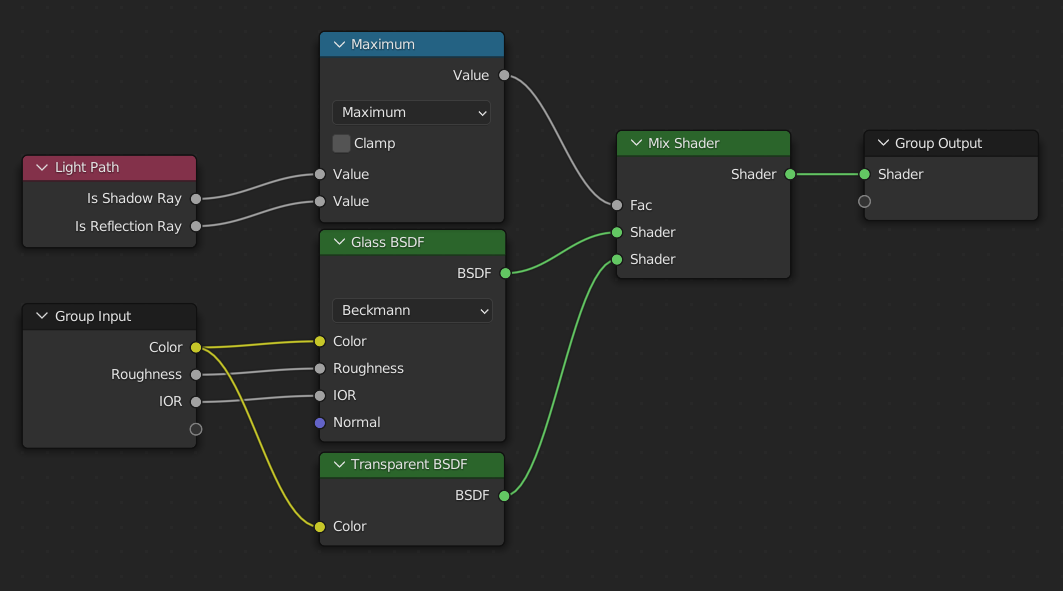
Ejemplo de un grupo de nodos expandido.
Desagrupar
Referencia
- Menú:
- Atajo:
Ctrl-Alt-G
Eliminará el grupo y colocará los nodos individuales en el espacio de trabajo del editor. No se perderá ninguna de sus conexiones internas y será posible conectar los nodos internos a cualquier otro nodo del espacio de trabajo.
Separar
Referencia
- Atajo:
P
The Separate operator removes the selected nodes from a node group and places them in the parent node tree. This is useful when nodes need to be edited outside of a group for clarity or reuse.
- Copiar
Duplicates the selected nodes into the parent node tree, while keeping the originals inside the group. This is useful when you want to reuse nodes outside of the group but still preserve the group definition.
- Mover
Moves the selected nodes to the parent node tree, removing them from the original group. This is useful when simplifying a group or exposing its contents directly.
Join Group Inputs
Referencia
- Menú:
- Atajo:
Ctrl-J
Merges multiple selected Group Input nodes into one consolidated Group Input node when possible. Existing links are preserved, and duplicate inputs are unified to reduce clutter and simplify the node tree.
This operation is useful for cleaning up node groups that have become disorganized or contain redundant input nodes.