Nodo Guardar archivo
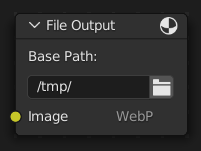
The File Output node writes one or more images to disk during rendering or compositing.
Each connected input is saved to the specified directory and filename,
with the frame number appended to create a sequence.
For example: {Directory}/{File Name}{Socket Name}{frame number}.{extension}.
This node can be used to:
Automatically save the final image after a render.
Save intermediate results from anywhere in the node tree.
Export multiple render passes or processed outputs directly to files.
Truco
Use the File Output node to save raw passes or intermediate steps without overwriting the main render result.
Combine with the Nodo Cryptomatte or other utility passes to export custom data for compositing pipelines.
Particularly useful in production pipelines where multiple outputs are needed per render.
Both the
File Nameand theImagenames (when saving multiple images) can contain####to force the frame number to appear in a specific place in the filename. This also has the effect that a single render will have the frame number embedded. The frame number will be padded with zeros to fill the number of#characters.
Entradas
By default, the node has no input sockets. Inputs can be added by dragging an output from another node onto the blank socket area, or by adding new inputs in the Images/Layers panel.
Each input corresponds to an image that will be written to disk.
When the Media Type is set to Image, input names are also used to construct subdirectories:
If an input name contains a slash character (
/or\), the path is interpreted as a directory hierarchy.Any missing directories are created automatically during output.
This allows organizing outputs into folders directly from the node setup,
for example: passes/diffuse or masks/object_01.
Propiedades
- Carpeta
The base output directory.
- Nombre de archivo
The base name of the file. The final filename may also include frame numbers or layer names depending on the settings.
- Media Type
Determines how multiple inputs are stored:
- Imagen:
Saves each input as a separate image file. Each input can use its own image format settings.
- Multi-Layer EXR:
Saves all inputs together in a single multi-layer OpenEXR file.
Node Format
Referencia
- Panel:
This panel controls file format and encoding options, depending on the Media Type:
Image: Controls the default format and encoding for all outputs. To override settings for an individual output, enable Override Node Format in the Images/Layers panel. See Guardado de imágenes for details on supported formats and options.
Multi-Layer EXR: See OpenEXR for EXR-specific settings.
Images/Layers
Referencia
- Panel:
Lists all input sockets of the node. The name of each input socket is used to construct the final file name.
When saving individual images, each output can be renamed and will be written to disk using either the global Node Format settings or its own overridden settings. When using Multi-Layer EXR, each input is stored as a separate layer within the file.
- Override Node Format
Allows the selected output to use a custom format instead of the global Node Format.
Item Format
When Override Node Format is enabled, this panel controls the format and encoding options for the selected output image. See Guardado de imágenes for details.
Output Paths
Referencia
- Panel:
Displays the final file path and extension for each input/layer, based on current settings. This helps verify that outputs are named and organized correctly.
Salidas
Este nodo no contiene conectores de salida.