Superficie
Transformación
Referencia
- Modo:
Modo Edición
- Menú:
Tools for moving control points.
- Mover, Rotar, Escalar
- Esferizar, Sesgar, Flexionar, Empujar/Tirar, Deformar, Aleatorizar
See Mesh Transformations.
Voltear
Referencia
- Modo:
Modo Edición
- Menú:
- Atajo:
Ctrl-M
Ver Voltear.
Adherir
Referencia
- Modo:
Modo Edición
- Menú:
- Atajo:
Mayús-S
See the Adherir menu, as well as the snapping options.
Girar
Referencia
- Modo:
Modo Edición
- Menú:
Similar to its mesh counterpart, this operator extrudes the selected control points several times along a circle that’s centered on the Cursor 3D and parallel to the viewing plane. The weights of the new control points are set up to produce a circle, and the surface is marked as Cyclic, Bézier, and Endpoint in the extrusion direction (see Curva activa).
Duplicar
Referencia
- Modo:
Modo Edición
- Menú:
- Atajo:
Mayús-D
Duplicates the selected control points and creates a new surface based on them. The new control points are placed in the Move mode: move the mouse to bring them to the desired position, then click LMB to confirm. Alternatively, press RMB or Esc to keep them at their original position.
Note that the selected control points must form a single, valid sub grid. If this is not the case, the duplication will fail with an error.
Dividir
Referencia
- Modo:
Modo Edición
- Menú:
- Atajo:
Y
Disconnects the selected sub grid from the rest of the surface, keeping it within the same Surface object. The control points at the border are duplicated so that both the original surface and the disconnected surface have them.
The sub grid must consist of one or more complete rows or columns of the surface grid.
Separar
Referencia
- Modo:
Modo Edición
- Menú:
- Atajo:
P
Disconnects the selected sub grid from the rest of the surface and moves it into a new Surface object. The control points at the border are duplicated so that both the original surface and the disconnected surface have them.
The sub grid must consist of one or more complete rows or columns of the surface grid.
Alternar la opción Cíclica
Referencia
- Modo:
Modo Edición
- Menú:
- Atajo:
Alt-C
Opens a popover menu with the options Cyclic U and Cyclic V. The surface is made cyclic (closed) or non-cyclic (open) in the corresponding direction.
If a surface is cyclic, the last row or column of its control point grid is connected back to the first. A cylinder is cyclic along either the U or V direction, while a sphere is cyclic along both.
Ver también
The Cyclic settings are also in the Curva activa panel in the Sidebar.
Definir tipo de curva
Referencia
- Modo:
Modo Edición
- Menú:
Esta función solo funciona para Curvas.
Mostrar/Ocultar
Referencia
- Modo:
Modo Edición
- Menú:
- Atajo:
H, Shift-H, Alt-H
Hides the selected or unselected control points, or unhides all hidden control points.
By default, unhiding control points adds them to the selection. To prevent this, uncheck the Select option in the Ajustar última operación panel.
Limpiar
Referencia
- Modo:
Modo Edición
- Menú:
Esta función solo funciona para Curvas.
Borrar
Referencia
- Modo:
Modo Edición
- Menú:
- Atajo:
X, Suprimir
Removes the selected Vertices (control points) or Segments (lines) from the surface. In both cases, the selection must consist of one or more complete rows or columns of the surface grid.
- Vértices
Deletes the selected control points. The resulting gap is bridged with new grid lines so that the surface stays contiguous.
- Segmentos
Deletes the lines and control points that lie between the outermost selected control points. The resulting gap is not bridged.
- Disolver vértices
Esta función solo funciona para Curvas.
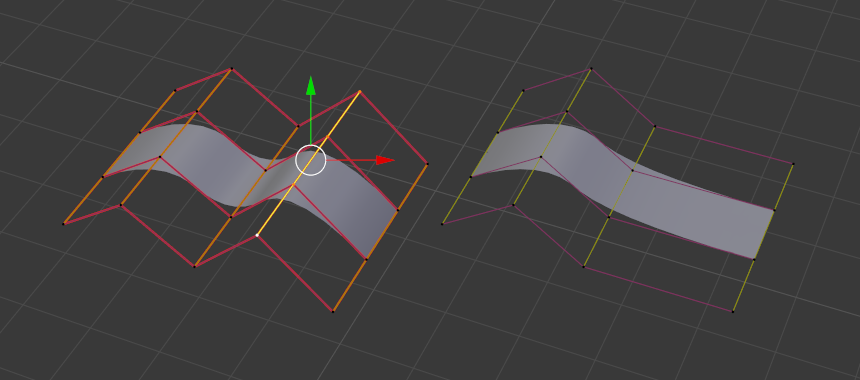
Before and after deleting a row of control points.