はじめに
Compositing Nodes(コンポジットノード)により、画像 (または動画) を合成してより良いものにすることができます。コンポジットノードを使用すると、2 つのフッテージを組み合わせて、シーケンス全体を一度に色付けできます。単一の画像やムービークリップ全体の色味を、静的または時間経過による (クリップの進行に合わせた) 動的な方法で改良できます。そのためには、複数のビデオクリップを組み立ててクオリティを高めるために、コンポジットノードを使用します。
注釈
用語: Image(画像)
Image(画像) という用語は、単一の写真、番号付き画像シーケンス内の写真、または動画クリップ内の単一フレームを指します。Compositor(コンポジター) は入力の種類に関係なく、一度に 1 つの画像を処理します。
画像を処理するにはノードを使用して、画像を Blender へ読み込み、変更、必要に応じた他の画像との結合をして、最終的には保存します。
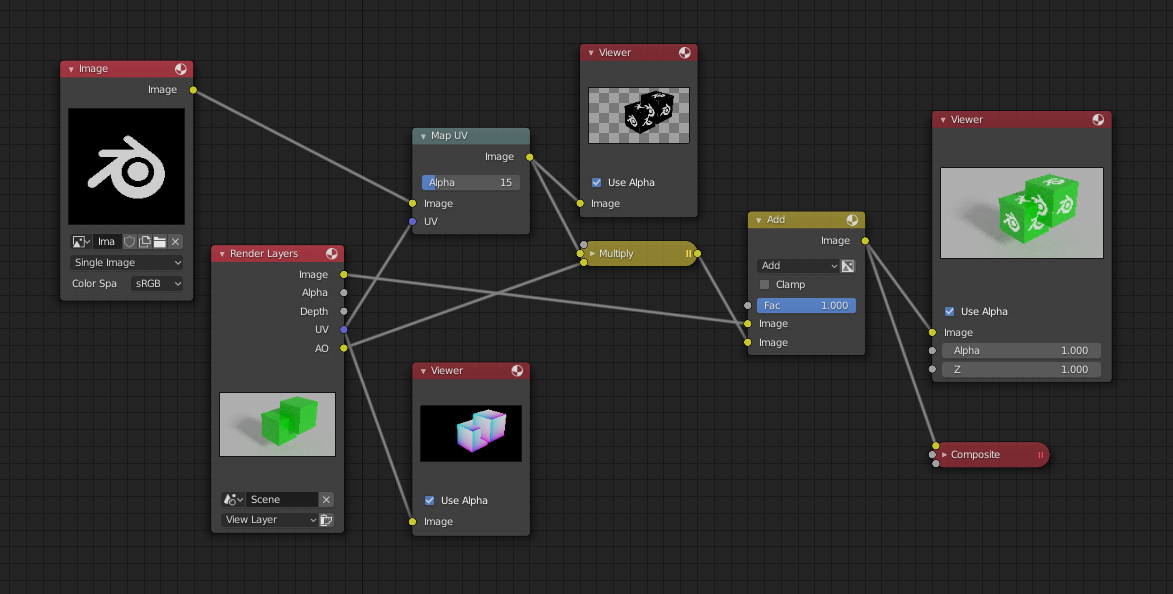
コンポジションの例。

カラーコレクションの例。
入門
To begin compositing, open the Compositor and create a new node tree by clicking the New button in the header. This adds a compositing node tree data block to the scene, which can then be reused across different scenes or linked/appended from other blend-files.
重要
To make the render engine actually use the compositing node tree (or disable compositing), the Compositing Pipeline option must be enabled in the output's Post Processing properties.
Once a node tree is created, you will see your first basic setup. From here you can add and connect many types of Compositing Nodes in a node graph layout to build effects ranging from simple color corrections to complex composites.
注釈
General concepts and controls for working with nodes are described in the Nodes reference.
例
ノードを使用することで、画像に対してほぼ全てのことができます。
ブルースクリーンの前にいるアクターや、何らかのアクションをしているレンダリングされたオブジェクトの Raw フッテージを、背景の上に重ねることができます。両方を合成し、合成済みフッテージを得ることもできます。
画像の雰囲気を変更できます:
冷たく '感じる' 画像にするために、青い成分を加えます。
フラッシュバックや記憶を表現するに、画像をソフトにできます。
憎しみや不満を伝えるために、赤い成分を加えるか、赤色を強めます。
はっとするような効果には、シャープや、コントラストの強化が使用されます。
幸せな気持ちの表現には黄色(赤と緑の中間、青ではなく)を追加します。
ほこりや空気中の汚れには多くの場合、少しリアリティを加えるために、画像へ雲のテクスチャが追加されます。
Composite Image(合成画像)の保存
The Render button renders a single frame or image. Save your image using Save Image. The image will be saved using the image format settings on the Render panel.
連番画像を保存したい場合 (ファイル内で動画クリップの入力や、フレームへの Time(時間) ノードの使用がある場合など) には、Animation(アニメーション) ボタンとその設定を使用します。後でそれらを重ねるかも知れない場合には、アルファチャンネルをサポートする画像フォーマット (PNG など) を使用してください。後で前面から背面へ配置しなおしたり、被写界深度効果を作成したい場合には、Z深度 チャンネルをサポートするフォーマット (EXR など) を使用してください。
To save a composition as a movie clip (all frames in a single file),
use an AVI or QuickTime format, and use the Animation button and its settings.