Collections(コレクション)
シーンには多くのオブジェクトが存在する可能性があります。典型的なステージのシーンは、家具、小道具、ライト、背景で構成されています。Blenderは、オブジェクトをグループ化できるようにすることで、すべてを整理するのに役立ちます。オブジェクトは、(親子化とは異なり)変換関係なしでグループ化できます。コレクションは、シーンを論理的に整理するため、またはファイル間またはシーン間でのワンステップの追加やリンクを容易にするために使用されます。
Collections(コレクション) タブ
参照
- Menu(メニュー):
コレクションのプロパティタブでは、アクティブなコレクションのプロパティに簡単にアクセスできます。
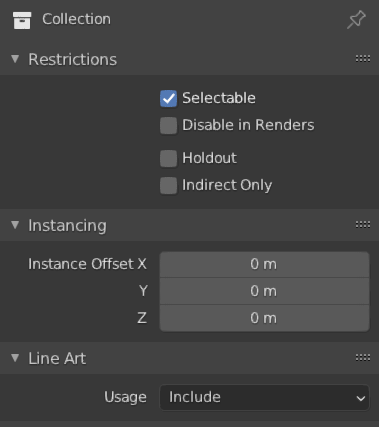
コレクションのプロパティ。
Visibility(可視性)
- Selectable(選択可能)
Toggles the ability to select the objects of this collection in the 3D Viewport.
This is useful for if you have placed something in the scene and do not want to accidentally select it when working on something else for example references images.
- Show In -- Renders
レンダリングでのコレクションの表示を有効/無効にします。
View Layer(ビューレイヤー)
Each collection in a scene can be configured per View Layer to control how its contents appear in the render. These settings allow for flexible render setups by including or excluding specific collections, masking objects, or limiting their contribution to indirect effects.
- Include(内容)
Includes this collection in the active View Layer. When disabled, all objects in the collection will be excluded from the render, the 3D Viewport, and the Outliner for the current view layer.
This is useful for rendering alternate versions of a scene or isolating elements for compositing.
- Holdout(ホールドアウト)
Marks all objects in this collection as holdouts in the active view layer.
Holdouts render as transparent regions in the final image, effectively masking out anything behind them. This is typically used in compositing workflows to create cutouts or to separate foreground and background elements.
- Indirect Only Cycles Only
Objects in this collection will not appear directly in the rendered image, but they will still contribute indirectly through lighting, shadows, and reflections.
This is useful for rendering clean product shots while preserving realistic environmental lighting or reflections.
Instancing(インスタンス化)
- Instance Offset(インスタンスのオフセット) X, Y Z
オリジナルのオブジェクトの原点からインスタンス化されたコレクションの空間的オフセットを適用します。
Exporters
Each collection can be exported to a number of various file formats. These exporters are available globally, see Importing & Exporting Files, however, this panel streamlines the process of re-exporting the same asset(s) repeatedly. For example when creating glTF assets for a game and iterating on the look, or when using Blender in a studio pipeline to create USD assets.
The following file formats are supported, see each for the documentation of export parameters:
- Exporter List
A list view of all the enabled exporters for the active collection. The selecting an exporter from the list will show it's options in a sub panel below.
- (Add Exporter)
Opens a menu to choose an exporter to add.
- (Remove Exporter)
Removes the selected exporter.
- Export All
Exports all exports for the active collection.
Tip
Use to export all exporters for all collections.
Line Art(ラインアート)
- 使用方法
How the collection is loaded into Line Art. Child objects of the collection can override this setting if they wish in Object Properties.
- Include(内容):
このコレクションの特徴ラインを生成します。
- Occlusion Only(遮蔽のみ):
コレクション内のオブジェクトは、既存の特徴ラインのみをオクルージョンし、それらのオブジェクトのジオメトリは非表示のままになります。
- Exclude(排他):
Objects in this collection will not be loaded into Line Art at all.
- Intersection Only(交差のみ):
コレクション内のオブジェクトは、シーン内に交差するラインのみを生成し、それらのオブジェクトのジオメトリは非表示のままになります。
- No Intersection(交差なし):
このコレクションを含めますが交差ラインは生成しません。
- Force Intersection:
Generate intersection lines even with objects that disabled intersection.
- Collection Mask(コレクションマスク)
Use custom intersection mask for faces in this collection. Intersection masks can be used by the Line Art modifier to filter lines. See Collection Masks for more information.
- Mask(マスク)
このコレクションによって生成された交差には、このマスク値があります。
- Intersection Priority
Assigns an intersection priority value for this collection. The intersection line will be included into the object with the higher intersection priority value.
カスタムプロパティ
Create and manage your own properties to store data in the collection's data block. See the Custom Properties page for more information.
Collections(コレクション) パネル
参照
- Mode(モード):
Object Mode(オブジェクトモード)
- Panel(パネル):
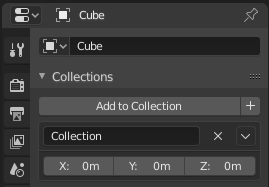
Collections(コレクション) パネル。
オブジェクトが割り当てられているすべてのコレクションは、Properties(プロパティ)の にリスト表示されます。
- Add to Collection(コレクションに追加)
選択したオブジェクトをコレクションに追加します。ポップアップを使用して、追加したいコレクションを指定します。
- (Add to Collection)
新しいコレクションを作成し、選択したオブジェクトをコレクションに追加します。
- Name(名前)
コレクションの名前を変更するには、コレクション名フィールドをクリックします。
- (Remove Collection)
Removes the object from the specified collection.
- (Collection Specials)
Unlink Collection, Select Objects in Collection, Set Offset from Cursor
- X、Y、Z
オリジナルのオブジェクトの原点からインスタンス化されたコレクションの空間的オフセットを適用します。
参考
コレクションへの追加とリンク
To append a collection from another blend-file, consult this page. In summary, , Select a blend-file, and then the collection.