Control Points(制御点)
Extrude Curve and Move(カーブを押し出し移動)
参照
- Mode(モード):
Edit Mode(編集モード)
- Menu(メニュー):
- ショートカットキー:
E
Extruding is the main way of adding new control points to a surface. It's not possible to do this directly as would be the case with Curves.
Start by selecting a complete border of the surface grid. Then press E to duplicate the control points, and move the mouse to bring them to the desired position. Finally, click LMB to confirm. (Alternatively, click RMB or press Esc to cancel the move and keep the new control points at their original position.)
例
First, we select a border control point and expand the selection to the complete row using Select Control Point Row(コントロールポイントの行を選択).
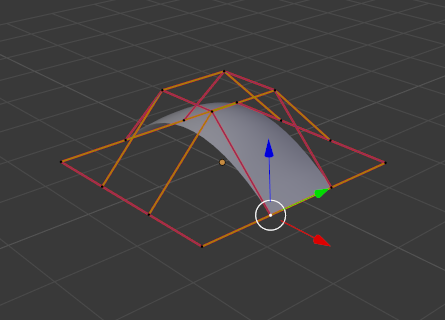
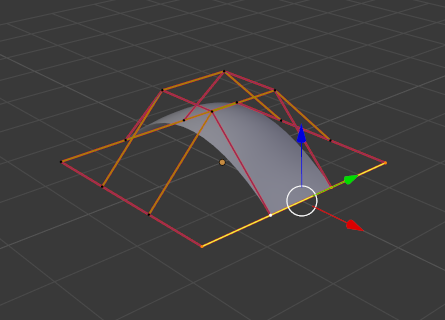
Then, we extrude a few times:
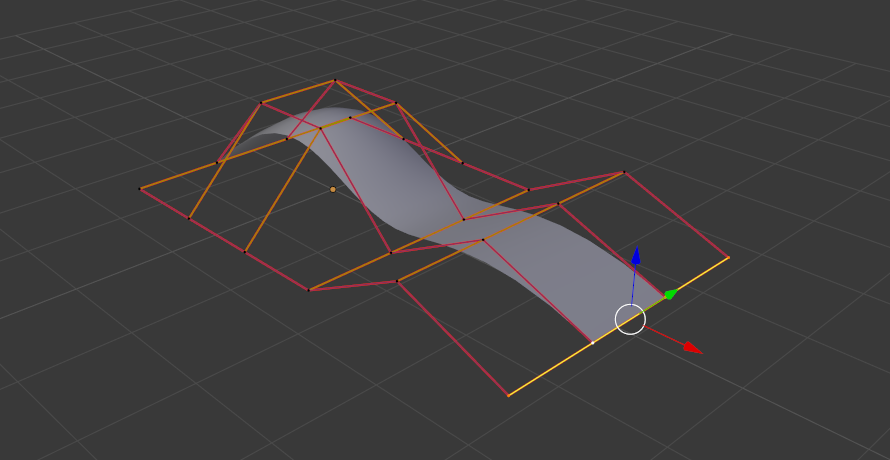
Control points extruded twice
Make Segment(セグメントを作成)
参照
- Mode(モード):
Edit Mode(編集モード)
- Menu(メニュー):
- ショートカットキー:
F
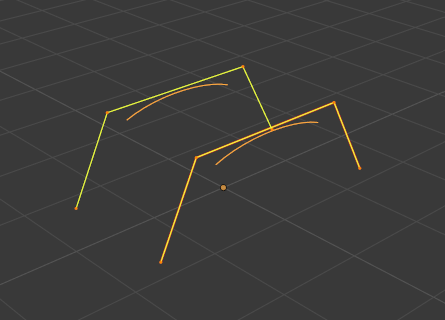
While this operator sounds like it creates a single segment (grid line) between two control points, it's really more similar to Bridge Edge Loops(辺ループのブリッジ) for meshes: it bridges the gap between two disjoint surfaces by creating as many new segments as necessary. Simply select a border row (or column) in each surface, then press F to connect those borders.
Note that the two surfaces need to be part of the same Surface object. If you have two separate objects, these first need to be combined into one using Join(統合). Also, the borders to connect must have the same number of control points.
例
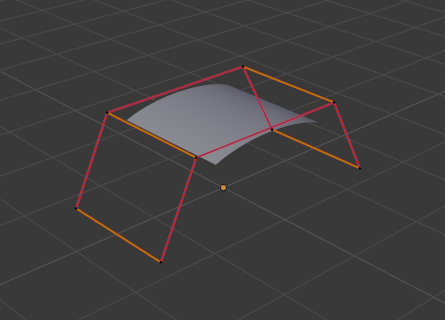
The images below show bridging of two "surfaces" consisting of just a curve, but it's also possible to connect sheets.
Smooth(スムーズ)
参照
- Mode(モード):
Edit Mode(編集モード)
- Menu(メニュー):
Moves the selected control points to give the surface a smoother appearance.
Hooks(フック)
参照
- Mode(モード):
Edit Mode(編集モード)
- Menu(メニュー):
- ショートカットキー:
Ctrl-H
Adds a Hook(フック)モディファイアー that makes the selected control points follow a particular object or bone.
Make Vertex Parent(頂点ペアレント作成)
参照
- Mode(モード):
Edit Mode(編集モード)
- Menu(メニュー):
- ショートカットキー:
Ctrl-P
Creates a parent-child relationship that makes a particular object follow the selected control point(s).
While in Edit Mode, select another object by either clicking it with Ctrl-LMB in the 3D Viewport or by selecting it the Outliner. Then, select one or three control points of the surface and press Ctrl-P. Parenting an object to three control points will make it follow their averaged position.