VR Scene Inspection
VR Scene Inspection アドオンは、ユーザーインターフェイスでのBlenderのネイティブバーチャルリアリティの機能を公開し拡張します。機能のセットは、Scene Inspection のユースケースに限定されています。Blender内でさらに開発することで、より高度なユースケースが可能になる可能性があります。
BlenderでのVRサポートは OpenXR 仕様に基づいており、いくつかのセットアップ手順が必要です。これらについては、 Head-Mounted Displays (HMD) のセクションで説明しています。
- Enabling Add-on
Open Blender and go to Add-ons(アドオン) section of the Preferences(プリファレンス).
Search "VR Scene Inspection" and check the Enable Add-on checkbox.
The VR Scene Inspection add-on interface is located in . Its different panels and features are described in the following sections.
VR Session(VRセッション)
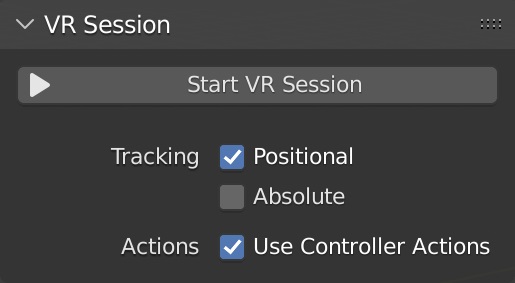
- Start VR Session
ビューポートを HMD と共有するために、OpenXRプラットフォームへの接続を設定してみてください。
- Tracking(トラッキング)
- Positional(位置)
ヘッドの回転変化のみを追跡し、HMDが仮想空間内のビューアの位置に影響を与えないようにします。
- Absolute(絶対)
ビューアーをランドマークに正確に配置するために通常追加される目のオフセットをスキップします。これにより、HMDの位置とは無関係にトラッキング原点を定義できます。
- Use Controller Actions(コントローラーアクションを使用)
ビューポートナビゲーション、コントローラートラッキング、および触覚のデフォルトのコントローラーアクションを有効にします。
View Settings(ビュー設定)
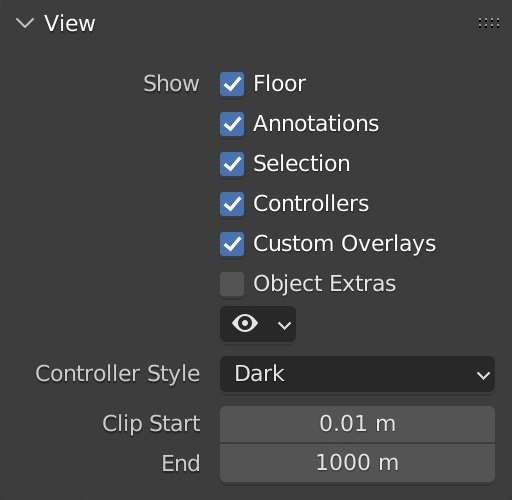
- Show(表示)
- Floor(床)
VRビューで地面を表示します。
- Annotations(アノテーション)
VRビューでアノテーションを表示します。
- Selection(選択)
VRビューで選択の輪郭を表示します。
- Controllers(コントローラー)
VR モーションコントローラーを表示します。 Use Controller Actions(コントローラーアクションを使用) オプションを有効にする必要があります。
- Custom Overlays(カスタムオーバーレイ)
カスタムオペレータドローイングを表示します(デフォルトのテレポートビームなど)。
- Object Extras
Set visibility of object extras, including empties, lights, and cameras.
- Object Type Visibility
Set visibility of objects by type.
- Controller Style(コントローラースタイル)
VR モーションコントローラーの視覚スタイルの好みを選択します。
- Clip Start(範囲の開始)/End(終了)
Clipping values of the VR view, as in the 3D Viewport.
- View Scale
Scaling factor applied to the VR view for fine adjustments.
- Fly Speed
Movement speed of the VR view when flying around the scene.
Location Scouting
Location Scouting allows the user to capture camera vantage points and assess the camera lens, focus, and aperture settings while being immersed within the 3D environment.
Capturing Shots
Capturing is done inside the VR session using a virtual director's viewfinder, enabled in .

Capturing a shot - Scene by Daniel Bystedt.¶ |

Playing back a shot - Hallwyl Museum - CC-BY.¶ |
Using the Viewfinder, the user can control the camera settings, capture shots, and play back shots, while staying immersed in the VR environment. Once captured, shots can later be converted into scene cameras or markers during review.

VR Location Scouting Viewfinder Controls Diagram
- Live Mode Actions
- Focal Length Control
Increase / decrease the focal length (zoom) by pre-defined increments.
- Toggle Depth of Field
Enable / disable Depth of Field, displayed visually within the Viewfinder and stored in the captured shot.
- Set Focus Point
Set the Viewfinder focus point by aiming at the target. The Viewfinder crosshair will flash blue on successful focus, and red on failure.
- Aperture Control
Increase / decrease the F-Stop ratio (which defines the amount of blurring) by pre-defined increments.
- Playback Mode Actions
- Browse Captured Shots
Browse captured shots, switching to next / previous capture.
- Preview Active Shot in Space
Enable / disable display of the active capture in VR space as a camera overlay.
- Delete Active shot
Delete the active shot. User confirmation is requested before deletion.
Reviewing Shots
Reviewing is done from the VR Location Scouting sidebar in the desktop 3D Viewport. From this panel, users can review shots, create cameras and markers from captured shots, and modify the VR Viewfinder settings.

- Captured Shots List
-
- Remove Capture
Remove the selected capture.
- Add Camera from Capture
Create a new camera object from the selected capture.
- Add Marker from Capture
Create a new marker from the selected capture.
- Browse Captures
Browse up/down the captured shots list.
- Review VR Captures operator
This modal operator allows users to interactively review captures from the desktop 3D Viewport.

Reviewing a shot in the desktop 3D Viewport - Scene by Zhi Wang / Mediastorm + 4DV.ai - CC-BY.
Once enabled, the 3D Viewport will be set to the active capture. The user may then browse and convert captures by either using the Captured Shots List, or the following keyboard controls:
Up
Previous Capture
Down
Next Capture
C
Add Camera from Capture
M
Add Marker from Capture
ESC/RMB
Exit Review
This operator is non-blocking. Clicking the Exit Review button or leaving the active 3D Viewport area will cause it to exit.
VR Viewfinder Settings

- Hand
The hand on which the Viewfinder is displayed. This setting can also be changed directly from within the VR Session via controller Thumbstick Click.
- Scale(スケール)
Visual height / width size scale of the Viewfinder.
- Display Crosshair
Whether to display the Viewfinder aiming crosshair, also used for the Set Focus Point Viewfinder Live Action feedback.
- Passepartout
Controls the darkened overlay shown outside the captured frame, similar to the camera object passepartout overlay setting.
- Overscan(オーバースキャン)
Border size of the darkened passepartout overlay.
- Opacity(不透明度)
Opacity of the darkened passepartout overlay.
Landmarks(ランドマーク)
ランドマークは、仮想空間でのビューアの再利用可能な基本ポーズ(位置と回転)を保存するために使用されます。さらに、カスタムオブジェクトおよびカスタムポーズタイプのランドマークに対して、ベースビューアの参照スケールを設定できます。
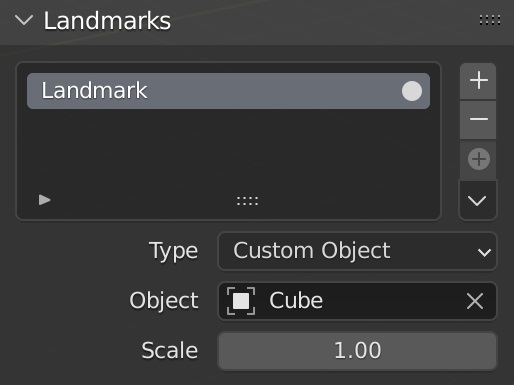
- Landmark List
-
The selected landmark defines which landmark's settings are shown below the list. Changing the selected landmark does not have an influence on the VR view.
- Activate VR Landmark
ランドマークをアクティブにして、VRビューの基本ポーズを変更します。
- Add VR Landmark
ランドマークを作成します。
- Remove VR Landmark
Delete the selected landmark.
- Add from Session
Create a landmark from the viewer pose of the running VR session.
- Landmark Controls
- Add Camera and VR Landmark from Session
Create a new camera and landmark from the viewer pose of the running VR session.
- Add Landmark from Camera
Add a new landmark from the active camera object.
- カスタムランドマークのアップデート
Update the selected landmark from the current VR viewer pose.
- Cursor to Landmark
選択しているランドマークの場所二3Dカーソルを移動させます。
- Scene Camera to Landmark
選択しているランドマークの場所にカメラを移動させます。
- Camera from Landmark
選択したランドマークから新しいカメラを作成します。
- Type(タイプ)
- Scene Camera(シーンカメラ):
Follow the scene's active camera to define the base pose of the viewer.
- Custom Object(カスタムオブジェクト):
任意のオブジェクトを設定して、ビューアの基本ポーズを定義します。
- Custom Pose(カスタムポーズ):
ビューアの基本ポーズとして使用する位置と回転を手動で定義します。
Action Maps(アクションマップ)
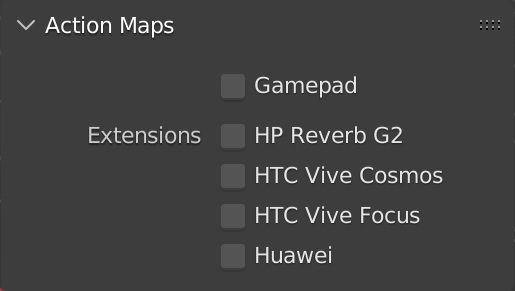
- Gamepad(ゲームパッド)
ビューポートナビゲーションのようなVRアクションに、モーションコントローラーの代わりにゲームパッド(Microsoft Xboxコントローラー)からの入力を使用します。
- Extensions(エクステンション)
追加のコントローラーのバインドを有効にして、入力からアクションへの正しいマッピングを確保します。特定の拡張機能がすべての VR プラットフォーム でサポートされているとは限らないことに注意してください 。
- HP Reverb G2
HP Reverb G2 コントローラとのバインドを有効にします。
- HTC Vive Cosmos
HTC Vive Cosmos コントローラとのバインドを有効にします。
- HTC Vive Focus
Enable bindings for the HTC Vive Focus 3 controllers.
- Huawei
Huawei コントローラとのバインドを有効にします。
Viewport Feedback(ビューポートフィードバック)
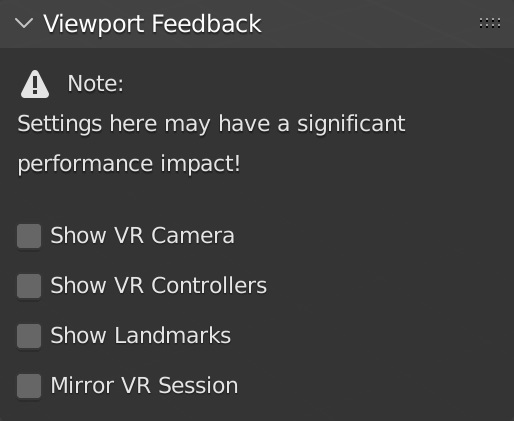
- Show VR Camera(VRカメラを表示)
現在の3D Viewport(3Dビューポート)で現在のVRビューアのポーズ(仮想空間での位置と回転)のインジケータを描画します。
- Show VR Controllers(VRコントローラーを表示)
Draw indicators of tracked VR motion controllers in the current 3D Viewport. Requires enabling the Use Controller Actions option.
- Show Location Scouting Captures
Draw Location Scouting capture indicators in the current 3D Viewport. The active capture is highlighted.
- Show Landmarks(ランドマークを表示)
Draw Landmarks indicators in the current 3D Viewport.
- Mirror VR Session(VRセッションをミラーリング)
現在の3DビューポートをVRビューの視点に従わせます。
Preferences(プリファレンス)
Located in , the VR Navigation settings only appear when the add-on is enabled.

- Vignette Intensity
Adjusts the strength of the vignette effect applied during camera movement.
- Turn Speed
Controls how quickly the camera rotates during continuous turning.
- Turn Amount
Sets the rotation angle applied per step when using snap turning.
- Snap Turn
Toggles between smooth (continuous) and snap (discrete) camera turning.
- Invert Rotation
Reverses the direction of camera rotation controls.
参照
- Category(カテゴリー):
3D View(3Dビュー)
- Description(詳細):
Explore the 3D scene using virtual reality glasses (head-mounted displays).
- Location(位置、場所):
- File(ファイル):
viewport_vr_preview folder
- Author(作者):
Julian Eisel, Sebastian Koenig, Peter Kim, Jonas Holzman
- メンテナー:
Jonas Holzman
- License(ライセンス):
GPL
- サポートレベル:
Official(公式)
- Note(メモ):
このアドオンはBlenderにバンドルされています。