Tree View
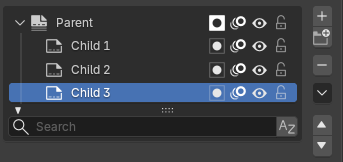
Example of a Tree View with expanded items.
The Tree View is used to display hierarchical data in a structured, expandable layout. Unlike the List View, items can contain child items that can be expanded or collapsed.
This control is commonly used to organize nested elements such as node trees, collections, or grouped settings.
Expand / Collapse
Items that contain children display a disclosure triangle. Click LMB on the triangle to expand or collapse the item.
Expanded items show their child entries indented beneath them. Collapsed items hide their contents.
Select(選択)
Click LMB on an item to select it.
Selection behavior may vary depending on the context. Some Tree Views allow multi-selection.
Rename(名前を変更)
If supported, items can be renamed by double-clicking them or by pressing F2.
Hierarchy
Child items are visually indented to reflect their relationship to parent items.
Depending on the context, items may support:
Drag-and-drop reordering.
Moving items between parent entries.
Reorganizing nested structures.
Filtering and Sorting
Tree Views support filtering and sorting options to help organize and locate items in large hierarchies.
- Search(検索)
Filters item names that match the search string.
Inverts the search results to show items that do not match the search string.
Sorts items alphabetically.
Reverses the current sorting order.