Рабочий процесс#
Относительные ключи формы#
In Object Mode, add a new shape key via the Shape Key panel with the
+button.«Basis» is the rest shape. «Key 1», «Key 2», etc. will be the new shapes.
Switch to Edit Mode, select «Key 1» in the Shape Key panel.
Deform mesh as you want (do not remove or add vertices).
Select «Key 2», the mesh will be changed to the rest shape.
Transform «Key 2» and keep going for other shape keys.
Вернитесь в объектный режим.
Set the Value for «Key 1», «Key 2», etc. to see the transformation between the shape keys.
In the figure below, from left to right shows: «Basis», «Key 1», «Key 2»
and mix («Key 1» 1.0 and «Key 2» 0.8) shape keys in Object Mode.
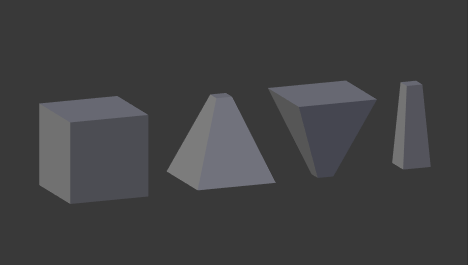
Пример относительных ключей формы.#
For more practical examples, see how to combine shape keys and drivers.
Абсолютные ключи формы#
Add sequence of shape keys as described above for relative shape keys.
Uncheck the Relative checkbox.
Нажмите кнопку „сброса времени ключа формы“ (:bl-icon:`recover_last`).
Переключитесь в объектный режим.
Drag Evaluation Time to see how the shapes succeed one to the next.
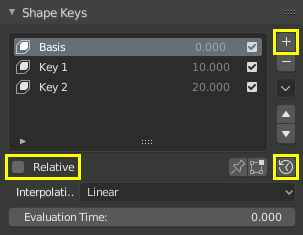
Рабочий процесс с использованием абсолютных ключей формы.#
By adding a driver or setting keyframes to Evaluation Time you can create an animation.
См.также
Shape Key Operators
There are two modeling tools used to control shape keys and are found in Edit Mode.