Ràng Buộc Giải Nghiệm của Đối Tượng (Object Solver Constraint)
The Object Solver constraint makes a Blender object imitate the motion of a real-world object.
Cách Dùng [Usage]
Start by loading a video file into the Movie Clip Editor, registering the physical object in the Bảng các Đối Tượng (Objects Panel), and using motion tracking to track at least eight markers on that physical object. Then use Giải Nghiệm Chuyển Động của Máy Quay Phim / Đối Tượng (Solve Camera/Object Motion) to reconstruct the motion of the physical object, and finally add this constraint to a Blender object.
Các Tùy Chọn (Options)
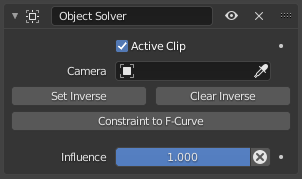
Object Solver constraint.
- Đoạn Phim đang Hoạt Động (Active Clip)
Whether the physical object is in the scene's Active Clip. If unchecked, a selector appears for choosing another clip.
- Object (Đối Tượng)
The physical object whose motion to imitate. See the Bảng các Đối Tượng (Objects Panel) in the Movie Clip Editor's Sidebar for setting this up.
- Máy Quay Phim [Camera]
The Blender camera matching the physical camera that recorded the object. If left empty, the scene's active camera is used.
If the physical camera was in motion, the Blender camera should have a Ràng Buộc Giải Nghiệm Máy Quay Phim (Camera Solver Constraint). This constraint is useful even if the physical camera was stationary, because it makes the tracking markers appear at their reconstructed world positions in the 3D Viewport (if the Giám Sát Chuyển Động (Motion Tracking) overlay is enabled).
- Đảo Ngược/Hoàn Lại (Set Inverse)
Tell the constraint that the current Location of the Blender object (that is, its position with the constraint disabled) is the correct position for the current frame. Once this information is saved, the object will also be in the correct position for the other frames.
When initially adding the constraint:
Bring the object into position for the current frame.
Add the constraint.
Click Set Inverse.
When tweaking the object's position at a later point:
Run Apply Visual Transform. (This may move the object to a different position.)
Disable the constraint. (This will bring the object back to its previous position.)
Tweak the object's position as desired.
Click Set Inverse.
Enable the constraint.
- Xóa Đảo Ngược (Clear Inverse)
Resets the relative transformation that was stored by Set Inverse.
- Ràng Buộc thành Đường Cong-F (Constraint to F-Curve)
Replaces the constraint by a set of equivalent keyframes.
- Tác Động/Ảnh Hưởng (Influence)
How strongly the constraint affects its owner.