Kiểm Tra Cảnh Thực Tế Ảo [VR Scene Inspection]
Trình bổ sung Kiểm Tra Hiện Trường VR bộc lộ và mở rộng các tính năng thực tế ảo vốn có của Blender trong giao diện người dùng. Bộ tính năng hiện giới hạn trong các trường hợp sử dụng kiểm tra hiện trường. Các trường hợp sử dụng cao cấp hơn cũng có thể được kích hoạt thông qua quá trình phát triển sâu rộng hơn nội bên trong Blender.
Sự hỗ trợ về thực tế ảo trong Blender được dựa trên nền tảng tiêu chuẩn kỹ thuật OpenXR và nó đòi hỏi một số bước sắp đặt phải được thi hành. Những đòi hỏi này được giải thích trong phần Hiển Thị Gắn Trên Đầu (Head-Mounted Displays [HMD]).
- Bật Trình Bổ Sung
Mở Blender và truy cập vào phần Trình Bổ Sung [Add-ons] trong bảng Cài Đặt Sở Thích [Preferences].
Tìm kiếm "Kiểm Tra Cảnh Thực Tế Ảo" và chọn hộp kiểm 'Bật Trình Bổ Sung'.
The VR Scene Inspection add-on interface is located in . Its different panels and features are described in the following sections.
Phiên Sử Dụng VR [VR Session]
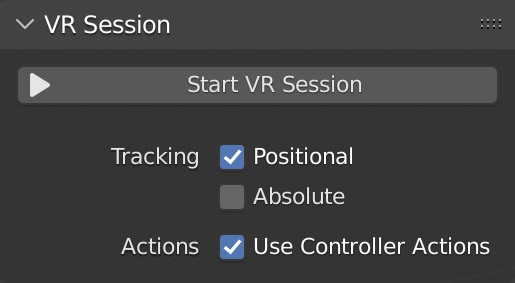
- Khởi Động Phiên Thực Tế Ảo [Start VR Session]
Cố gắng thiết lập kết nối với một nền tảng OpenXR để chia xẻ cổng nhìn với một HMD (Head-Mounted Displays: hiển thị Gắn trên Đầu).
- Giám Sát [Tracking]
- Theo Vị Trí (Positional)
Duy giám sát các thay đổi về xoay chiều của đầu mà thôi, không cho phép HMD tác động đến vị trí của quan sát viên trong không gian ảo.
- Tuyệt Đối (Absolute)
Bỏ qua dịch chuyển của mắt, cái mà theo lệ thường, được thêm vào để đặt quan sát viên chính xác tại địa mốc nơi họ đứng. Điều này cho phép tọa độ gốc của giám sát được xác định một cách độc lập với vị trí của HMD.
- Sử Dụng các Hành Động của Bộ Điều khiển (Use Controller Actions)
Bật các hành động điều khiển mặc định để điều hướng cổng nhìn, giám sát điều khiển và các các tương tác xúc giác.
Các Sắp Đặt Khung Nhìn (View Settings)
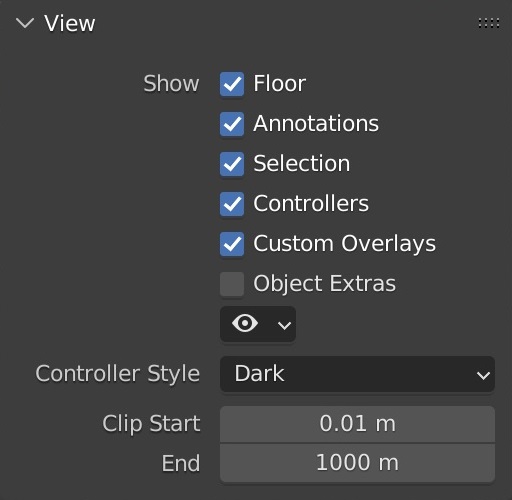
- Hiển Thị (Show)
- Nền Sàn/Làm Tròn Xuống (Floor)
Bật/tắt bình diện nền trong góc nhìn VR.
- Chú Thích (Annotations)
Bật/tắt các nét vẽ chú thích trong góc nhìn VR.
- Lựa Chọn (Selection)
Bật/tắt các đường viền vùng lựa chọn trong góc nhìn VR.
- Bộ Điều Khiển (Controllers)
Bật/tắt các Điều Khiển Chuyển Động của VR. Đòi hỏi phải bật tùy chọn Sử Dụng các Hành Động của Bộ Điều khiển (Use Controller Actions).
- Vẽ Lồng Tùy Chỉnh (Custom Overlays)
Bật/tắt thao tác tùy chỉnh (ví dụ: tia viễn tải mặc định).
- Đối Tượng Bổ Sung (Object Extras)
Bật/tắt các đối tượng bổ sung, bao gồm các đối tượng trống rỗng, nguồn ánh sáng và máy quay phim.
- Object Type Visibility
Bật/tắt các đối tượng chiểu theo thể loại.
- Kiểu Cách của Bộ Điều Khiển (Controller Style)
Kiểu cách diễn họa bộ điều khiển chuyển động VR ưa thích.
- Điểm Cắt Xén Khởi Đầu/Kết Thúc (Clip Start/End)
Giá trị của điểm đầu và cuối cho tầm nhìn trong góc nhìn Thực Tế Ảo, tựa như trong Cổng Nhìn 3D (as in the 3D Viewport).
- View Scale
Scaling factor applied to the VR view for fine adjustments.
- Fly Speed
Movement speed of the VR view when flying around the scene.
Location Scouting
Location Scouting allows the user to capture camera vantage points and assess the camera lens, focus, and aperture settings while being immersed within the 3D environment.
Capturing Shots
Capturing is done inside the VR session using a virtual director's viewfinder, enabled in .

Capturing a shot - Scene by Daniel Bystedt.¶ |

Playing back a shot - Hallwyl Museum - CC-BY.¶ |
Using the Viewfinder, the user can control the camera settings, capture shots, and play back shots, while staying immersed in the VR environment. Once captured, shots can later be converted into scene cameras or markers during review.

VR Location Scouting Viewfinder Controls Diagram
- Live Mode Actions
- Focal Length Control
Increase / decrease the focal length (zoom) by pre-defined increments.
- Toggle Depth of Field
Enable / disable Depth of Field, displayed visually within the Viewfinder and stored in the captured shot.
- Set Focus Point
Set the Viewfinder focus point by aiming at the target. The Viewfinder crosshair will flash blue on successful focus, and red on failure.
- Aperture Control
Increase / decrease the F-Stop ratio (which defines the amount of blurring) by pre-defined increments.
- Playback Mode Actions
- Browse Captured Shots
Browse captured shots, switching to next / previous capture.
- Preview Active Shot in Space
Enable / disable display of the active capture in VR space as a camera overlay.
- Delete Active shot
Delete the active shot. User confirmation is requested before deletion.
Reviewing Shots
Reviewing is done from the VR Location Scouting sidebar in the desktop 3D Viewport. From this panel, users can review shots, create cameras and markers from captured shots, and modify the VR Viewfinder settings.

- Captured Shots List
Một góc nhìn trong bảng liệt kê (list view).
- Remove Capture
Remove the selected capture.
- Add Camera from Capture
Create a new camera object from the selected capture.
- Add Marker from Capture
Create a new marker from the selected capture.
- Browse Captures
Browse up/down the captured shots list.
- Review VR Captures operator
This modal operator allows users to interactively review captures from the desktop 3D Viewport.

Reviewing a shot in the desktop 3D Viewport - Scene by Zhi Wang / Mediastorm + 4DV.ai - CC-BY.
Once enabled, the 3D Viewport will be set to the active capture. The user may then browse and convert captures by either using the Captured Shots List, or the following keyboard controls:
Lên (Up)
Previous Capture
Xuống (Down)
Next Capture
C
Add Camera from Capture
M
Add Marker from Capture
ESC/RMB
Exit Review
This operator is non-blocking. Clicking the Exit Review button or leaving the active 3D Viewport area will cause it to exit.
VR Viewfinder Settings

- Hand
The hand on which the Viewfinder is displayed. This setting can also be changed directly from within the VR Session via controller Thumbstick Click.
- Tỷ Lệ (Scale)
Visual height / width size scale of the Viewfinder.
- Display Crosshair
Whether to display the Viewfinder aiming crosshair, also used for the Set Focus Point Viewfinder Live Action feedback.
- Khung Cắt Cảnh (Passepartout)
Controls the darkened overlay shown outside the captured frame, similar to the camera object passepartout overlay setting.
- Overscan (Quét Dư)
Border size of the darkened passepartout overlay.
- Độ Đục (Opacity)
Opacity of the darkened passepartout overlay.
Địa Ranh (Landmarks)
Địa ranh được sử dụng để lưu các tư thế cơ sở tái khả dụng (vị trí và xoay chiều) cho quan sát viên trong không gian ảo. Ngoài ra, chúng ta còn có thể đặt tỷ lệ tham chiếu quan sát viên cơ sở cho các địa danh với thể loại Đối Tượng Tùy Chỉnh và Tư Thế Tùy Chỉnh.
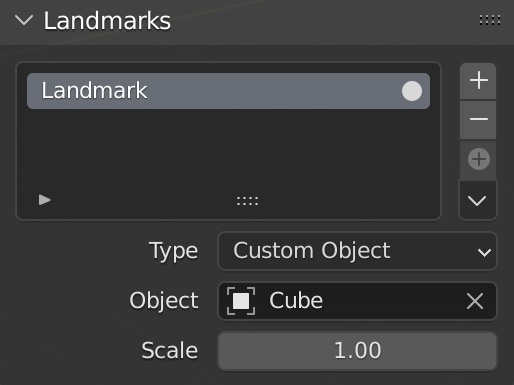
- Landmark List
Một góc nhìn trong bảng liệt kê (list view).
The selected landmark defines which landmark's settings are shown below the list. Changing the selected landmark does not have an influence on the VR view.
- Activate VR Landmark
Kích hoạt một địa ranh, làm cho nó thay đổi tư thế cơ sở của Góc Nhìn Thực Tế Ảo.
- Add VR Landmark
Kiến Tạo một địa ranh.
- Remove VR Landmark
Xóa địa danh đã chọn.
- Add from Session
Kiến Tạo một địa danh từ tư thế quan sát của phiên VR đang chạy.
- Landmark Controls
- Thêm Máy Quay Phim và Địa Ranh VR từ Phiên Sử Dụng (Add Camera and VR Landmark from Session)
Kiến Tạo một máy quay phim mới và địa danh từ tư thế quan sát của phiên thực tế ảo đang hoạt động.
- Thêm Địa Danh từ Máy Quay Phim (Add Landmark from Camera)
Thêm một địa danh mới từ đối tượng máy quay phim đang hoạt động.
- Cập Nhật Địa Danh Tùy Chỉnh (Update Custom Landmark)
Cập nhật địa danh đã chọn từ tư thế quan sát VR hiện tại.
- Con Trỏ đến Địa Danh (Cursor to Landmark)
Di chuyển Con Trỏ 3D đến địa danh đã chọn.
- Máy Quay Phim của Cảnh Đến Địa Danh (Scene Camera to Landmark)
Đặt máy quay phim của cảnh tại địa danh đã chọn.
- Máy Quay Phim từ Địa Danh (Camera from Landmark)
Kiến Tạo một máy quay phim mới từ địa danh đã chọn.
- Thể Loại (Type)
- Máy Quay Phim của Cảnh (Scene Camera):
Đi theo máy quay phim đang hoạt động (active camera) để xác định tư thế quan sát viên cơ sở.
- Đối Tượng Tùy Chỉnh (Custom Object):
Đặt một máy quay phim tùy định nào đó để xác định tư thế quan sát viên cơ sở.
- Tư Thế Tùy Chỉnh (Custom Pose):
Xác định vị trí và xoay chiều để sử dụng làm tư thế quan sát viên cơ sở một cách thủ công.
Ánh Xạ Hành Động (Action Maps)
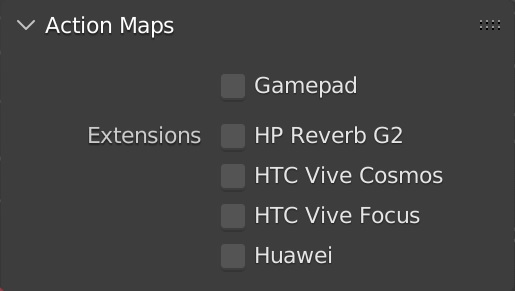
- Bộ Điều Khiển Trò Chơi (Gamepad)
Lấy dữ liệu cung cấp đầu vào từ gamepad (Bộ Điều Khiển Xbox của Microsoft) thay vì từ bộ điều khiển chuyển động cho các hành động VR, như điều hướng cổng nhìn chẳng hạn.
- Các Trình Mở Rộng [Extensions]
Cho phép kết buộc bộ điều khiển bổ sung để đảm bảo ánh xạ input-to-action một cách chính xác. Lưu ý không phải bất cứ mở rộng bổ sung nào cũng được hỗ trợ bởi toàn bộ các nền tảng Nền Tảng Thực Tế Ảo (VR platforms) đâu nhé.
- HP Reverb G2
Cho phép kết buộc bộ điều khiển HP Reverb G2 vào.
- HTC Vive Cosmos
Cho phép kết buộc bộ điều khiển HTC Vive Cosmos vào.
- HTC Vive Focus
Cho phép kết buộc các điều khiển HTC Vive Focus 3 vào.
- Huawei
Cho phép kết buộc bộ điều khiển Huawei vào.
Phản Hồi của Cổng Nhìn (Viewport Feedback)
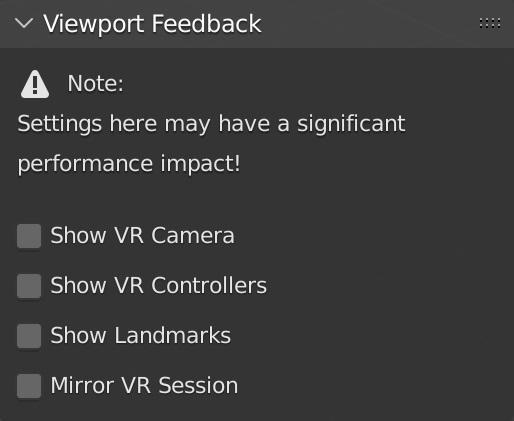
- Hiển Thị Máy Quay Phim VR (Show VR Camera)
Vẽ một chỉ dấu cho tư thế quan sát VR hiện nay (vị trí và góc xoay chiều trong không gian ảo) trong Cổng Nhìn 3D hiện tại.
- Hiển Thị các Điều Khiển VR (Show VR Controllers)
Draw indicators of tracked VR motion controllers in the current 3D Viewport. Requires enabling the Use Controller Actions option.
- Show Location Scouting Captures
Draw Location Scouting capture indicators in the current 3D Viewport. The active capture is highlighted.
- Hiển Thị Địa Ranh (Show Landmarks)
Draw Landmarks indicators in the current 3D Viewport.
- Phản Chiếu Phiên Hoạt Động VR (Mirror VR Session)
Bắt Cổng Nhìn 3D hiện tại đi theo phối cảnh của góc nhìn VR.
Cài Đặt Sở Thích [Preferences]
Located in , the VR Navigation settings only appear when the add-on is enabled.

- Vignette Intensity
Adjusts the strength of the vignette effect applied during camera movement.
- Turn Speed
Controls how quickly the camera rotates during continuous turning.
- Turn Amount
Sets the rotation angle applied per step when using snap turning.
- Snap Turn
Toggles between smooth (continuous) and snap (discrete) camera turning.
- Invert Rotation
Reverses the direction of camera rotation controls.
Tham Chiếu [Reference]
- Hạng Mục [Category]:
Góc Nhìn 3D [3D View]
- Miêu Tả [Description]:
Explore the 3D scene using virtual reality glasses (head-mounted displays).
- Vị Trí [Location]:
- Tập Tin [File]:
thư mục viewport_vr_preview
- Tác Giả [Author]:
Julian Eisel, Sebastian Koenig, Peter Kim, Jonas Holzman
- Người Bảo Trì (Maintainer):
Jonas Holzman
- Giấy Phép [License]:
GPL
- Mức Hỗ Trợ (Support Level):
Chính Thức
- Ghi Chú [Note]:
Trình bổ sung này được đóng gói cùng với Blender.