VR场景检查

VR 场景检查插件在用户界面中发布并扩展了 Blender 的本地虚拟现实功能。该功能集仅限于场景检测使用案例。通过 Blender 内部的进一步开发,可以实现更高级的使用案例。

Blender 中的 VR 支持基于 OpenXR 规范,需要一些设置步骤。这些在头戴式显示器 (HMD) 部分有解释。

启用插件
  1. 打开 Blender 然后进入偏好设置插件部分。

  2. 搜索 "VR Scene Inspection" 然后勾选 启用插件 复选框。

VR 场景检查插件界面位于 3D 视图 ‣ 侧栏 ‣ VR 选项卡。其不同面板及功能特性将在以下章节中详细阐述。

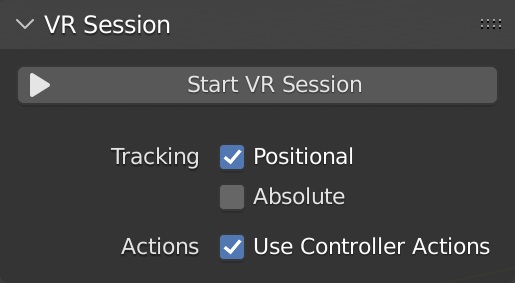
VR 会话

../_images/addons_3d-view_vr-scene-inspection_vr-session.jpg
开始 VR 会话

尝试建立与 OpenXR 平台的连接,与一个 HMD(头戴式显示器)共享视口。

追踪
位置上的

只跟踪头部的旋转变化,不允许 HMD 影响观看者在虚拟空间的位置。

绝对

跳过眼睛偏移,通常是为了将观众准确地放置在地标。这允许独立于 HMD 位置来定义跟踪原点。

使用控制器动作

为视角导航、控制器跟踪和触觉启用默认的控制器动作。

视图设置

../_images/addons_3d-view_vr-scene-inspection_view.jpg
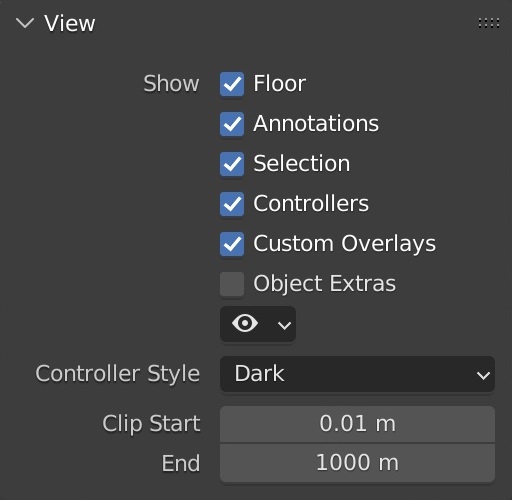
显示
基面

在 VR 视图中设置地平面的可见性。

标注

在 VR 视图中设置标注笔画的可见性。

选择

设置 VR 视图中选择轮廓的可见性。

控制器

设置 VR 运动控制器的可见性。需要启用使用控制器动作选项。

自定义叠加层

设置自定义操作绘图的可见性(例如,默认的传送光束)。

物体杂项

设置物体杂项的可见性,包括空物体、灯光和摄像机。

物体类型可见性

按类设置物体的可见性。

控制器样式

优选的可视化 VR 运动控制器。

裁剪起始/结束

VR 视图的裁剪值,如同 3D 视口

视图比例

应用于 VR 视图的缩放系数,用于微调。

飞行速度

在场景中飞行时,VR 视角的移动速度。

Location Scouting

Location Scouting allows the user to capture camera vantage points and assess the camera lens, focus, and aperture settings while being immersed within the 3D environment.

Capturing Shots

Capturing is done inside the VR session using a virtual director's viewfinder, enabled in Location Scouting ‣ Viewfinder.

../_images/addons_3d-view_vr-scene-inspection_location-scouting-capture.jpg

Capturing a shot - Scene by Daniel Bystedt.

../_images/addons_3d-view_vr-scene-inspection_location-scouting-playback.jpg

Playing back a shot - Hallwyl Museum - CC-BY.

Using the Viewfinder, the user can control the camera settings, capture shots, and play back shots, while staying immersed in the VR environment. Once captured, shots can later be converted into scene cameras or markers during review.

../_images/addons_3d-view_vr-scene-inspection_location-scouting-schematic.jpg

VR Location Scouting Viewfinder Controls Diagram

Live Mode Actions
Focal Length Control

Increase / decrease the focal length (zoom) by pre-defined increments.

Toggle Depth of Field

Enable / disable Depth of Field, displayed visually within the Viewfinder and stored in the captured shot.

Set Focus Point

Set the Viewfinder focus point by aiming at the target. The Viewfinder crosshair will flash blue on successful focus, and red on failure.

Aperture Control

Increase / decrease the F-Stop ratio (which defines the amount of blurring) by pre-defined increments.

Playback Mode Actions
Browse Captured Shots

Browse captured shots, switching to next / previous capture.

Preview Active Shot in Space

Enable / disable display of the active capture in VR space as a camera overlay.

Delete Active shot

Delete the active shot. User confirmation is requested before deletion.

Reviewing Shots

Reviewing is done from the VR Location Scouting sidebar in the desktop 3D Viewport. From this panel, users can review shots, create cameras and markers from captured shots, and modify the VR Viewfinder settings.

../_images/addons_3d-view_vr-scene-inspection_location-scouting-interface.jpg
Captured Shots List

一个列表视图

Remove Capture

Remove the selected capture.

Add Camera from Capture

Create a new camera object from the selected capture.

Add Marker from Capture

Create a new marker from the selected capture.

Browse Captures

Browse up/down the captured shots list.

Review VR Captures operator

This modal operator allows users to interactively review captures from the desktop 3D Viewport.

../_images/addons_3d-view_vr-scene-inspection_location-scouting-review.jpg

Reviewing a shot in the desktop 3D Viewport - Scene by Zhi Wang / Mediastorm + 4DV.ai - CC-BY.

Once enabled, the 3D Viewport will be set to the active capture. The user may then browse and convert captures by either using the Captured Shots List, or the following keyboard controls:

上↑

Previous Capture

下↓

Next Capture

C

Add Camera from Capture

M

Add Marker from Capture

ESC/鼠标右键

Exit Review

This operator is non-blocking. Clicking the Exit Review button or leaving the active 3D Viewport area will cause it to exit.

VR Viewfinder Settings

../_images/addons_3d-view_vr-scene-inspection_location-scouting-interface-viewfinder.jpg
Hand

The hand on which the Viewfinder is displayed. This setting can also be changed directly from within the VR Session via controller Thumbstick Click.

缩放

Visual height / width size scale of the Viewfinder.

Display Crosshair

Whether to display the Viewfinder aiming crosshair, also used for the Set Focus Point Viewfinder Live Action feedback.

遮光框

Controls the darkened overlay shown outside the captured frame, similar to the camera object passepartout overlay setting.

过扫描

Border size of the darkened passepartout overlay.

不透明度

Opacity of the darkened passepartout overlay.

地标

地标用于为虚拟空间中的查看者存储可重用的基本姿势(位置和旋转)。此外,还可以为自定义对象和自定义姿势类型的地标设置基本查看器参考比例。
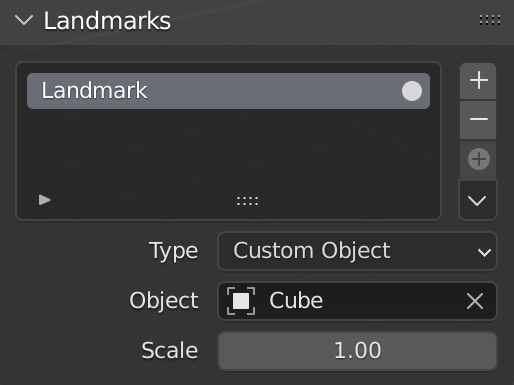
../_images/addons_3d-view_vr-scene-inspection_landmarks.jpg
地标列表

一个列表视图

所选地标定义了列表下方显示的地标设置。更改所选地标不会影响 VR 视图。

激活 VR 地标

激活一个地标,使其改变VR视图的基本姿态。

添加 VR 地标

创建一个地标。

删除 VR 地标

删除已选中地标。

从会话添加

从正在运行的VR会话的观察者姿势中创建一个地标。

地标控件
从会话中添加摄像机和 VR 地标

从正在运行的 VR 会话的观察者姿势创建一个新的摄像机和地标。

从摄像机添加地标

从活动摄像机添加一个新的地标。

更新自定义的地标

根据当前的 VR 观察者姿势更新所选的地标。

游标到地标

将 3D 游标移动到所选的地标。

场景摄像机到地标

将场景摄像机定位在选定的地标上。

地标的摄像机

从选定的地标创建一个新的相机。

类型
场景摄像机:

按照场景的活动摄像机来定义观察者的基本姿势。

自定义物体:

设置任意一个物体来定义观察者的基本姿态。

自定义姿势:

手动定义一个位置和旋转,作为观察者的基本姿势。

动作映射

../_images/addons_3d-view_vr-scene-inspection_action-maps.jpg
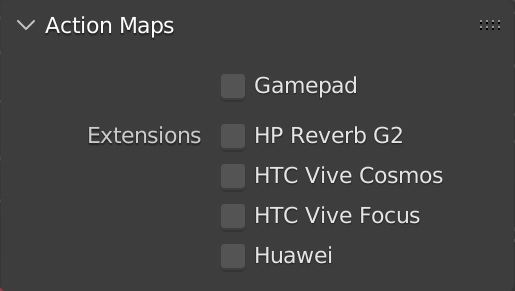
游戏手柄

使用游戏手柄(微软 Xbox 控制器)的输入,而不是运动控制器进行 VR 操作,如视口导航。

扩展

启用额外的控制器绑定,以确保正确的输入到行动的映射。请注意,一个给定的扩展可能不被所有的 VR 平台 支持。

HP Reverb G2

启用 HP Reverb G2 控制器的绑定。

HTC Vive Cosmos

启用与 HTC Vive Cosmos 控制器的绑定。

HTC Vive Focus

启动与 HTC Vive Focus 3 控制器的绑定。

华为

启动与华为控制器的绑定。

视口反馈

../_images/addons_3d-view_vr-scene-inspection_viewport-feedback.jpg
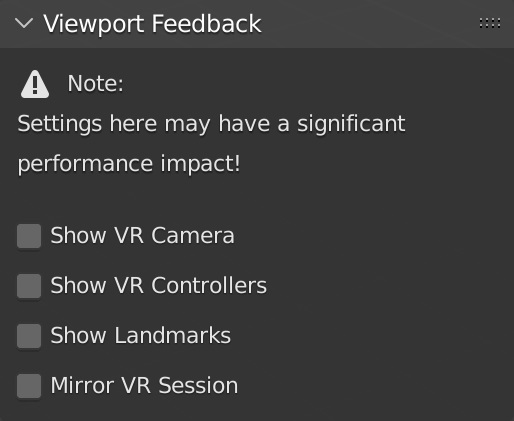
显示VR摄像机

在当前 3D 视口中加入一个指示图标,展示当前 VR 查看器的姿势(在虚拟空间中的位置和旋转)。

显示VR控制器

Draw indicators of tracked VR motion controllers in the current 3D Viewport. Requires enabling the Use Controller Actions option.

Show Location Scouting Captures

Draw Location Scouting capture indicators in the current 3D Viewport. The active capture is highlighted.

显示地标

Draw Landmarks indicators in the current 3D Viewport.

镜像VR会话

使当前的 3D 视口跟随 VR 视图的视角。

偏好设置

Located in Preferences ‣ Navigation ‣ VR Navigation, the VR Navigation settings only appear when the add-on is enabled.

../_images/addons_3d-view_vr-scene-inspection_preferences.jpg
暗角强度

调节摄像机移动过程中应用的暗角效果强度。

转向速度

控制摄像机在连续旋转过程中旋转的速度。

转向数量

设置旋转吸附时的旋转步进角度。

急转

切换摄像机的平滑(连续)/吸附(离散)转向。

反向旋转

反转摄像机旋转控制的方向。

参考

类别:

3D 视图

描述:

Explore the 3D scene using virtual reality glasses (head-mounted displays).

位置:

3D视图 ‣ 侧栏 ‣ VR 标签

文件:

viewport_vr_preview 文件夹

作者:

Julian Eisel, Sebastian Koenig, Peter Kim, Jonas Holzman

维护者:

Jonas Holzman

许可证:

通用公共许可证

支持级别:

官方

说明:

此插件与 Blender 捆绑在一起。