动画编辑器
Blender 提供了一套专为创建、编辑和优化动画而设计的编辑器。这些编辑器使您能够在动画制作流程中处理关键帧、曲线、非线性动作、驱动器、视频序列和运动追踪。
每个编辑器的用途各不相同:
摄影表可对多个物体和数据块中的关键帧进行组织和操作。
曲线编辑器提供了对函数曲线的精细控制,用于优化运动和插值。
非线性动画(NLA)编辑器可对动画动作进行排列和分层,以实现复杂的序列制作。
驱动器编辑器将属性与用于程序化动画的表达式关联起来。
影片剪辑编辑器支持运动追踪、遮罩编辑和画面稳定功能,这些功能可集成到动画与合成工作流程中。
视频序列编辑器(VSE)将渲染好的动画、图像序列、音频和特效整合到最终的影片剪辑中。
这些编辑器共同构成了 Blender 动画系统的核心 -- 从快速调整关键帧到高级绑定、动作编辑、视觉特效整合,再到最终镜头合成。
本页介绍了各动画专用编辑器共有的功能。
播放头
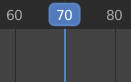
播放头。
The Playhead is the blue vertical line showing the current frame number.
It can be moved to a new position by clicking or dragging LMB in the scrubbing area at the top or by click and drag Shift-RMB anywhere in the timeline.
While dragging it can snap to elements of the editor in which it is dragged. - Seconds - Frames - Markers - Strips - Keys
It is only possible to snap to elements that are visible in the editor in which the playhead is dragged. For example having "Strips" enabled but dragging in the Graph Editor will do nothing. Snapping can be toggled during scrubbing by holding down Ctrl.
Snapping to seconds or frames can have a custom increment for example snapping to every third frame. This is always relative to the first frame of the scene and ignores the preview range. In contrast to the other snapping options, seconds and frames will always snap to the closest position, regardless of the snap distance set. When mixing options, the system will first try to snap to elements that are snapped by distance. Only if no element is close enough will it snap to seconds or frames.
You can also move it in single-frame increments by pressing Left or Right or Alt-Wheel. To jump to the beginning or end frame (of the ends of the preview range if that is active) press Shift-Left or Shift-Right.
吸附
参考
- 菜单:
播放头吸附功能可将播放头吸附到帧、标记或关键帧等特定元素上,从而帮助您在刷新时间线时精确定位播放头。
- 使用吸附
在移动播放头时启用或禁用吸附行为。
- 吸附距离
在吸附到目标之前,播放头与目标之间的最大距离(像素)。
- 吸附目标
指定播放头可以吸附到的元素:
- 帧:
吸附到帧间隔。
- 秒:
吸附到秒间隔。
- 标记:
吸附到时间线标记。
- 关键帧:
吸附到动画关键帧。
- 片段:
吸附到片段的起点和终点(例如在视频序列中)。
- 帧步长 帧
使用 帧 目标时,每个吸附点之间的帧间隔。
- 秒步长 秒
使用 秒 目标时,每个吸附点之间的秒间隔。
回放控制
动画编辑器(如时间轴、摄影表、曲线编辑器和非线性动画编辑器)中的播放控制区域包含与播放、关键帧设置、自动关键帧生成和传输相关的控制项与选项。
这些设置可让您:
控制动画的预览方式及与音频的同步效果。
通过插帧集和自动插帧功能插入并管理关键帧。
Navigate the timeline using playback and transport controls.
调整帧范围并预览动画的特定片段。
The footer is shared across animation editors to provide a consistent workflow for animators, whether they are editing keyframes, adjusting curves, or sequencing actions.

回放
控制动画播放方式的属性。
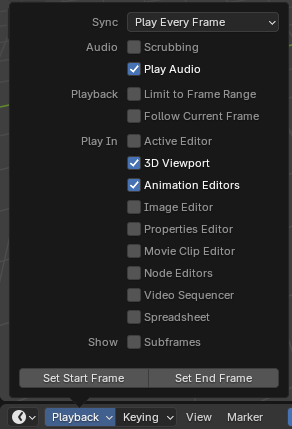
- 同步
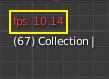
3D视图红色帧速率(FPS)。
If animation playback can't keep up with the desired Frame Rate, the actual frame rate (shown in the top left corner of the 3D Viewport) will turn red, and the Sync option determines how the situation should be handled.
- 播放每帧:
播放每一帧,即使这会导致动画播放速度比预期的慢。
- 丢帧:
如果播放速度慢于场景的帧频,则丢帧。
- 同步到音频:
如果播放速度太慢而无法与音频保持同步,则丢帧。
- 音频 -- 拖拽播放
在拖动播放头时,播放动画中的声音片段(如果有)。
- 音频 -- 播放音频
取消勾选可使所有声音静音。
- 回放 -- 限于帧范围
不允许使用鼠标将播放头移动到帧范围之外。
- 回放 -- 允许预播放
允许在 起始帧 之前继续回放。
当从场景帧范围之外开始播放时,此功能非常有用,例如在快进/快退查看早期帧,或预览过渡到定义帧范围内的运动时。
当启用 限于帧范围 时,此选项将被禁用。
- 回放 -- 跟随当前帧
当播放头移出屏幕时,自动平移视图以跟上播放头。
- 循环
定义了播放到达最后一个帧时将发生的情况。
- 无限:
播放到最后一帧后,会跳回第一帧并无限循环播放。
- 在结束帧处停止:
播放到最后一帧时,播放将停止。
- 在起始帧处停止:
播放到最后一帧后,会跳转到第一帧并停止。
- 帧复位:
播放到最后一帧后,播放将停止在最初开始播放的帧处。
- 弹跳:
播放到最后一帧时,播放方向将反转。
- 播放于
Which editors to update on each animation frame. If an editor is unchecked, it'll only be updated once playback stops (with some exceptions where it'll update on each frame anyway). When starting playback in either the Graph Editor, Dope Sheet or the NLA Editor, all editors will play back regardless of the settings. This is a feature requested by animators to easily play back all views.
- 显示 -- 子帧
Display and allow setting fractional frame values for the current frame.
- 显示 -- 拖拽区块 视频序列
在时间线上方显示一个专用区块,以便在不改变当前时间线缩放级别的情况下,在整个播放范围内进行快进/快退操作。
与其他编辑区块一样,可以通过将拖拽区块的边界拖动到编辑器边缘来将其隐藏。
- 设置起始/结束帧
Set the scene's start/end frame to the current frame. If the Preview Range is active (see Frame Controls), that one is changed instead.
插帧
插帧 弹出菜单包含影响关键帧插入的选项。
Note
此弹窗的名称将根据当前活动的插帧集而变化。
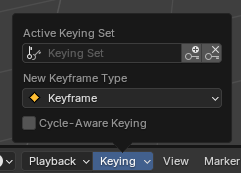
- 活动插帧集
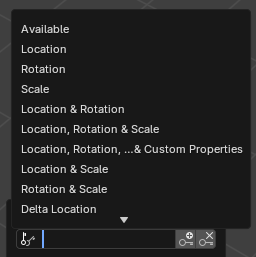
时间线插帧集。
A Keying Set is a named collection of animatable properties. If you select one and then press I while not hovering over any input field, Blender will create keyframes for the properties in that keying set.
If you don't have a keying set selected, you'll get keyframes on a default set of properties instead (e.g. Location/Rotation/Scale for objects).
There are a number of predefined keying sets, but you can also create your own in the Keying Sets panel.
- 插入关键帧 I
于当前帧插入关键帧。
- 删除关键帧 Alt-I
于当前帧删除关键帧。
- 新关键帧类型
新创建关键帧的关键帧类型。
自动插帧
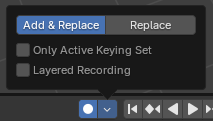
自动插帧按钮。
When the record button () is enabled, Blender will automatically create keyframes on the current frame whenever you transform an object or bone in the 3D Viewport (or change one of its transform properties in the Properties Editor).
One special use case is to record a camera path as you fly through the scene. See Fly/Walk Navigation.
Note
Auto Keying only works for transform properties (Location, Rotation, Scale). It won't create a keyframe if you change, say, the color of a material -- you still have to do that manually.
- 模式
- 添加 & 替换:
按需添加或替换关键帧。
- 替换:
仅替换已有的关键帧。
- 仅活动插帧集
By default, Auto Keying will create keyframes even for properties that are not in the active keying set. Use this checkbox to change that.
- 分层记录
为动画上的每个循环/通道添加一个新的非线性动画轨道,以便进行无损调整。
播放控制
这些按钮用于设置当前帧并控制播放。

传输控制。
- 跳转到开头 Shift-左←
将播放头设置为帧范围的起始位置。
- 跳转到上一个关键帧 上↑
将播放头移动到上一个关键帧。
- 倒放 Shift-Ctrl-空格键
开始以倒放方式播放动画。
- 播放 空格键
开始播放动画。
- 暂停 空格键
停止播放动画。
- 跳转到下一个关键帧 下↓
移动播放头到下一关键帧。
- 跳转到结尾 Shift-右→
设置播放头到帧范围结束点。
- 按增量向后跳转 Ctrl-左←
按用户配置的增量向后跳转播放头。
- 按增量向前跳转 Ctrl-右→
按用户配置的增量向前跳转播放头。
此外,在按增量跳转按钮右侧还有一个可访问的菜单,用于设置其增量:

帧控制
- 当前帧 Alt-滚轮
The number of the frame that's currently being displayed in the 3D Viewport. This is also the location of the Playhead.
- 使用预览范围
The Preview Range is an alternative Frame Range that you can use for focusing on a particular part of the animation. It lets you repeatedly play a short segment without having to manually rewind or change the frame range of the entire scene.
This range only affects the preview in the 3D Viewport; it doesn't affect rendering.
The boundaries of the Preview Range are shown in dark orange. You can quickly configure and enable it by pressing P and dragging a box. To disable it, you can press Alt-P.
- 起始、结束
场景(或预览范围,若启用)的起始/结束帧。