Restricción Seguir rastro
The Follow Track constraint makes an object imitate the movement of a motion tracking marker. This makes the object appear at the same position in the render as where the marker appears in the motion-tracked video.
By default, the object follows the 2D motion of the marker in the video on a plane in the 3D world. However, it’s also possible to make the object follow the reconstructed 3D position of the marker. The latter requires setting up at least eight markers and clicking Solve Camera/Object Motion.
Ver también
The Vincular Vacío a un rastro button in the Movie Clip Editor creates an Empty and assigns it this constraint in one click.
Opciones
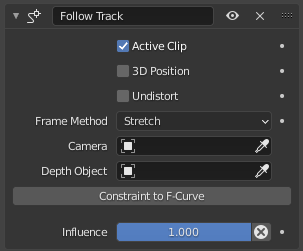
La restricción Seguir rastro.
- Clip activo
Whether the tracking marker is in the scene’s Active Clip. If unchecked, a selector appears for choosing another clip.
- Posición 3D
Whether to use the tracking marker’s reconstructed world position (instead of its position in the flat video).
- Revertir distorsión
Whether to use the tracking marker’s video position after compensating for lens distortion (see Lens settings). Not available when 3D Position is checked.
- Método de encuadre
How to handle a difference in aspect ratio between the tracked video footage and the rendered image.
- Estirar:
The object is positioned as though the video were stretched to exactly match the size of the rendered image.
- Ajustar:
The object is positioned as though the video were made as large as possible while still keeping its original aspect ratio and fitting inside the rendered image along both axes.
- Recortar:
The object is positioned as though the video were made as large as possible while still keeping its original aspect ratio and fitting inside the rendered image along one axis.
Ver también
The Definir como fondo button in the Movie Clip Editor sets the video as the background for the camera. This background can then be resized by setting the same Frame Method in the Imágenes de fondo panel of the camera’s properties.
- Objeto
The physical object containing the tracking marker to follow. See the Panel Objetos in the Movie Clip Editor. If left empty, Track will list the markers used to reconstruct the physical camera.
- Rastrear
El marcador de rastreo a seguir.
- Cámara
The Blender camera in whose field of view the constrained object should appear. If left empty, the scene’s active camera is used.
- Objeto de profundidad
If this object is set, the constrained object will be projected onto its surface. This can be used to create a facial makeup effect, for example. Not available when 3D Position is checked.
- Restricción a curvas-f
Replaces the constraint by a set of equivalent keyframes.
- Influencia
How strongly the constraint affects its owner.