Nodo Máscara elíptica
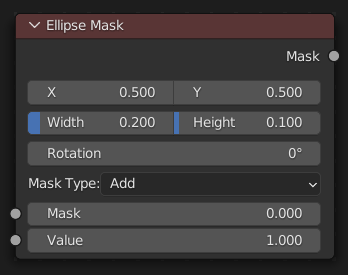
The Ellipse Mask node creates an image suitable for use as a simple matte or vignette mask.
Entradas
- Operación
Operation to use against the input mask.
- Agregar:
This yields the union of the input mask and the generated mask: Areas covered by the generated mask are set to the specified Value. Other parts of the input masked are passed through unchanged, or set to black if there is no input mask.
- Sustraer:
Values of the input mask have the specified Value subtracted from them.
- Multiplicar:
This yields the intersection of this generated mask and the input mask: Values of the input mask are multiplied by the specified Value for the area covered by the generated mask. All other areas become black.
- Negar:
Any area covered by both the input mask and the generated mask becomes black. Areas covered by the generated mask that are black on the input mask become the specified Value. Areas uncovered by the generated mask remain unchanged.
- Máscara
An optional mask to use as the base for mask operations.
- Valor
Intensity of the generated mask.
- Posición
Position of the center of the ellipse as a fraction of the total width or height. (0.5, 0.5 creates a centered ellipse; 0.0, 0.0 creates an ellipse with its center in the lower left.)
- Tamaño
Width/Height of the ellipse as a fraction of the total image width, not height. Equal Width and Height values with produce a circle.
- Rotación
Rotation of the ellipse around its center point.
Salidas
- Máscara
A generated elliptical mask merged with the input mask. The created mask is the size of the current scene render dimensions.
Truco
For soft edges, pass the output mask through a slight Blur node. For a vignette, pass the output of this through a heavy blur.
Uso
The Ellipse Mask node supports an interactive gizmo in the node editor. To enable it, make sure Active Node gizmo is enabled, and select the Ellipse Mask node in the Compositor.
El manipulador permitirá la manipulación directa de la forma de la máscara:
Arrastrar los bordes para ajustar individualmente el ancho o la altura.
Arrastrar las esquinas para ajustar simultáneamente el ancho y la altura.
Arrastrar la cruz (X) en el centro para mover la posición de la máscara.
Arrastrar el punto en el centro para rotar la máscara.
Hold Shift while dragging edges or corners to preserve the current aspect ratio.